Exporting the select activities from Windows
This section assists you in migrating objects on a Windows operating system.
To migrate objects:
-
Go to the location where Adeptia Connect is installed, for example, C:\Program Files\AdeptiaConnect\AdeptiaConnect-<version>.
-
Open the bin folder.
-
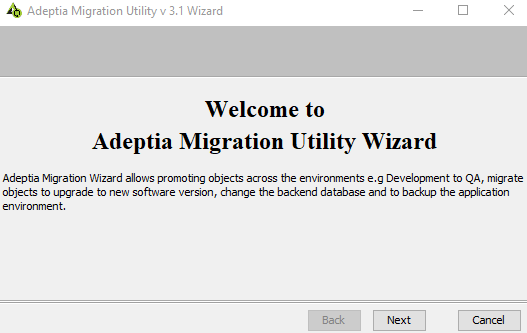
Double-click MigrationUtility.exeto run the Migration utility.
-
Click Next.

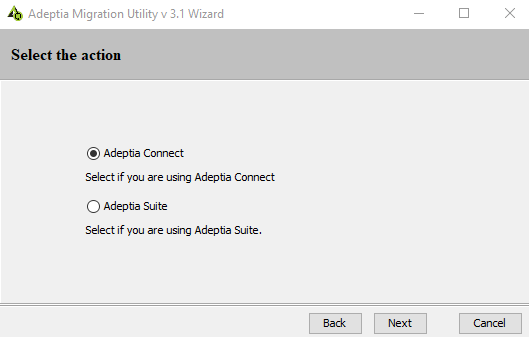
Before you start migration, you need to determine which application’s activities, Connect or Suite, you are going to migrate. In case of using Suite as a standalone application, you need to select Adeptia Suiteon the screen to migrate activities specific to the application. Select Adeptia Connect to migrate the activities that belongs to Connect. -
Select Adeptia Connect. In case you select Adeptia Suite, click hereto follow the steps for migration.
-
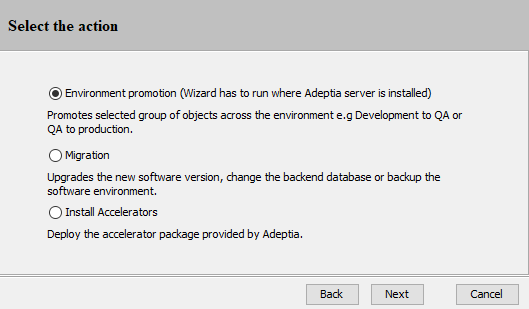
Select the appropriate way to run Migration utility and click Nextto proceed further.
-
Select Environment Promotion, and click Nextto proceed further.