Exporting the activities - Linux
This section assists you in exporting Adeptia Connect activities on a Windows operating system where the application is installed.
Steps to export the activities
To export activities from your AC v3.5 Windows environment, you must run the Migration Utility. Running this utility generates an export ZIP file that can be used to restore the exported activities in the target environment.
Follow the steps below to export the activities into an export ZIP file.
 | If you're on a lower version of the application, you first need to upgrade to AC v3.5 and thereafter apply its latest patch to come to its most recent version. |
|---|
- Open Terminal, and go to the ServerKernel directory.
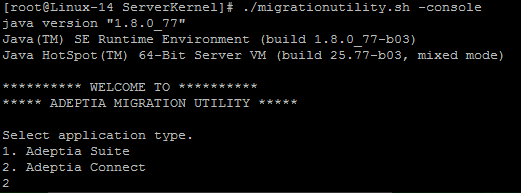
- Enter the following command, and then press Enterto start the Migration Utility.
./migrationutility.sh –console
-
Type 2 for Adeptia Connect, and then press Enter.
-
Type 2 for Migration.

-
Type 1 to select Export/Backup Without Logs, and then press Enter.

Selecting Export/Backup Without Logs allows you to export all source database activities and configuration files without logs. 
-
Provide the source system directory where Adeptia Connect is installed (till Adeptia Server), and then press Enter.
-
Type the target directory and the name of the zip file wherein you want to save the exported activities.

-
Type Y or N based on whether****you want to take the backup of the original files or not, and press Enter. The utility starts exporting the activities. A message "Backup completed successfully" appears confirming activities have been exported successfully to the zip file. In case of failure, it displays an error message and rolls back the entire operation.
-
Press Enterto exit from the utility.
Once you have created the zip file containing the exported activities, you can use it to restorethe activities to the new environment.