Connecting to the Jump Box from Windows
To connect to the Jump Box from your local Windows system, you need to use a SSH tool, for example, PuTTY.
To connect through PuTTY, follow the steps below:
-
Launch PuTTY.
-
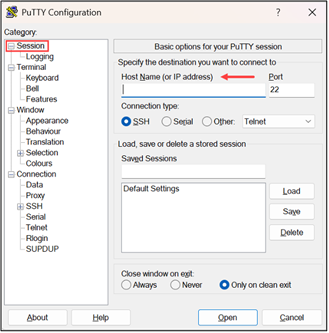
In Session > Host Name (or IP address), enter your VM’s public IP.
-
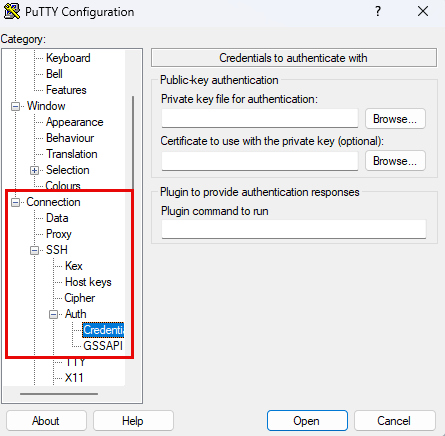
Go to Connection > SSH > Auth > Credentials.
-
Under Private key file for authentication, click Browse to select your .ppk file.

When you create an Azure Linux VM and choose SSH key authentication, Azure generates an SSH public–private key pair for you, and the private key is provided as a PEM file (for example, ubuntu2404.pem) for download. Windows users who connect via PuTTY must convert this .pem file into a .ppk file because PuTTY uses the PPK format. -
Click Open.
-
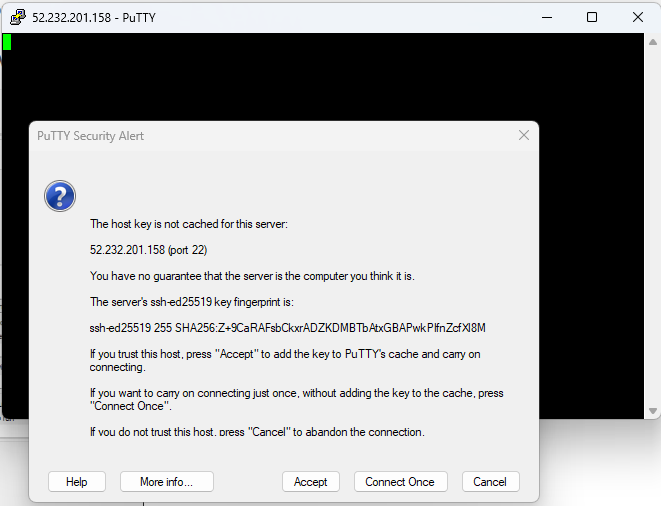
Click Acceptif you get a security alert. This prompt appears when you are using PuTTY for the first time.
-
On the CLI prompt of the Jump Box, enter the Jump Box admin username to log in to it.