Provisioning the database server for cloud deployment
To deploy the application you must provision either of the databases discussed in the document:
- Provisioning the Azure MYSQL Database
- Provisioning the Azure SQL Database
- Navigate to Create SQL Database Server
- Configure the following
- Create the SQL Server
Provisioning the Azure MYSQL Database
Follow the steps outlined below to provision Azure MySQL Database:
-
Sign in to the Azure Portal.
-
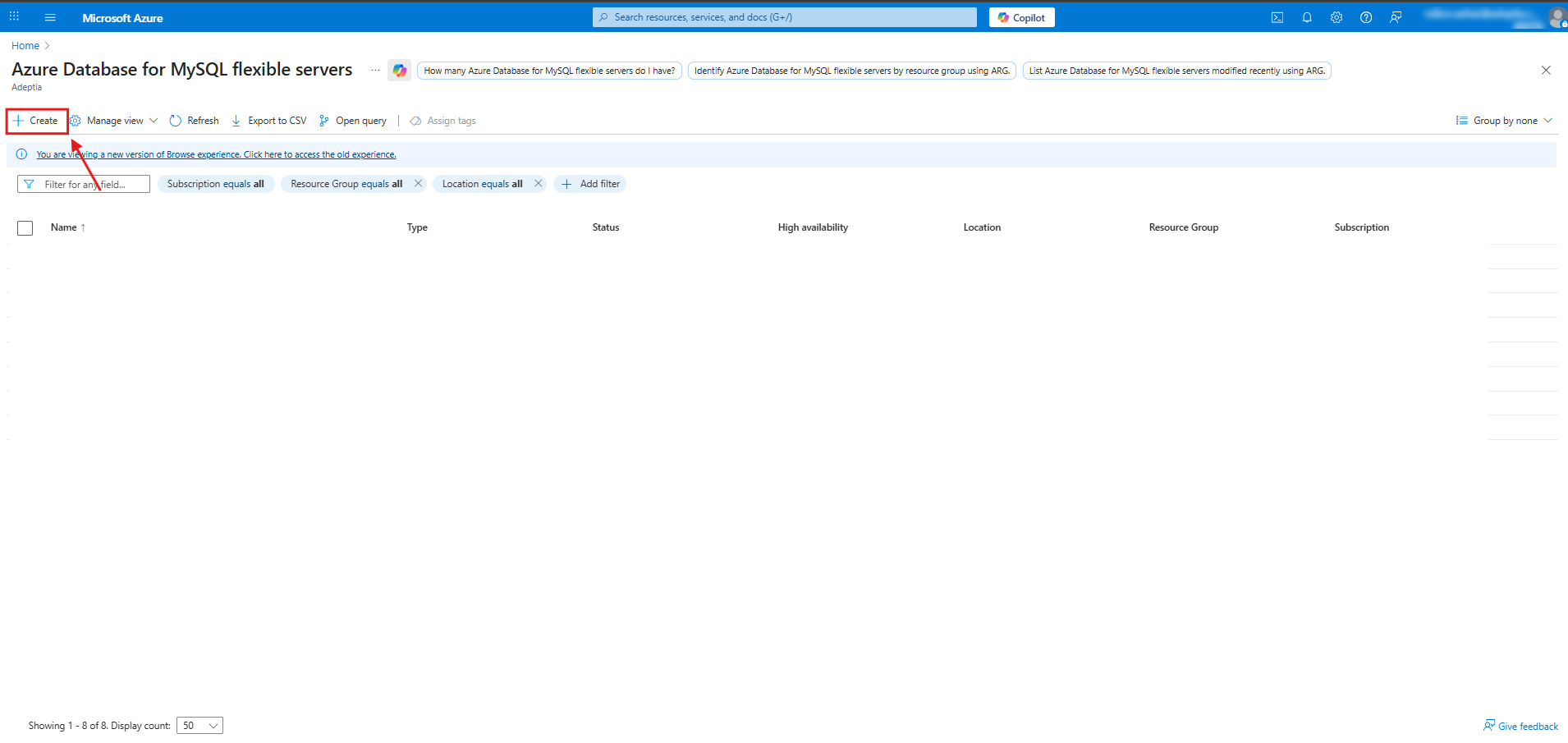
In the left-hand menu, select Azure Database for MySQL flexible servers.
-
Click Create.
-
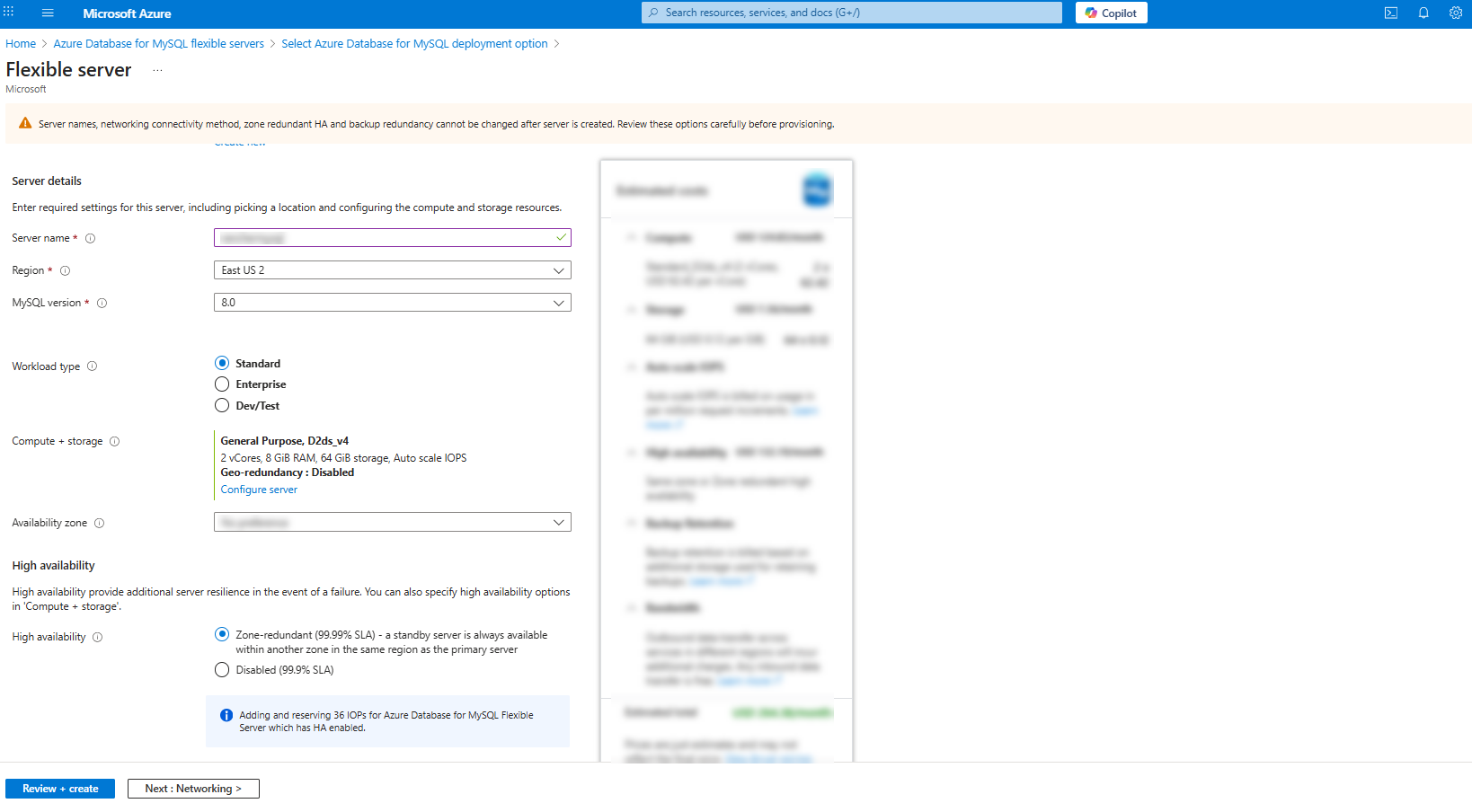
In the Basics Configuration section, provide the following details:
- Resource Group: Select
rg-mysql-flex(create it if it doesn’t exist). - Server Name: Enter
mysql-flex-rancher. - Region: Choose the same region as your VM.
- Availability Zone: Select Zone 3.
- MySQL Version: Choose MySQL 8.0.
- Admin Username: Enter a username, for example, dbadmin, using which the database server can be accessed.
- Password: Provide a strong password (≥16 characters), avoiding special characters that may cause escape issues.
- Resource Group: Select
-
In the Compute + Storage section, provide the following details:
- Compute Tier: Select General Purpose.
- Compute Size: Choose Standard_D2ads_v5 (2 vCores, 8 GB RAM).
- Storage: Set to 64 GB.
- IOPS: Set to 492.
- Enable Auto-scale storage.
-
In the Backup section, provide the following details:
- Backup Redundancy: Select Locally redundant.
- Retention Period: Set to 7 days.
-
In the Networking section, provide the following details:
- Connectivity Method: Select Public access.
- Firewall Rules: Choose Allow only selected IP ranges and click Add client IP.
- Enforce SSL: Set to Enabled.
- Virtual Network (VNet Integration): Leave blank.
-
Click Review + Create to validate all settings.
-
After validation, click Create to deploy the server.
Provisioning the Azure SQL Database
Follow the steps below to provision SQL database server on Azure.
Navigate to Create SQL Database Server
- Sign in to the Azure Portal.
- Go to Azure SQL → SQL logical servers.
- Click Create to start the SQL Database Server creation wizard.
Configure the following
Basics
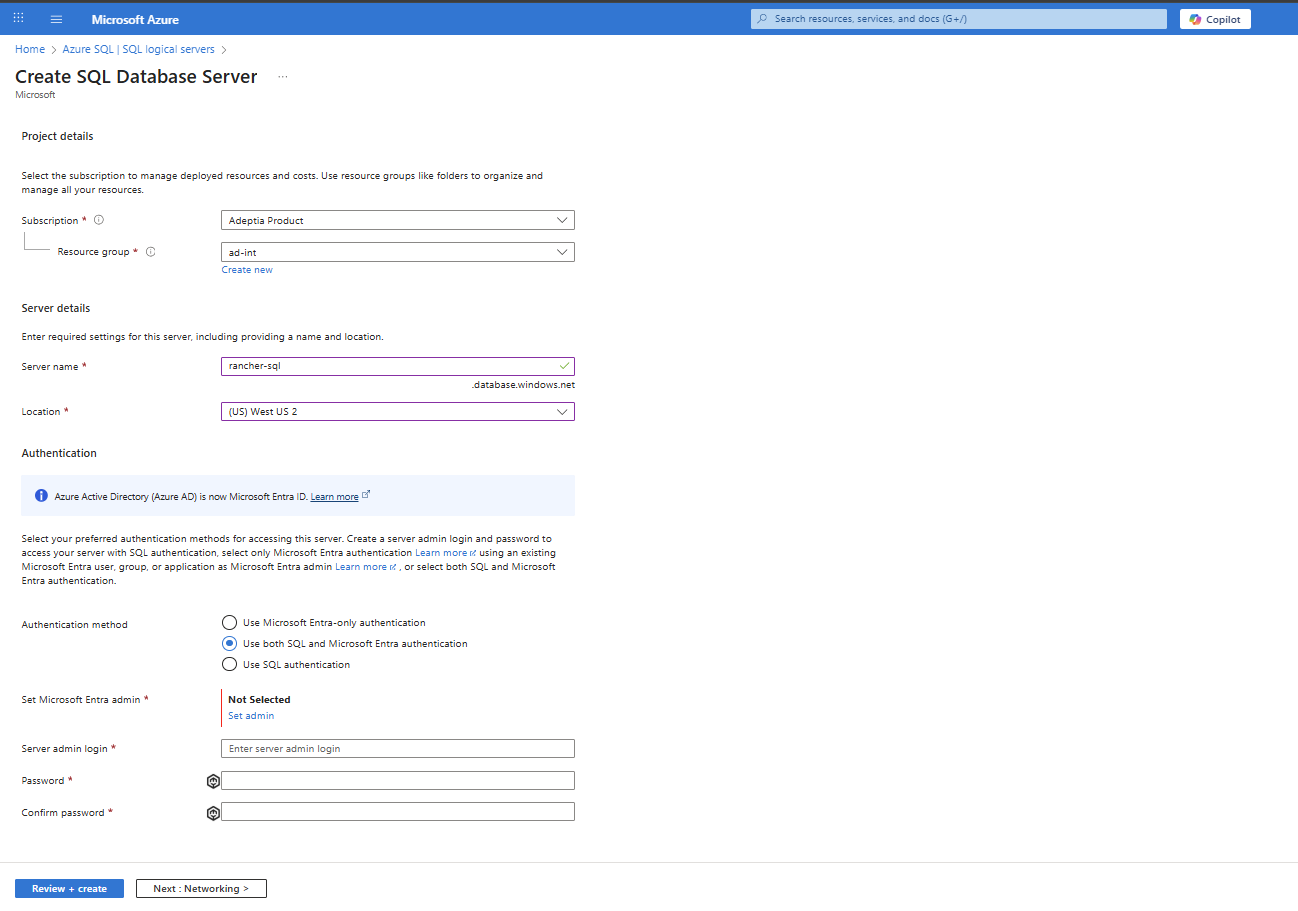
Project Details
-
Subscription
- Select the appropriate subscription
Example:
Adeptia Product Development
- Select the appropriate subscription
Example:
-
Resource group
- Select an existing resource group or click Create new
Example:
ad-int-eus-dev-rg-010
- Select an existing resource group or click Create new
Example:
Server Details
-
Server name
- Enter a unique server name
Example:
rancher-sql - Azure automatically appends:
.database.windows.net
- Enter a unique server name
Example:
-
Location
- Select the region closest to your application
Example:
West US 2
- Select the region closest to your application
Example:
Authentication
- Authentication method
- Select Use both SQL and Microsoft Entra authentication
- Microsoft Entra admin
- Click Set admin
- Choose the appropriate Entra user or group
- Server admin login
- Enter SQL admin username
- Password / Confirm password
- Enter and confirm a strong password
Networking
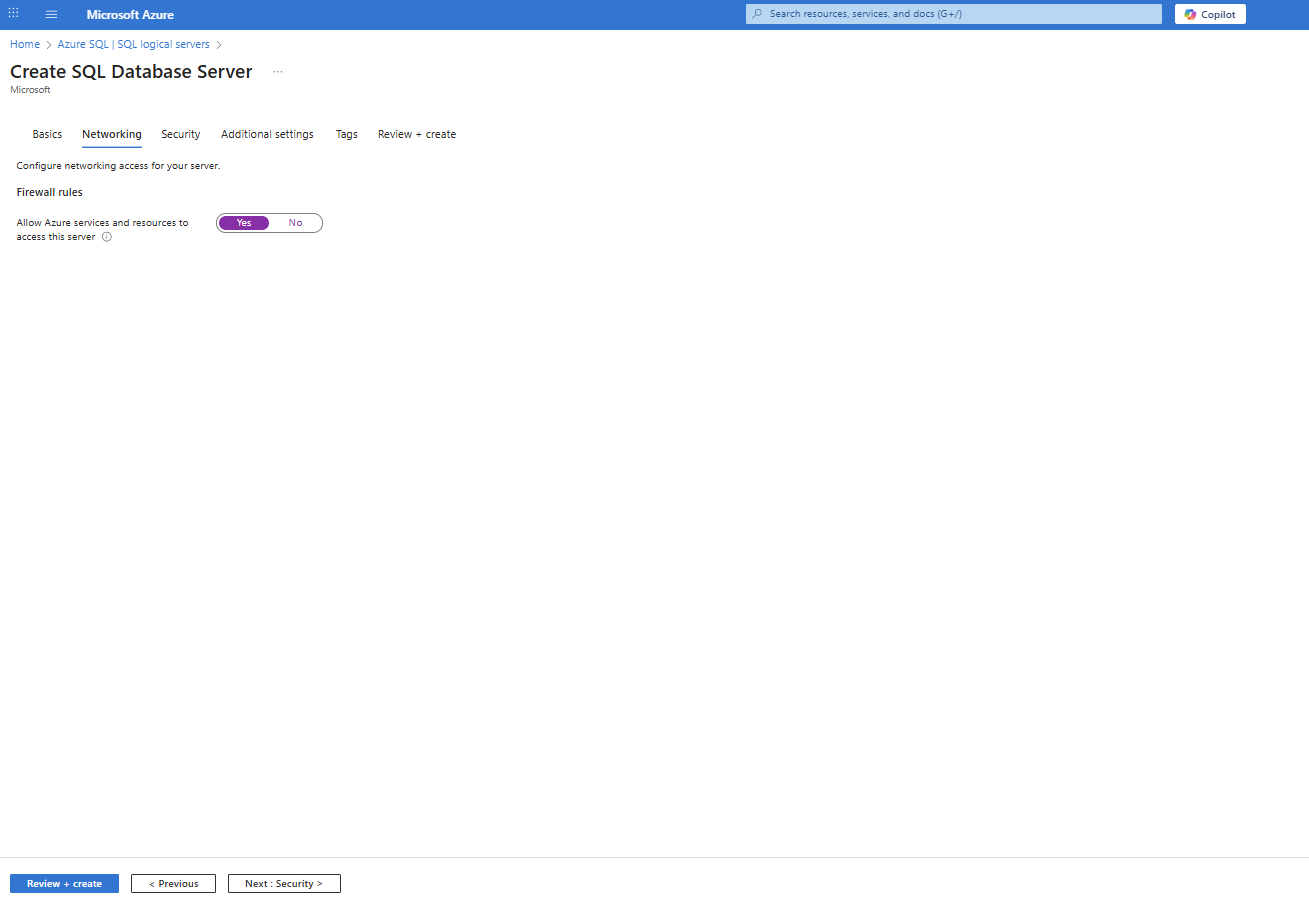
Firewall Rules
-
Allow Azure services and resources to access this server
- Select Yes
This allows Azure-hosted services (such as App Services, Azure Functions, AKS, etc.) to connect to the SQL server.
Security
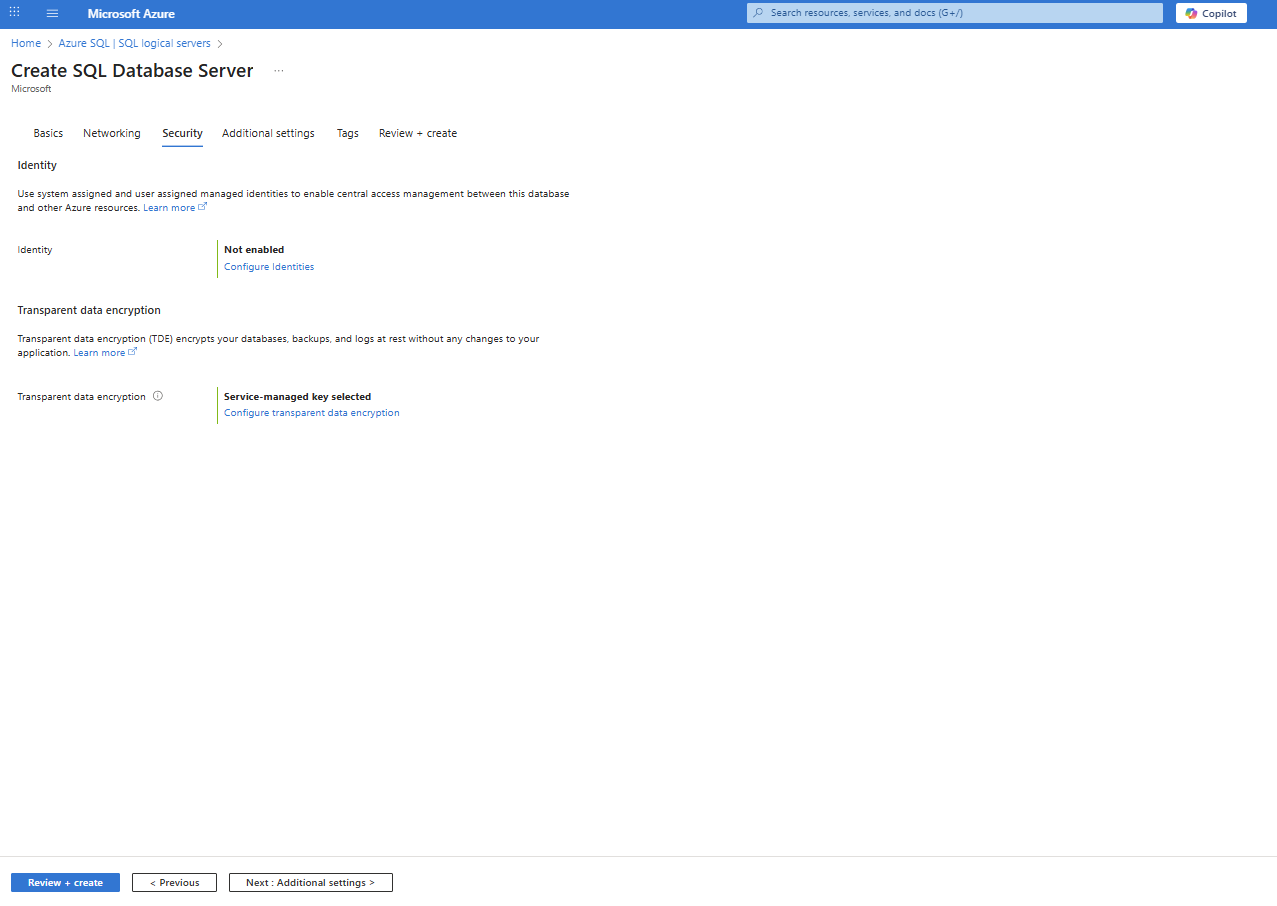
Identity
-
Managed Identity
- Leave as Not enabled (default)
- Optional: Can be enabled later if required
- Transparent Data Encryption (TDE)
-
Transparent data encryption
- Leave default: Service-managed key selected
This ensures encryption at rest for databases, backups, and logs.
Additional Settings
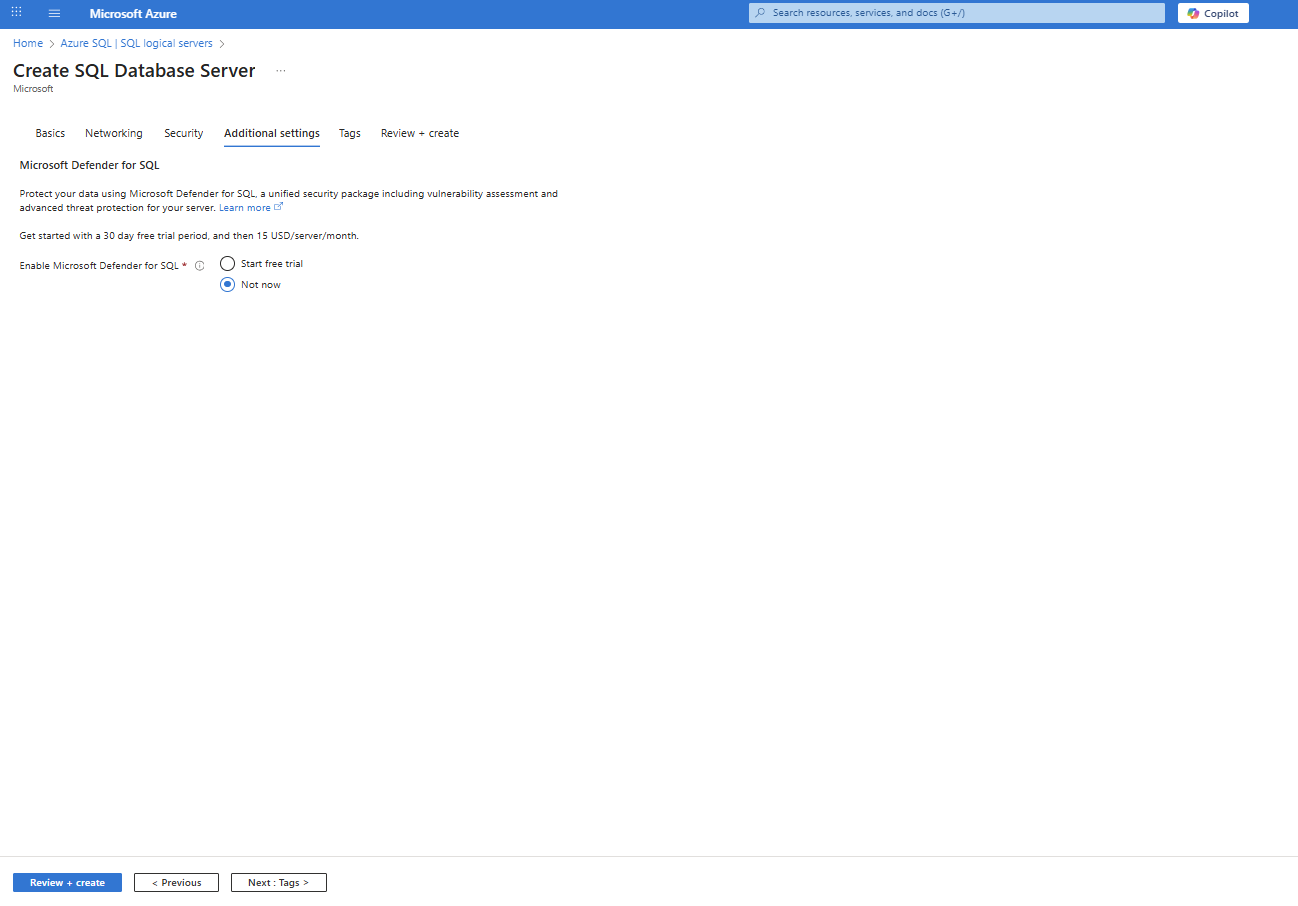
Microsoft Defender for SQL
-
Enable Microsoft Defender for SQL
- Select Not now
Defender can be enabled later if advanced threat protection is required.
Tags (Optional)
-
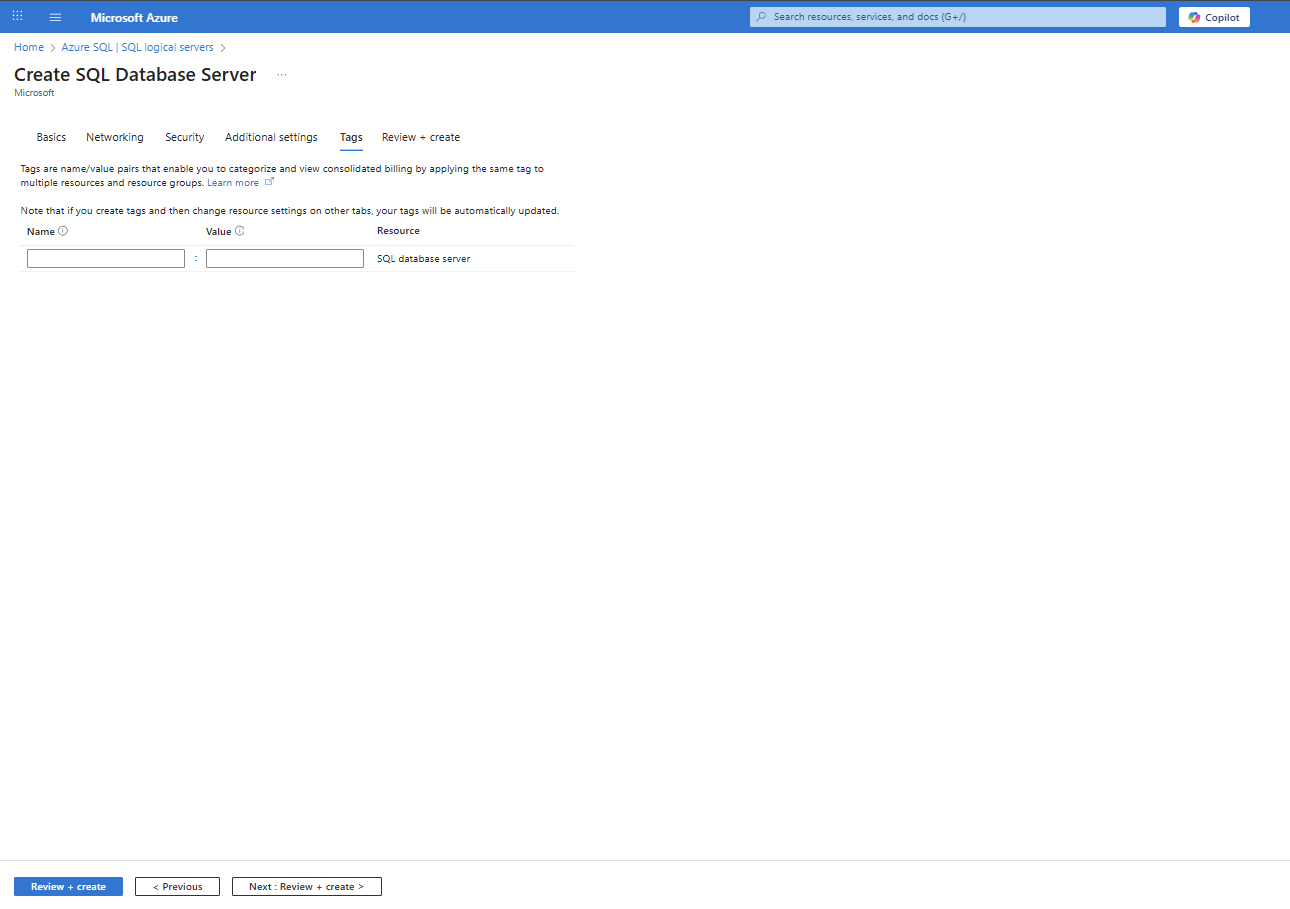
Add tags if required for cost management or governance Examples:
Environment : DevProject : Rancher
-
If not required, leave empty.
Review + create
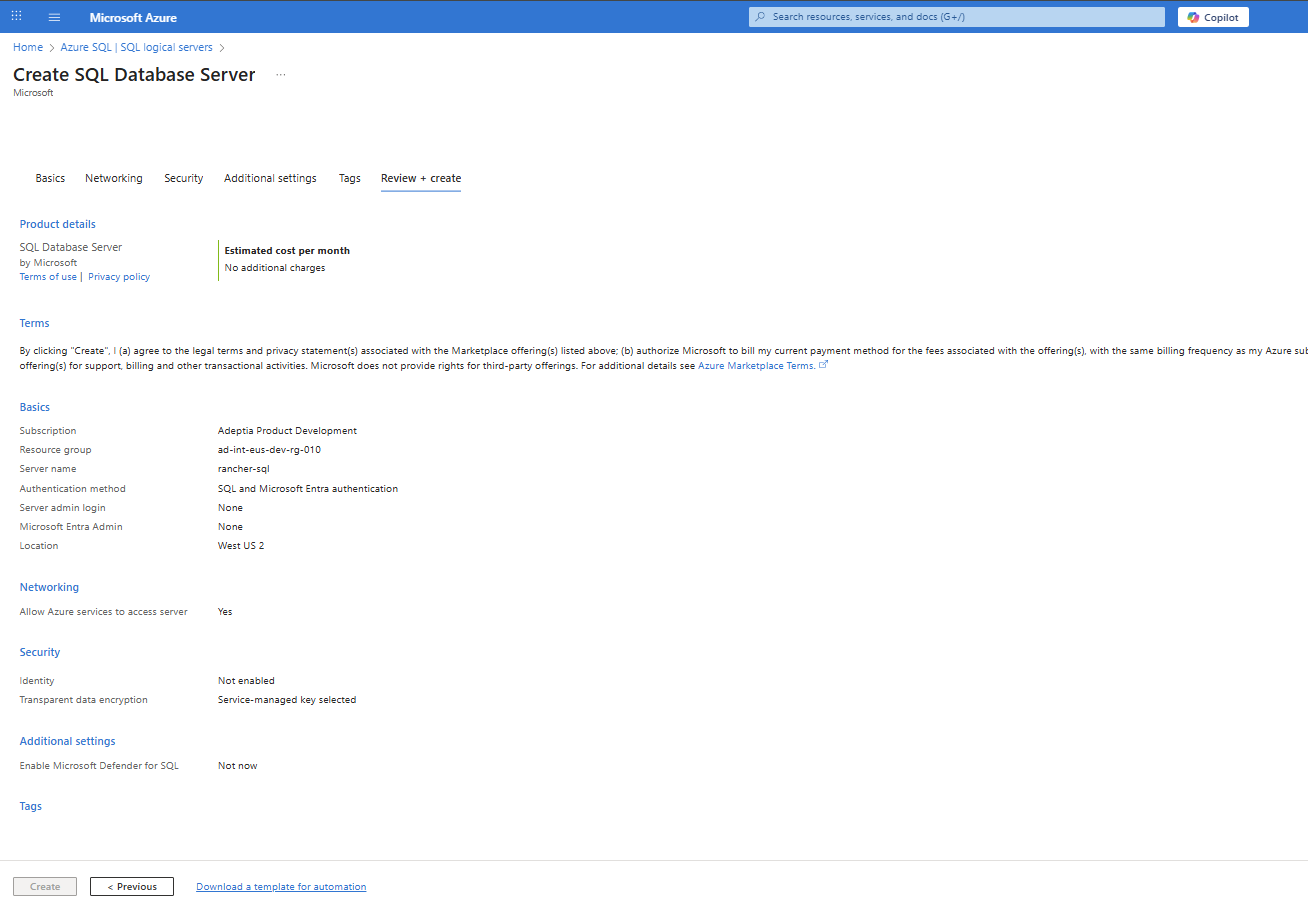
Review Configuration
Verify all selected settings:
- Subscription: Adeptia Product Development
- Resource group: ad-int-eus-dev-rg-010
- Server name: rancher-sql
- Authentication: SQL and Microsoft Entra authentication
- Location: West US 2
- Networking: Azure services allowed
- Security: TDE enabled (service-managed key)
- Defender: Not enabled
- Estimated cost: No additional charges
Create the SQL Server
- Click Create to complete provisioning the SQL database server.