Create a rule set
In Adeptia's AI Business Rules framework, a rule set is a structured collection of rules that execute as a unified unit on a specific set of records. The rule set develops its logic by sequential addition of rules, where each rule contributes to the comprehensive evaluation of data. When invoked, the rule set ensures thorough and consistent data processing by evaluating data according to the conditions defined across all included rules, aligning with established business logic and operational guidelines.
Prerequisite
Before creating a rule set, ensure that:
- You have successfully created the rules required for your rule set.
- The rules to be included in your rule set are in active state.
Steps to create a rule set:
-
In the Adeptia Connect application, navigate to the Dashboard, and then click AI Business Rules.**
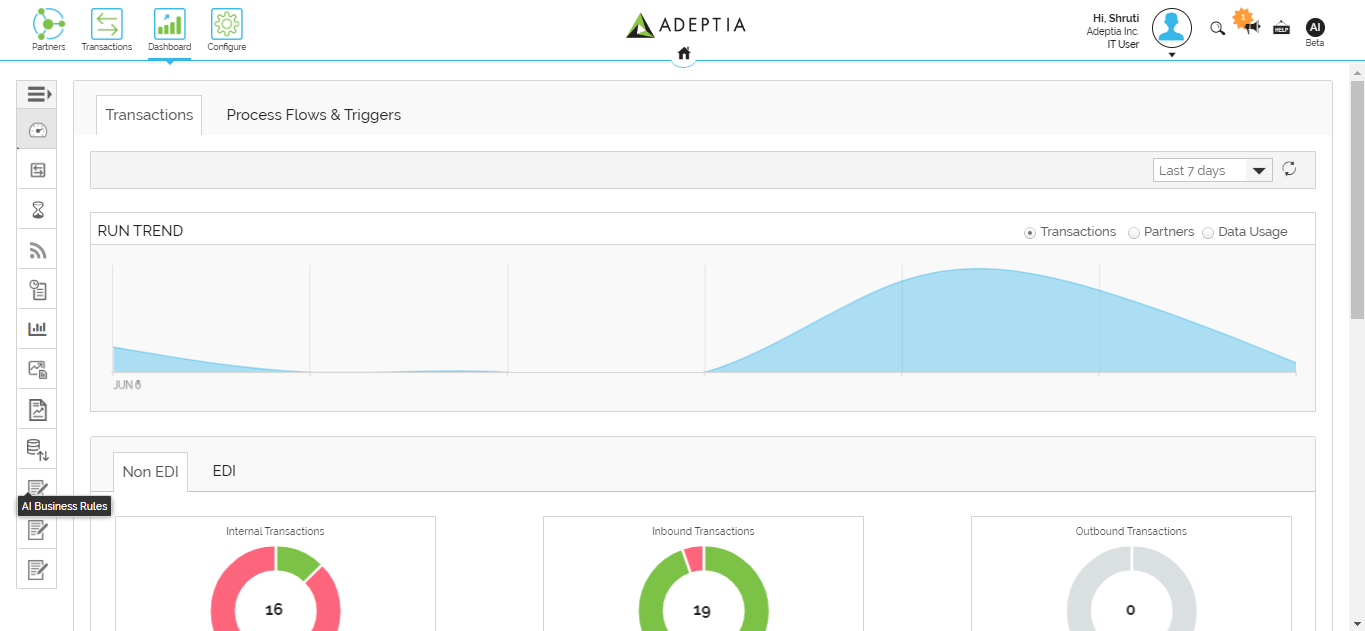 **
** -
On the AI Business Rules screen, click Let's Get Started.
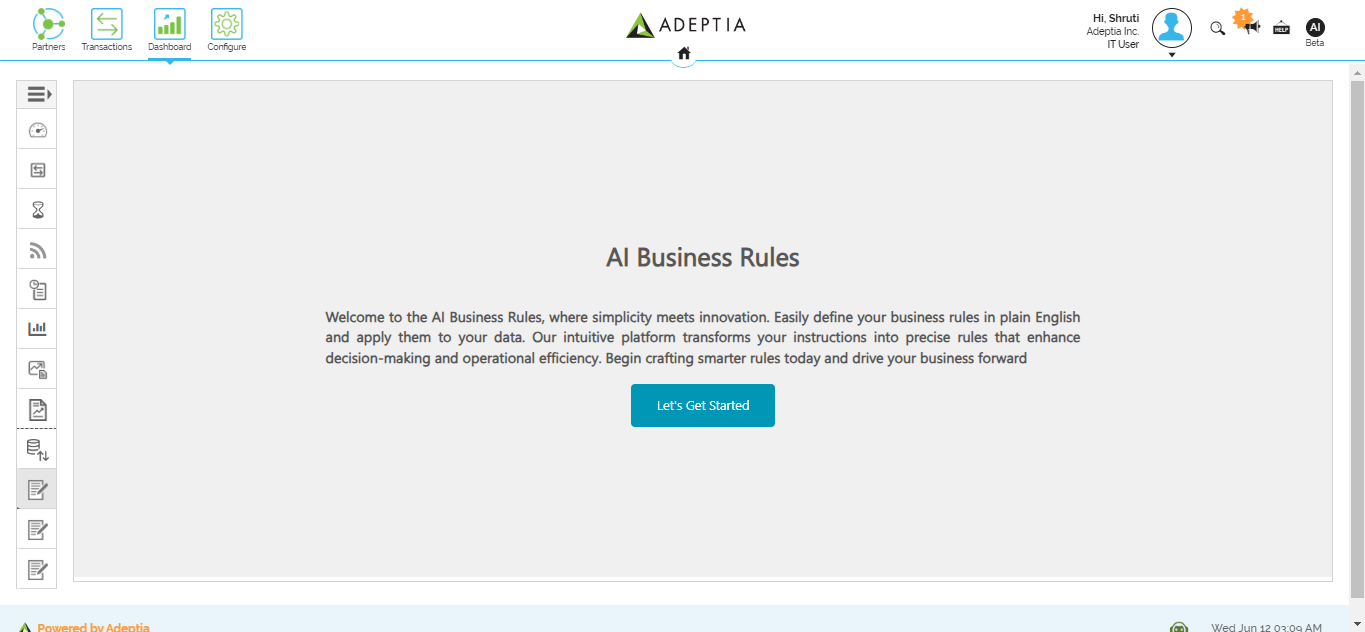
You will be redirected to the AI Business Rules Dashboard. -
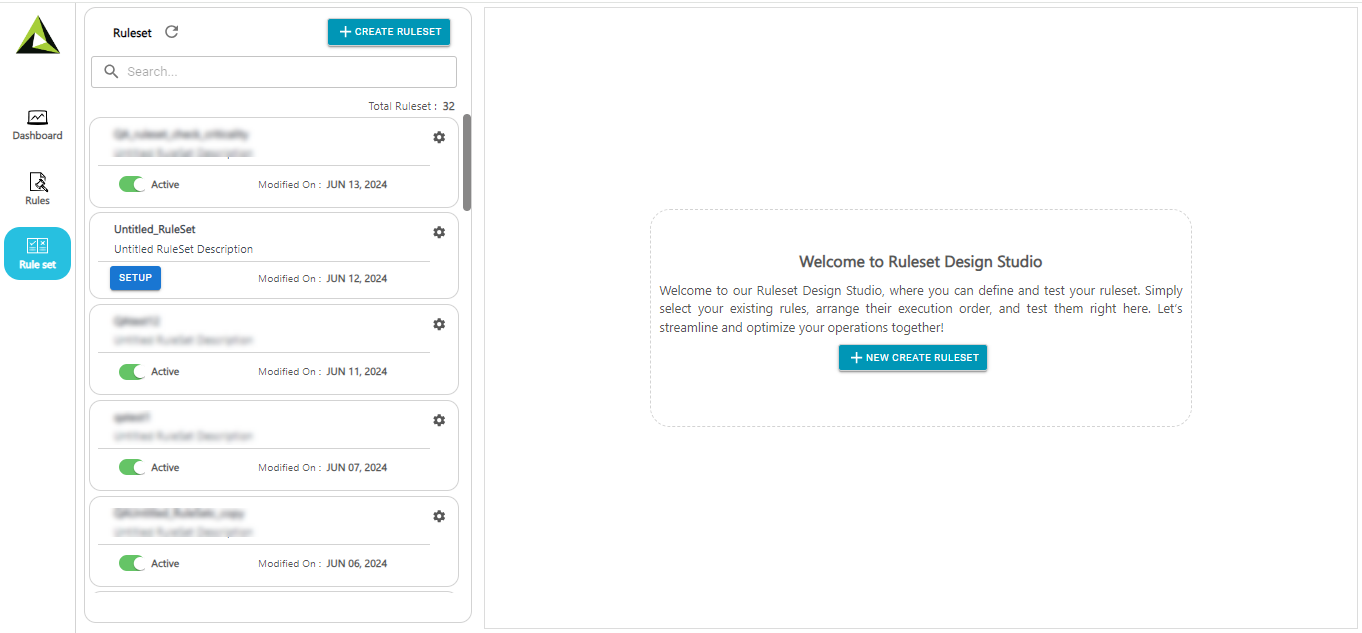
On the left pane, click Rule set.
-
On the Rule set screen, click CREATE RULESET.
-
On the Define Ruleset screen, click ADD next to the rules you want to include in your rule set.
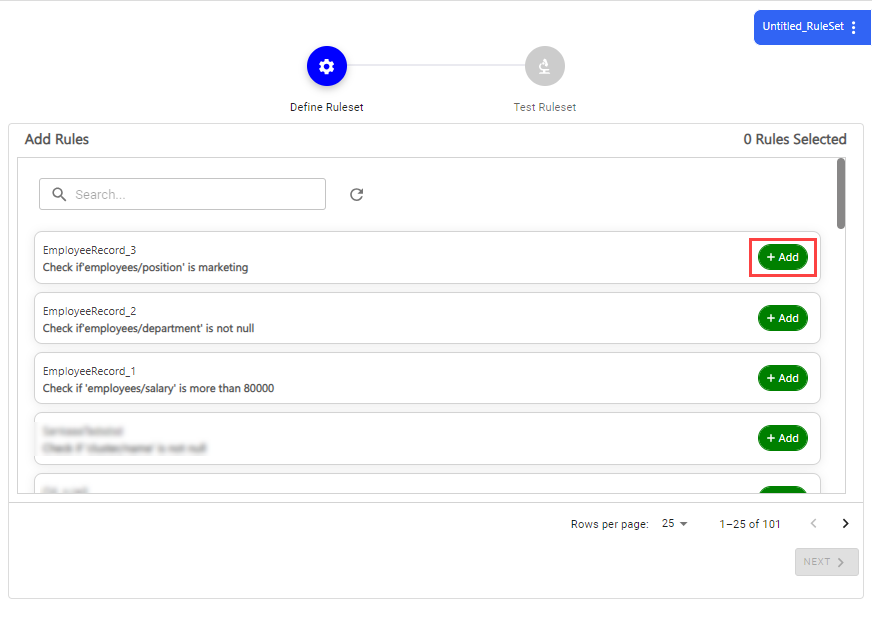

- While adding the rules, ensure that you select them in the order that reflects the intended logic of your ruleset.
- You can remove or search for a rule from the Define Ruleset screen. In the Add Rules section, click
 to remove a rule from your rule set or search for a rule to be added to your rule set using
  .
.
-
Click NEXT.
-
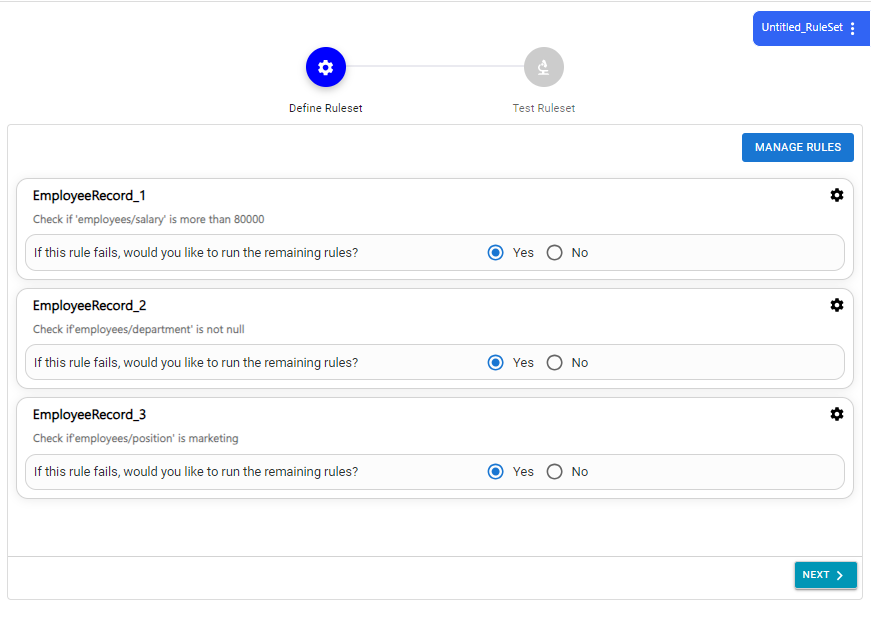
In the If this rule fails, would you like to run the remaining rules? field**, s**elect Yes if you want the subsequent rules to run when the mentioned rule fails. Else select No.

- You can modify the rule set by adding or removing rules using the MANAGE RULES option.
- If you want to edit, delete, or view details of the rules defined in the rule set, click
 next to the rule you want to act upon.
-
Click NEXT.
-
On the Test Ruleset screen, click Browse Files to upload a JSON file to test the ruleset.
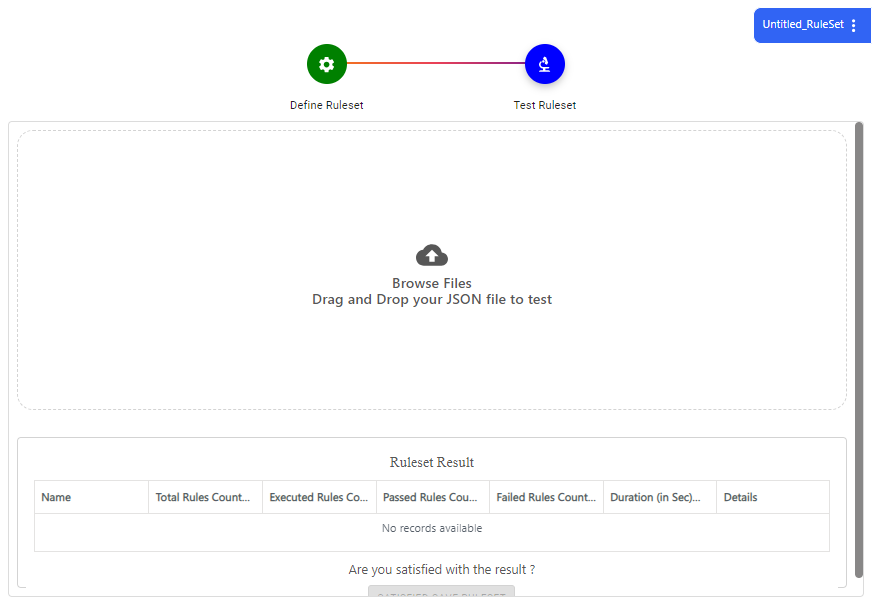
The result is generated in the Ruleset Result section, providing the following information:
Field name Description Total Rules Count The total number of rules present in the rule set. Executed Rules Count The number of rules executed in the rule set. Passed Rules Count The number of rules that met the specified rule set conditions. Failed Rules count The number of rules that did not meet the specified ruleset conditions. Duration (in Sec) The amount of time taken to execute the rule set and generate results. Details You can access detailed information about the rule set result, generated upon uploading a test file. To do so, click View Details.
The following screenshot displays the result details.
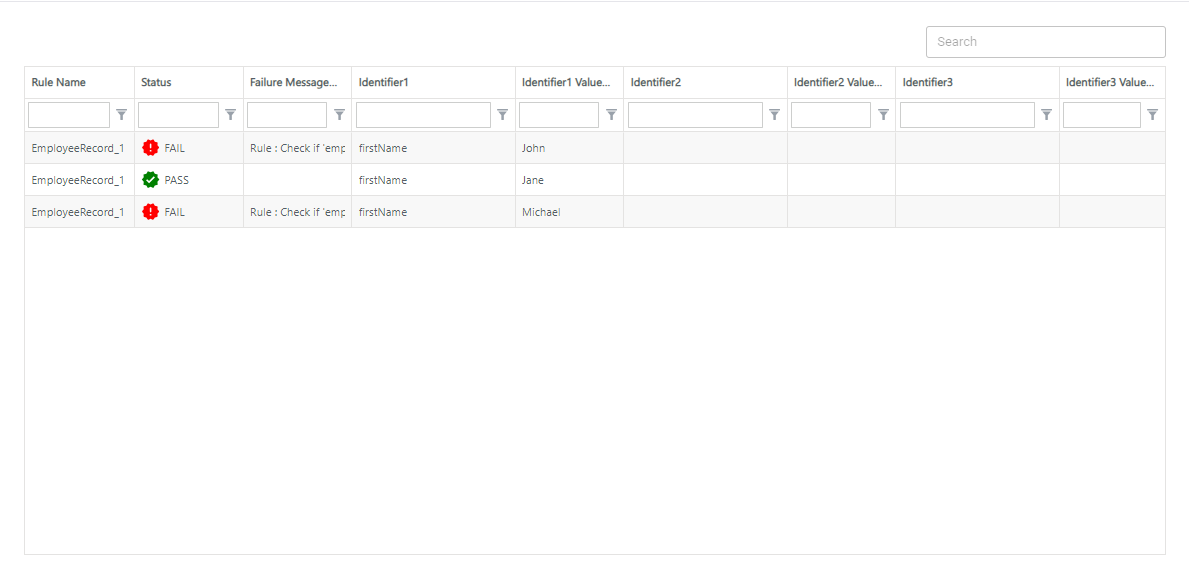
To refine the search results, click  next to the relevant column header.
 Once the result is generated you can perform any of the following actions:
OPTION DESCRIPTION REPLACE FILE Select this option to re-test the defined rule set with a new JSON file. CLEAR Select this option to clear the test results. TEST AGAIN Select this option to re-test the rule after making changes to the JSON file using the editor provided in the Test Ruleset screen. -
Click SATISFIED SAVE RESULT.
-
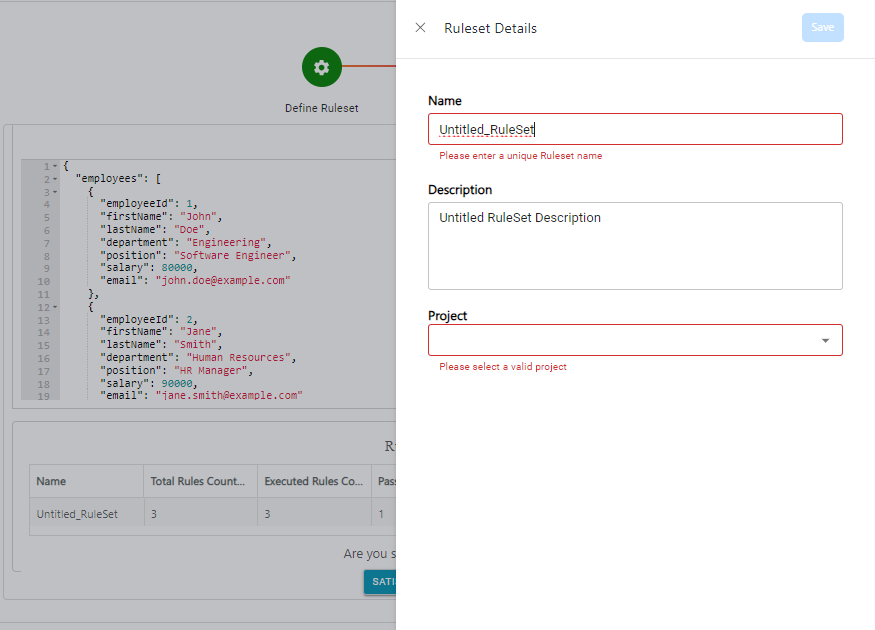
Enter the name and description for the rule set.
-
Select Project.
-
Click Save.
This saves and activates a rule set.