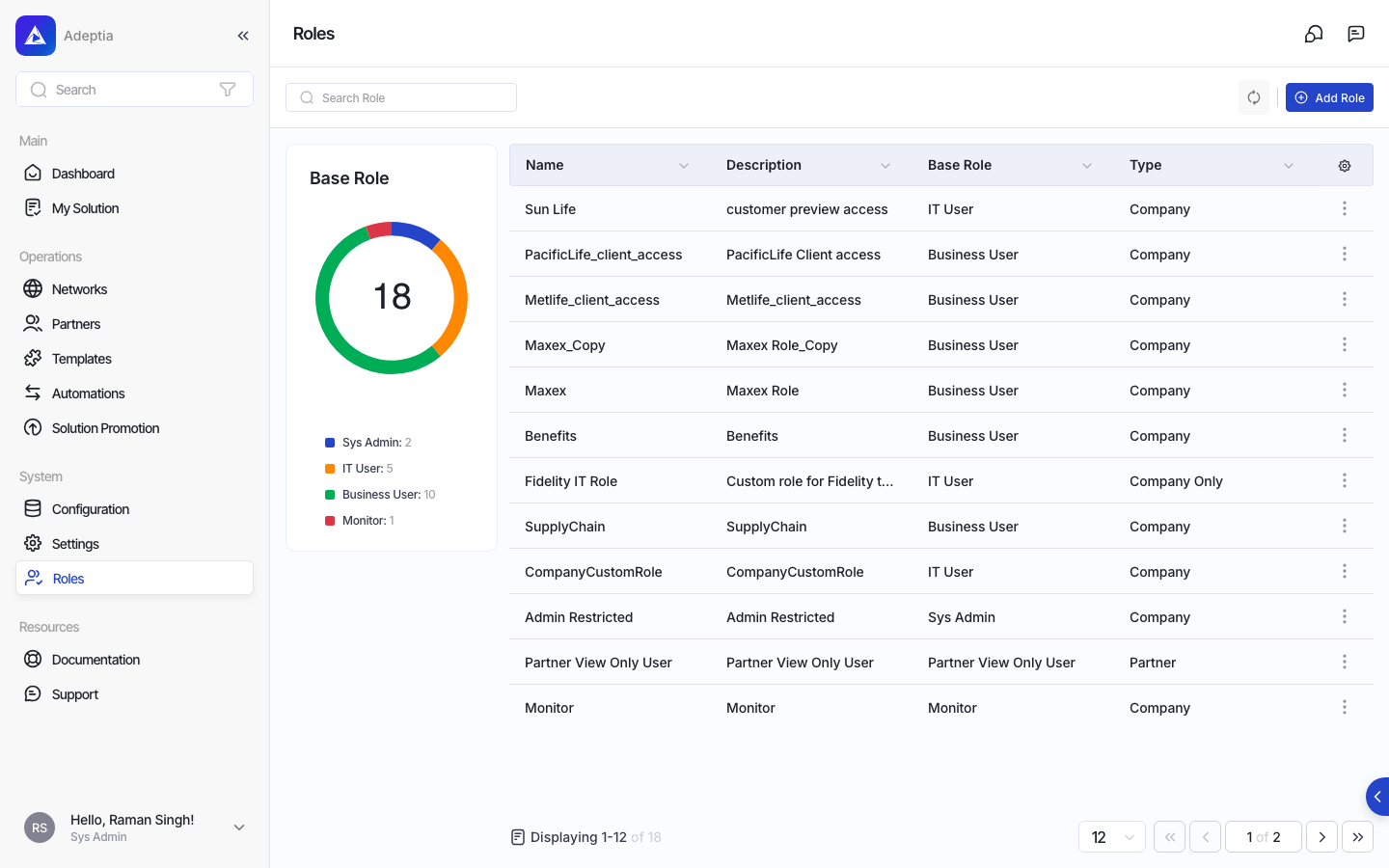
Roles & Access
Roles let administrators define exactly what each user can see and do within the Adeptia platform, giving your organization precise control over who accesses which resources, networks, and capabilities.
Where: Roles (sidebar navigation)
What roles control
A role is a named, reusable set of permissions that you assign to users. When a user logs in, their role determines which areas of the platform they can reach and what actions they can take on each entity.
Each role defines access across several dimensions:
| Dimension | What it controls |
|---|---|
| Entity permissions | Which platform entities a user can view, list, create, edit, or execute |
| Project access | Which projects the user can work within (specific projects, all projects, or none) |
| Network access | Which networks the user can access (specific networks, all networks, or none) |
| Network list management | Which networks the user can manage (available for the Company role type) |
| Custom entity permissions | Permissions for any custom entities your organization has defined |
Role types
Every role is built on one of three role types, which determine the overall scope of the role:
| Role type | Scope |
|---|---|
| Company | Full company scope, including project and network access and network list management |
| Company Only | Company scope with project and network access, but without network list management |
| Partner | Scoped to partner-level access |
Base roles and permission inheritance
When creating a role, you select a base role as the starting point. The base role provides a default set of entity permissions that you then refine. The available base roles depend on the role type you have chosen: partner role types draw from partner-oriented base roles, while company and company-only role types draw from company-oriented base roles.
Permission levels per entity
For each entity in the platform, a role can grant any combination of the following permission levels:
| Permission | Meaning |
|---|---|
| View Tab/Link | User can see the navigation entry for this entity |
| List & Read | User can list and read records |
| Create | User can create new records |
| Edit | User can modify existing records |
| Execute | User can run or trigger the entity |
Some permission levels have dependencies: for example, granting Create may automatically include Edit and Execute depending on the entity and role configuration. The permissions grid in the role form reflects these dependencies visually, disabling dependent checkboxes when a higher-level permission is already granted.
Additional access options
Beyond entity permissions, a role can also control two cross-cutting access options:
- View user data: whether users in this role can see data belonging to other users.
- Custom library access: available to system administrators, this controls whether users can work with custom libraries.
Copying an existing role
Rather than building a role from scratch, you can copy an existing role. The copy starts with the same permissions, project access, network access, and policy as the original. You provide a new name and description for the copy before saving.
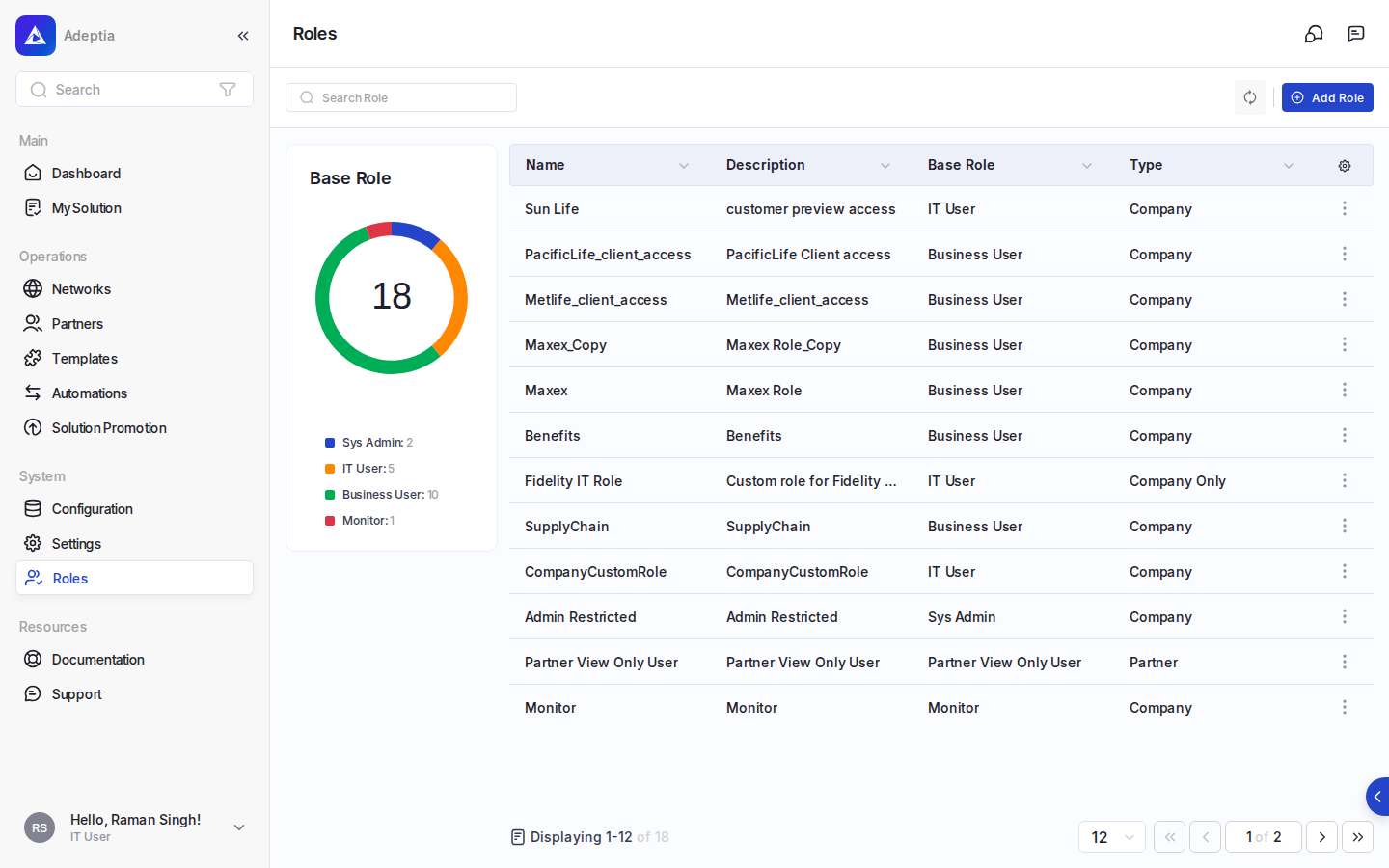
Creating a role
Creating a role is a guided, multi-step process.
Step 1: Role details
- On the Roles screen, open the option to add a new role.
- Enter a Role Name (required; maximum 156 characters).
- Enter a Description (required; maximum 300 characters).
- Select a Role Type (required): Company, Company Only, or Partner.
- Select a Base Role (required). The available base roles are filtered to match the selected role type.
- If the role type is Company or Company Only, select one or more values for Project access and Network access. For the Company role type, also select Network List access.
- If your organization has custom entities, an option to enable Permissions for Custom Entities appears. Check this if you want to define permissions for those entities.
- For Company or Company Only roles based on certain base roles, an Allow Migrated Object option appears. Check this to allow users in this role to take ownership of migrated objects.
- Click Next to proceed.
Step 2: Standard entity permissions
On the permissions screen, review and adjust the entity permissions table. Each row represents a platform entity; each column represents a permission level. Check or uncheck permissions as needed. Some checkboxes are fixed based on the role type and base role combination and cannot be changed.
You can also set:
- View User Data: check to allow users in this role to see other users' data.
- Custom Library (visible to system administrators only): check to grant custom library access.
A link to the permission model documentation is available on this screen for reference.
When finished, click Submit to save the role, or Next if you enabled custom entity permissions.
Step 3: Custom entity permissions (conditional)
This step appears only when you enabled Permissions for Custom Entities in Step 1. Review and set permissions for each custom entity, then click Submit to save the role. Use Back to return to the previous step.
Editing a role
Editing an existing role follows the same multi-step flow as creation. The role name, description, project access, network access, and permissions are all editable. The role type and base role are fixed after creation and cannot be changed during an edit.
Viewing a role
Opening a role in view mode displays a read-only summary organized into sections:
- Definition: core details including the role name, description, assigned projects, networks, base role, role type, and audit fields such as who created and last modified the role.
- Permissions: a read-only version of the entity permissions grid showing the permissions currently granted by the role.
- Custom Entities Permissions: shown only when the role has custom entity permissions configured.
- Help Link: links configured for the Connect Portal, Process Designer, Data Mapper, and Layout Builder help resources associated with this role.