Event Types Reference
Events are the triggers that start a process flow in Adeptia. When you configure an event, you define the condition or schedule that causes the platform to automatically detect activity and launch the appropriate integration, without requiring manual intervention.
Events are paired with process flows through an event registry, which links a specific event to the process flow that should run when that event fires. This pairing is what makes integrations fully automated: the platform continuously monitors the configured source and launches the associated process flow whenever the trigger condition is met.
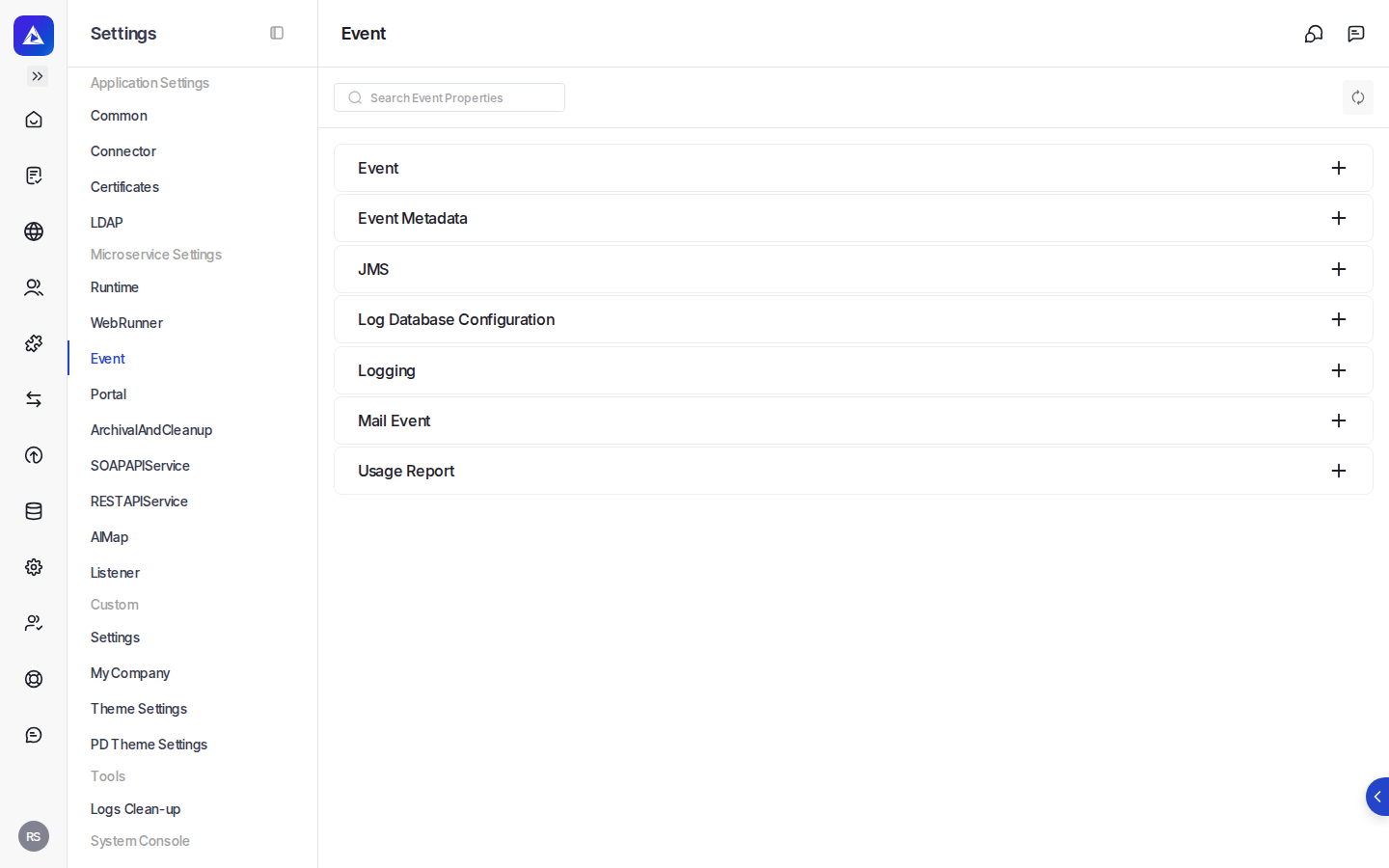
Where: Settings > Events (accessible from the Automate portal)
Supported event types
Adeptia supports the following event types. Each type monitors a different kind of source or schedule.
| Event Type | What it monitors |
|---|---|
| Application Trigger | Activity from a connected application using an app connector |
| Application Event | OAuth-based application activity |
| Calendar Event | A schedule defined by business days or weekdays |
| Database Event | Changes or conditions in a database |
| File Event | File activity on a local or network file location |
| FTP Event | File activity on an FTP server |
| JMS Event | Messages arriving on a JMS queue or topic |
| Mail Event | Incoming email matching specified criteria |
| Timer Event | A time-based schedule with a defined frequency and optional expiry |
What you configure
When you create an event registry entry, you provide three core pieces of information:
- Event Type - Select the category of trigger from the list above. This determines which specific events are available to choose from.
- Event - Select the specific, pre-configured event definition that matches your source. You can also create a new event directly from this screen.
- Process Flow - Select the process flow that should run each time the event fires.
You can also supply optional advanced settings, including an event parameter and a parameter map, through the advanced section of the form.
How events and process flows connect
Once an event is activated, the platform's scheduler continuously monitors the configured source according to the event's schedule or polling frequency. When the trigger condition is met, the platform launches the linked process flow automatically.
Each event type has its own scheduling options. Timer and Calendar events fire on a defined schedule. File, FTP, Database, Mail, and JMS events poll their respective sources at a configured interval. Application and OAuth-based events respond to activity from connected applications.
When an event expires or its schedule ends, the platform automatically deactivates it. If an event is already active, attempting to activate it again is prevented until it is first deactivated.
Trigger sequencing
For any event type, you can configure the associated process flow to trigger in sequence, meaning each detected occurrence is processed one at a time in order, rather than launching multiple parallel executions simultaneously.
File and FTP event behavior
File and FTP events include additional controls for how files are handled at trigger time. You can configure whether the event fires when a file is created or when it is modified, whether empty files should trigger the process flow, and whether previously processed files should be excluded to avoid duplicate processing. A stability check ensures that a file is fully written before the process flow is launched.