Use-case templates
Use-case templates give your team a structured starting point for data mapping workflows, so that non-technical users can update source files and configuration without requiring a code deployment or engineering involvement.
What use-case templates are
A use-case template bundles together the files and configuration that define a data mapping workflow for a specific scenario. Each template carries a title, a description, a default mapping prompt, a target profile, and a set of associated data files. Templates are stored persistently.
Where: Template Link in the sidebar navigation of the Adeptia Automate portal.
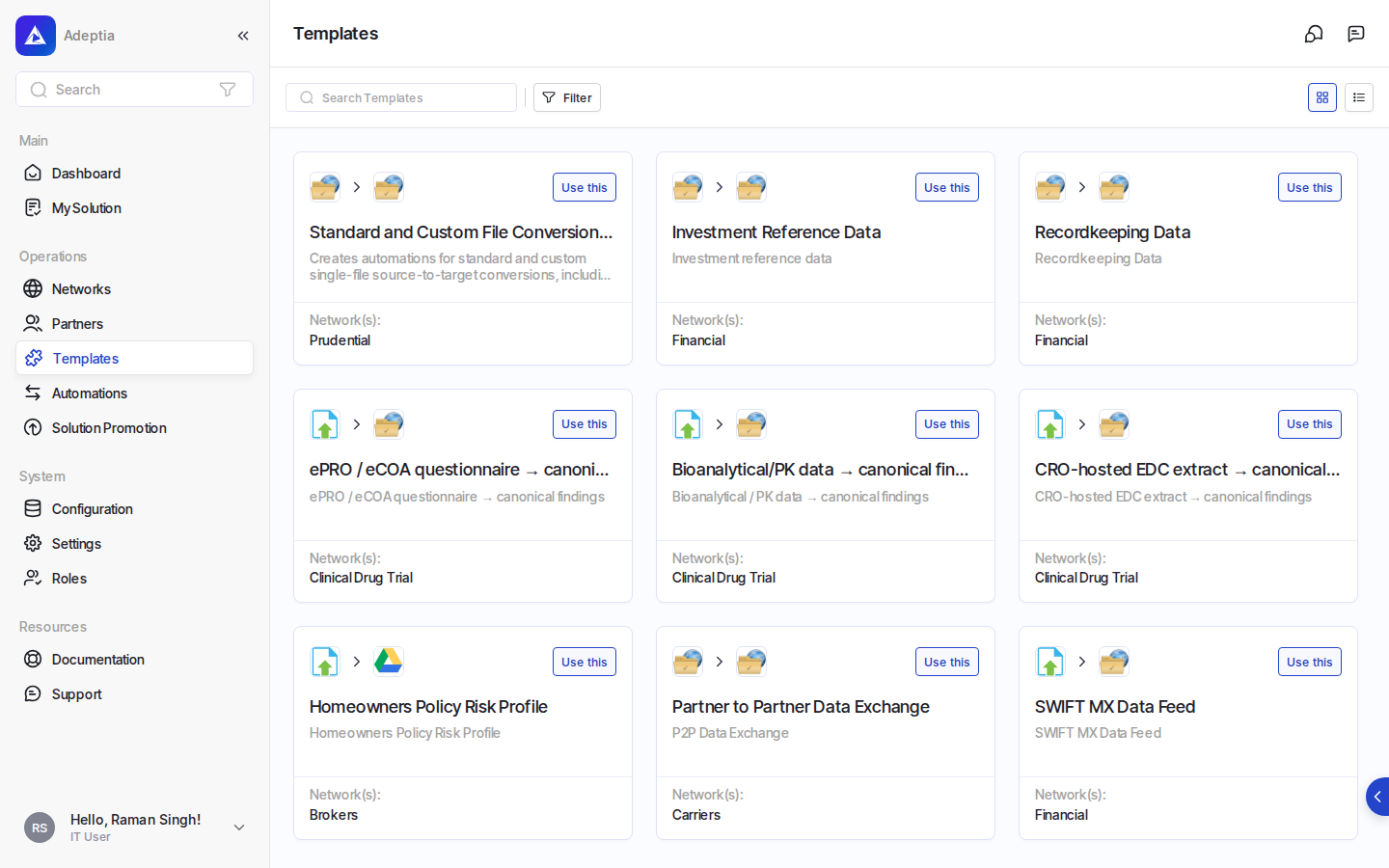
What you can do with templates
Templates support the full lifecycle of managing a data mapping starting point:
| Action | What it does |
|---|---|
| Create a template | Define a new template with a title, description, mapping prompt, target profile, and one or more data files |
| Add or replace a file | Update an existing template by adding a new file or replacing an existing one |
| Remove a file | Delete a specific file from a template (at least one primary file must always remain) |
| Update template details | Change the title, description, mapping prompt, or target profile of an existing template |
| Delete a template | Remove an entire template and all of its associated files |
File categories
When you create or update a template, each file you provide belongs to one of three categories:
| Category |
|---|
| Primary |
| Enrichment |
| Target |
At least one primary file is required per template; the last primary file cannot be removed.
Why use-case templates are useful
Templates separate the data and configuration layer of a mapping workflow from the underlying integration logic. This means that when source data formats change or a new use case needs to be supported, the relevant files can be updated directly through the template, without touching the integration itself. Non-technical team members can make these updates independently, reducing bottlenecks and keeping integrations current.
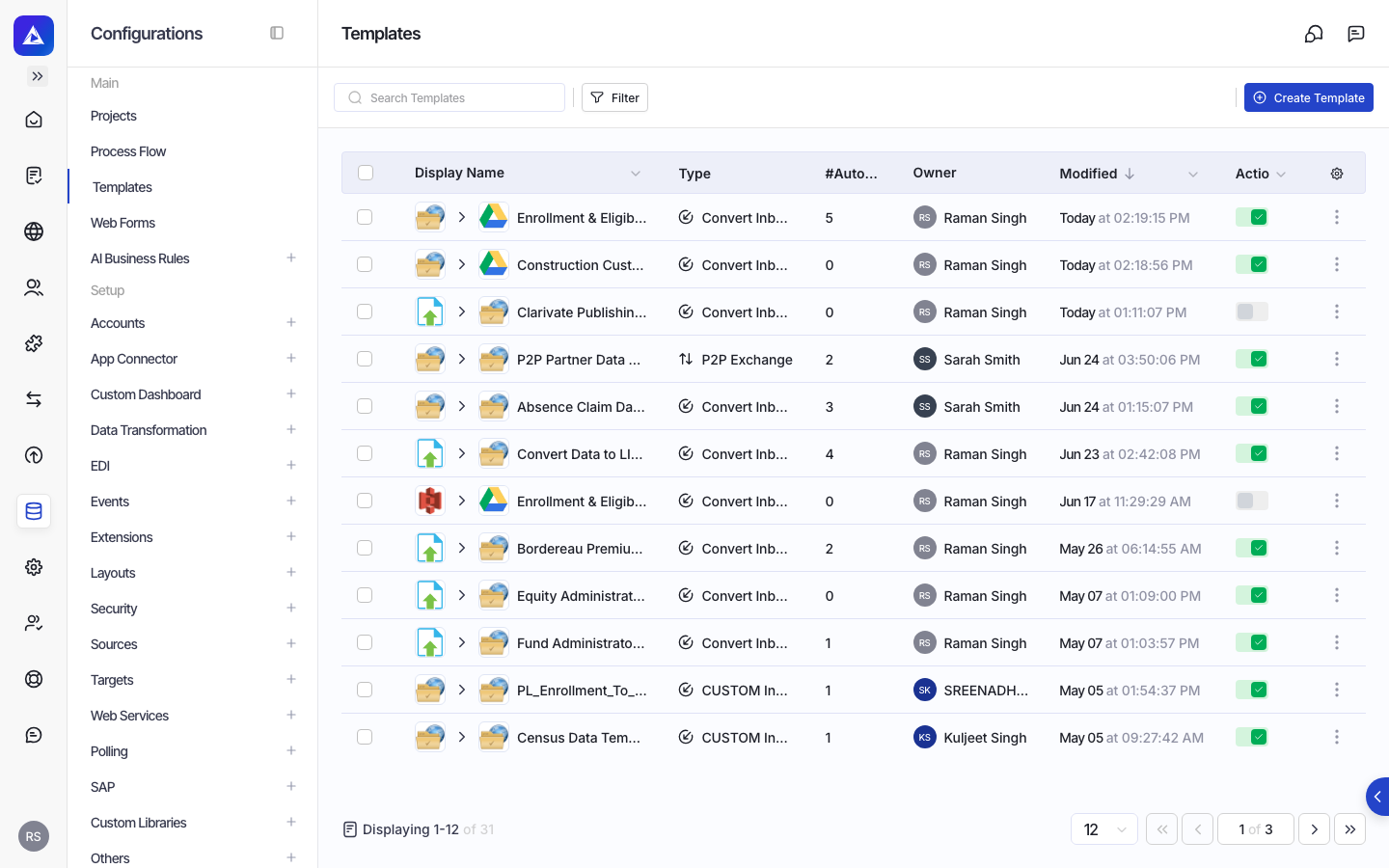
What you provide when creating a template
When creating a new template, you supply:
- A unique identifier for the template
- A human-readable title and description
- A mapping prompt
- A target profile
- One or more files, each assigned to a category (primary, enrichment, or target), provided as base64-encoded file content
All of these inputs are required at creation time. After a template is created, any of its metadata fields or individual files can be updated independently without recreating the entire template.