Schedules and Triggers
Schedules and triggers let you control exactly when and how your integration workflows start, whether in response to a file arriving or when new email arrives. By automating the conditions that launch a workflow, you eliminate manual intervention and keep your integrations running reliably around the clock.
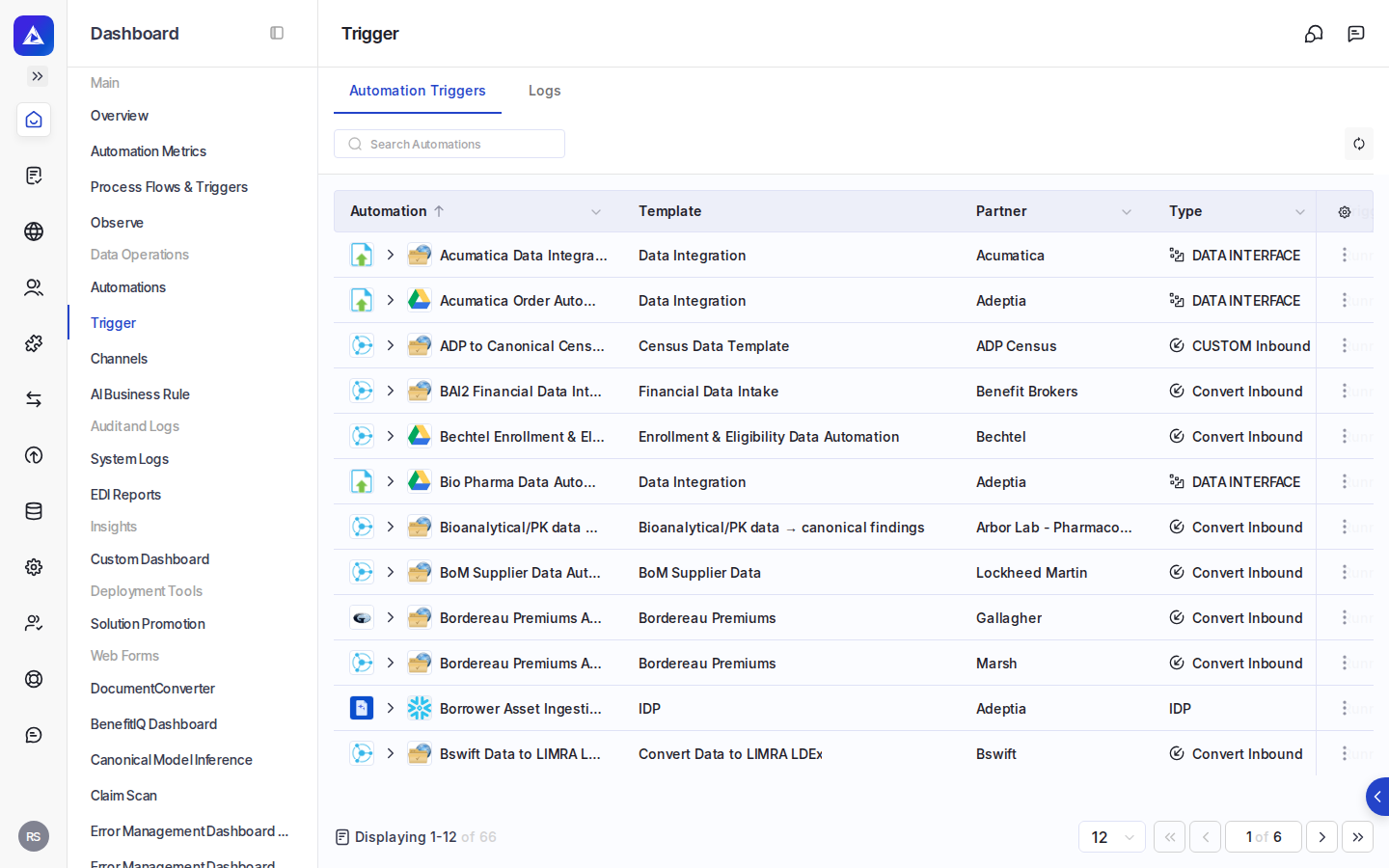
Where: Dashboard Tab in the Adeptia Automate portal.
What schedules and triggers do
Every integration workflow needs a starting point. Schedules and triggers define that starting point automatically, so your workflows run without anyone having to press a button. You can configure a workflow to start:
- When a new file appears in a monitored folder
- When an email arrives in a monitored mailbox
Once a trigger fires, the associated workflow runs and processes the data it finds. If no qualifying data is present, the trigger waits until the next polling cycle.
Trigger types
Adeptia supports several trigger types, each suited to a different integration pattern.
| Trigger type | What starts the workflow |
|---|---|
| File event | A new or changed file appearing in a monitored folder location |
| Email event | A new email arriving in a monitored mailbox |
File triggers
A file trigger watches a folder location for files that match criteria you define. You specify which files to include and which to exclude using filter patterns, and the trigger checks the folder on each polling cycle. When a qualifying file is found and confirmed to be stable (fully written and not still being modified), the workflow starts and processes that file.
File triggers support several conditions for deciding when to fire:
| Condition | When the workflow starts |
|---|---|
| File exists | A matching file is present in the folder |
| File created | A new matching file has appeared since the last check |
| File modified | A matching file has changed since the last check |
You can also configure a file trigger to process files in sequence, one after another in the order they were last modified, rather than all at once.
Similarly, a notification can be sent when a duplicate file is detected.
Email triggers
An email trigger monitors a mailbox and starts a workflow when a new message arrives that matches your criteria. You can filter by sender address, subject line, and message body content. When a matching message is found, the workflow starts and can process the message body or an attachment.
You can configure the trigger to leave a copy of the message on the server after processing, or to remove it.
Monitoring trigger activity
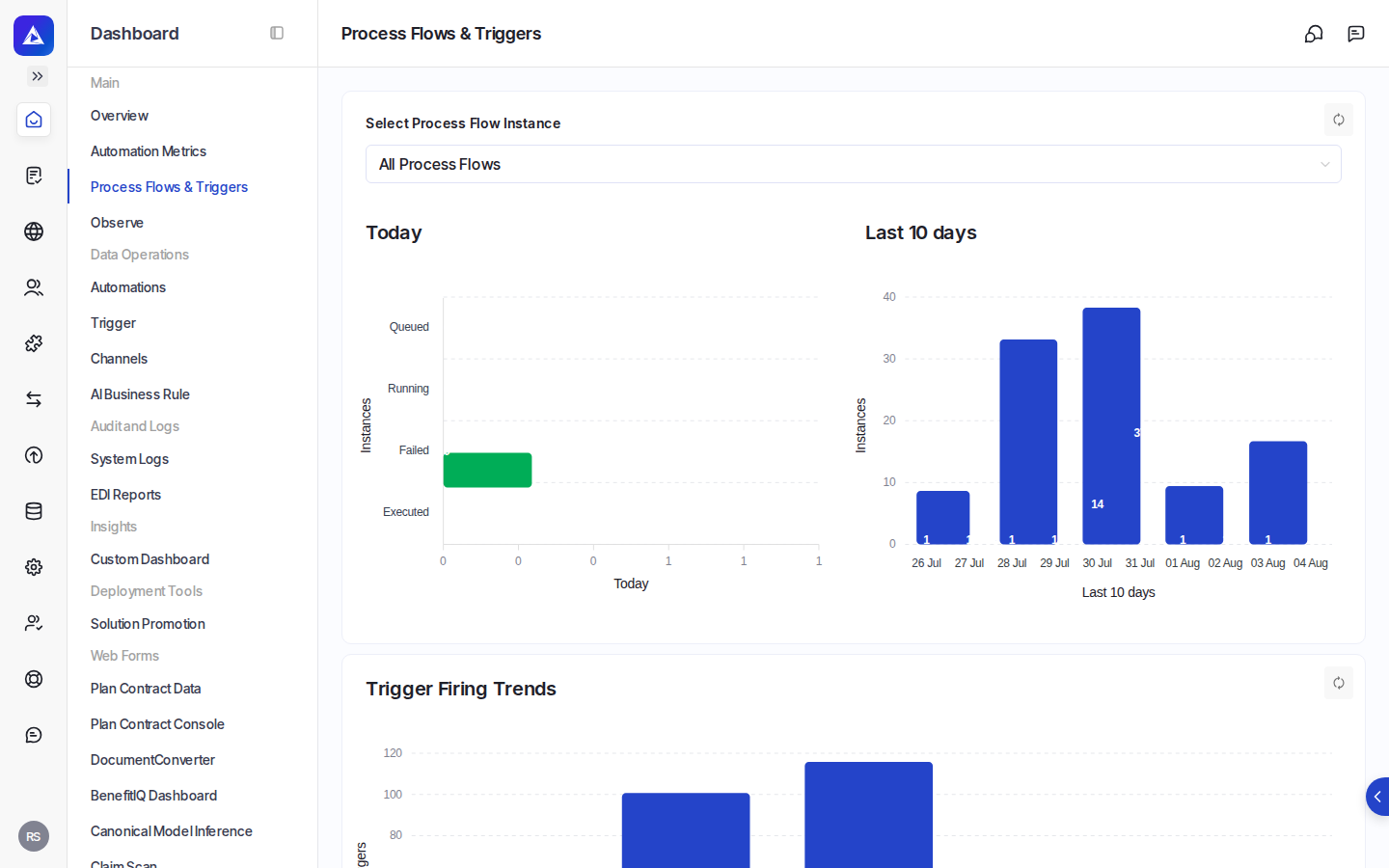
The Dashboard Tab provides a live view of everything happening across your triggers. You can see:
| Dashboard section | What it shows |
|---|---|
| Event chart | A day-by-day count of trigger activity over your chosen date range |
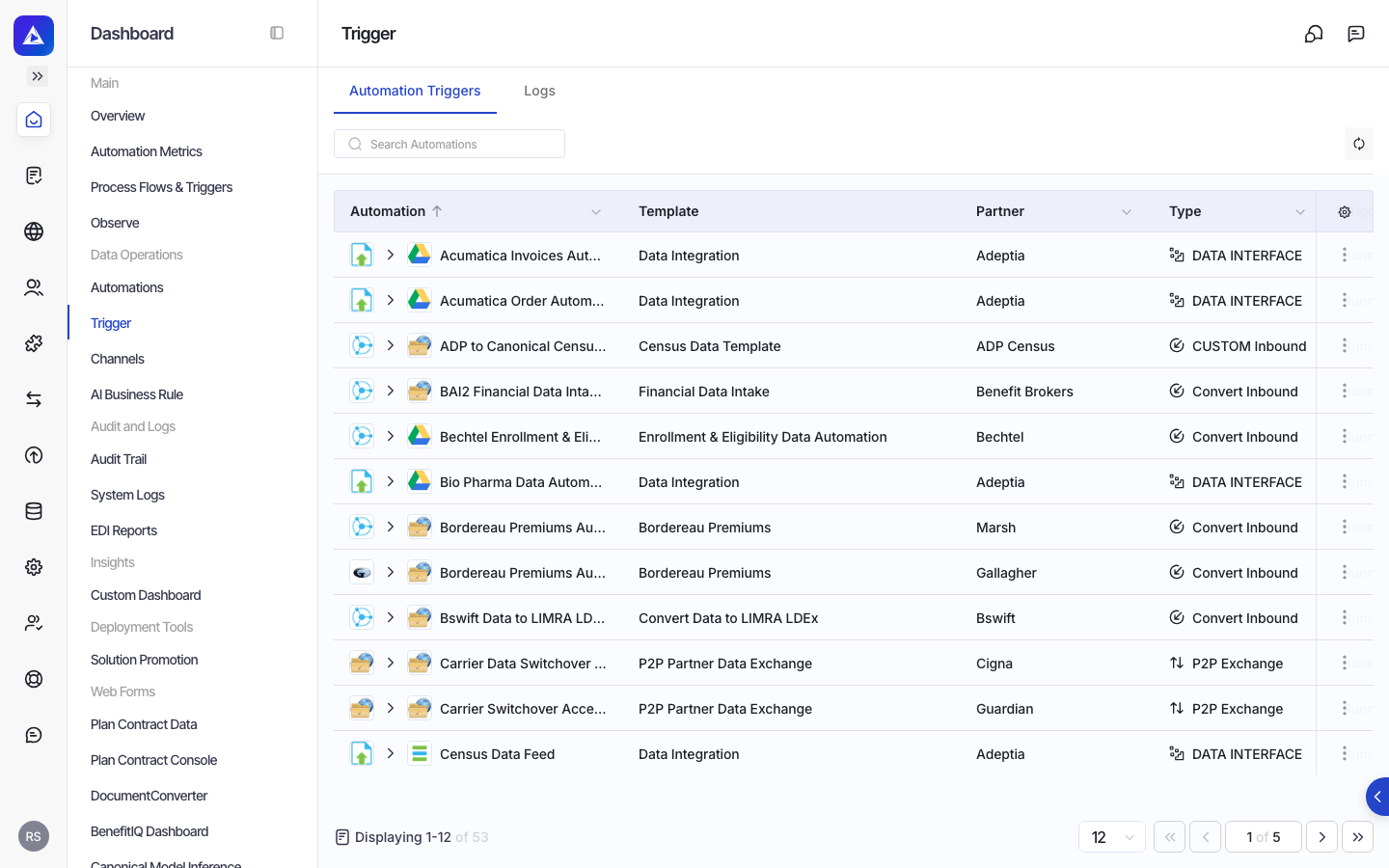
| Active triggers | All currently active triggers, their type, polling status, and the last and next scheduled fire times |
| Triggered processes | Recent workflow runs started by a trigger, including their status and the event that started them |
| Process errors | Workflow runs that encountered an error after being triggered |
| Trigger errors | Errors that occurred at the trigger level before a workflow could start |
How triggers fit into your integrations
Triggers are attached to workflows when you build your integration. Once a workflow is published and its trigger is active, Adeptia polls or listens continuously according to the event condition you configured. If a trigger misfires, the platform logs the event so you can investigate.
Handling errors and notifications
When a trigger or the workflow it starts encounters a problem, the dashboard surfaces the error with a timestamp and enough context to identify which workflow and trigger were involved. File triggers can also be configured to send notifications when no data is found or when a duplicate file is detected.