Trading Partners
Trading Partners in Adeptia lets you onboard, configure, and manage the external companies and organizations you exchange data with, giving you a central place to define each relationship before building integrations.
What trading partners are
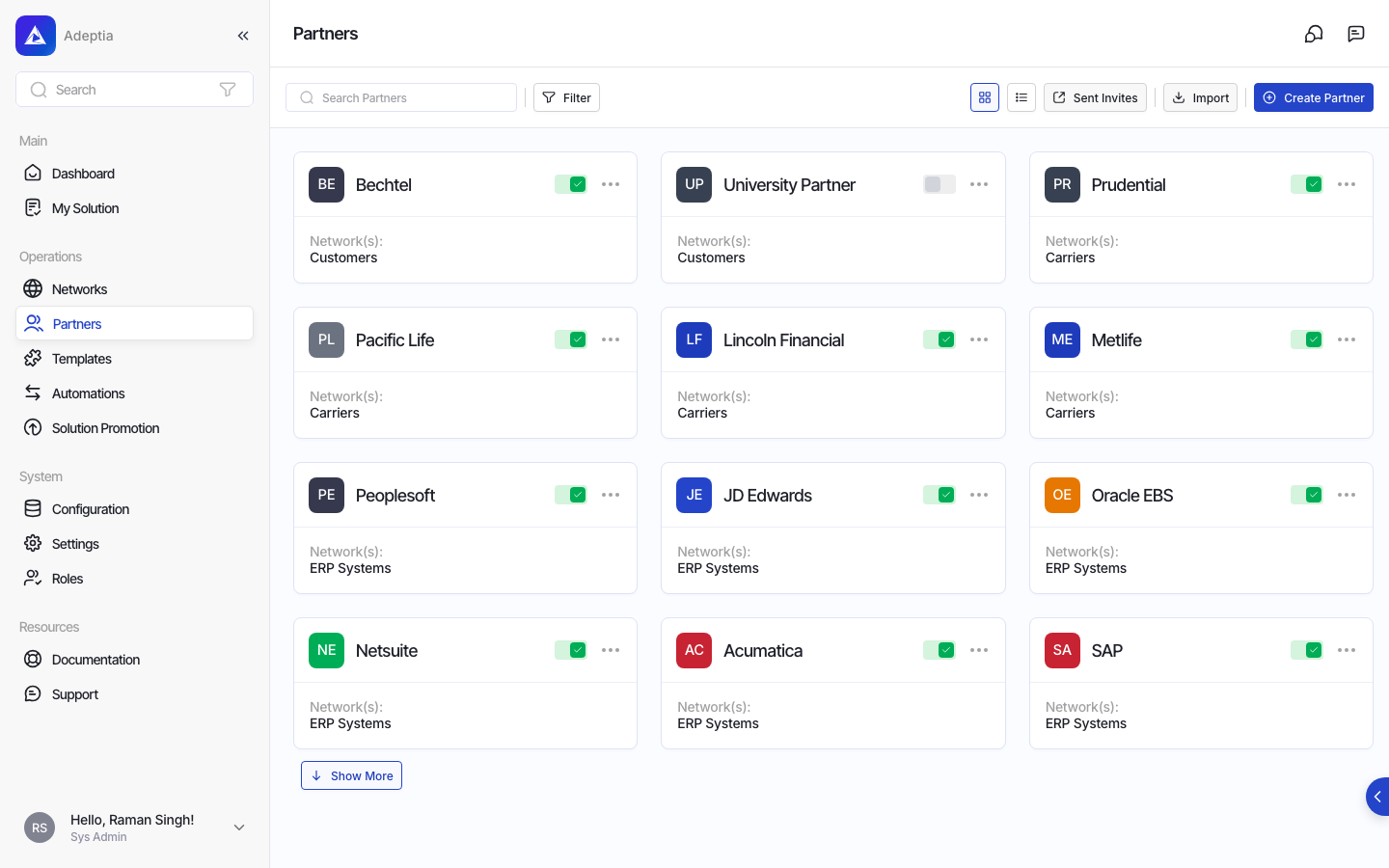
A trading partner represents an external business entity, such as a supplier, customer, or distributor, that your organization exchanges data with. Each partner record captures the information needed to identify the partner, connect them to one or more integration networks, and optionally configure EDI settings for structured document exchange. Once a partner is set up, you can link templates to them, control their access, and manage the relationship over time.
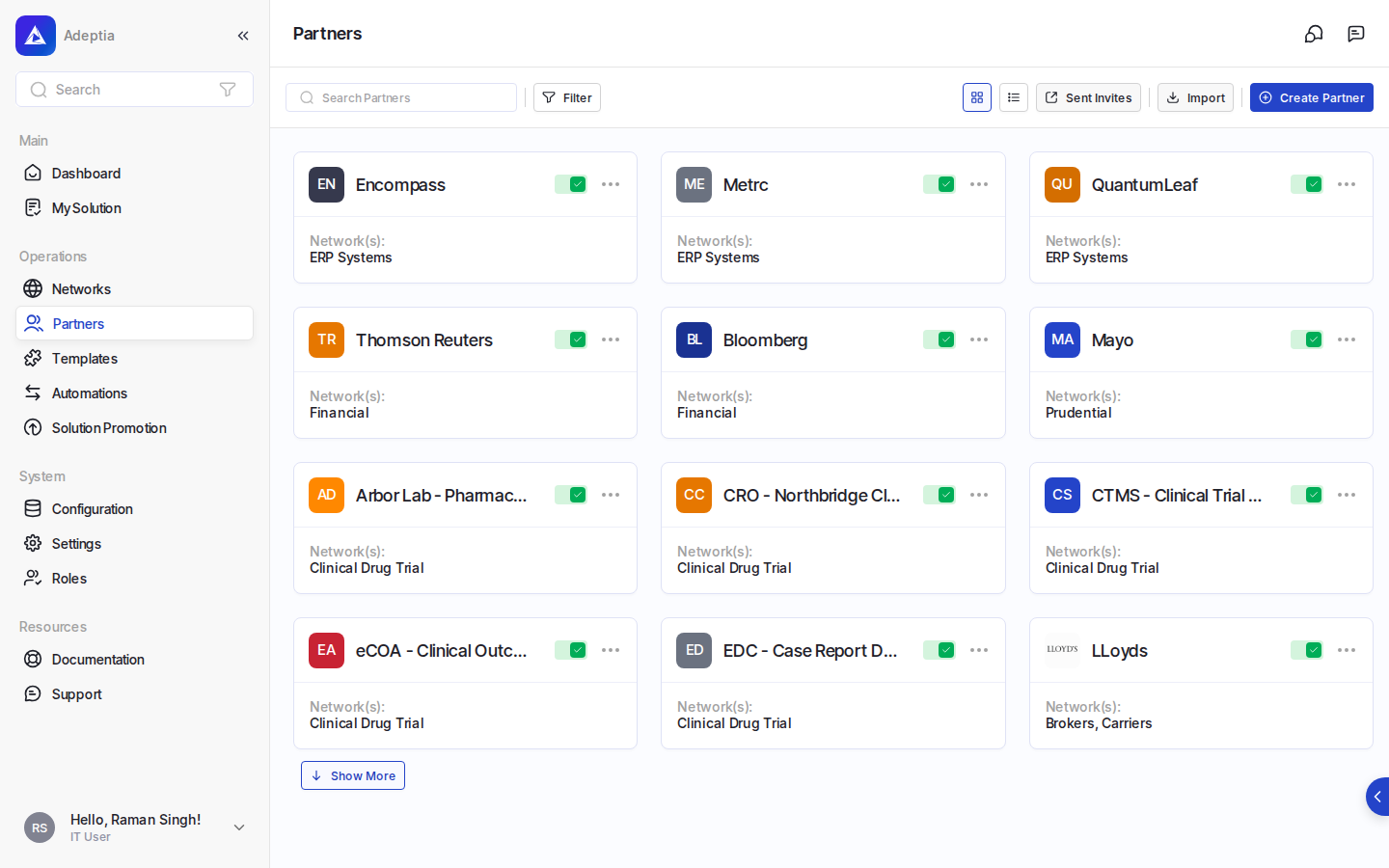
What you can do with trading partners
| Capability | Description |
|---|---|
| Onboard a new partner | Create a partner record with a name, description, and one or more networks |
| Manage partner access | Choose which integration templates a partner can use |
| Configure EDI settings | Supply EDI identification and global control numbers for structured document exchange |
| Invite a partner to self-manage | Send an invitation so the partner can log in and manage their own transactions |
| Import partners in bulk | Upload a CSV file to create multiple partner records at once |
| Update partner logo | Upload and crop a logo image for a partner |
| Activate or deactivate a partner | Toggle a partner between active and inactive status |
| Send a notice message | Deliver a notification message directly to a partner |
| Add networks to an existing partner | Expand a partner's network associations after initial setup |
| Edit partner parameters | Update network-specific configuration values and EDI settings for an existing partner |
Where: Partner Link (accessible from the top navigation)
How partners fit into integrations
Partners are connected to networks, which define the integration patterns and templates available for data exchange. You use the Manage Access capability to grant or revoke a partner's access to specific templates, giving you fine-grained control over which integrations each partner can participate in.
What you configure when adding a partner
When creating a new partner, you provide:
- A name and description to identify the partner.
- One or more networks to associate the partner with the correct integration patterns.
- An optional email address for the partner contact.
- A management option: you can manage the partner's transactions on their behalf, or invite the partner to self-manage by logging into the platform directly.
If the partner exchanges EDI documents, you can also enable EDI settings and supply additional identification and control number information (described below).
Network parameters
Some networks require additional configuration values specific to that network. When you select a network that has these parameters, the form expands to show the relevant fields, organized by group. Required fields must be filled before the form can be saved.
EDI configuration
For partners that exchange EDI documents, you can enable EDI settings on the partner record. This opens three expandable sections:
| Section | What you provide |
|---|---|
| EDI Configurations | Partner ID, host ID, routing addresses, partner email, and phone number |
| Inbound Global Control Numbers | Interchange, group, and transaction control numbers for inbound documents |
| Outbound Global Control Numbers | Interchange, group, and transaction control numbers for outbound documents |
The partner ID and host ID fields, along with the partner email, are required when EDI settings are enabled. Control number fields have default values that you can adjust as needed.
Partner self-management and invitations
When you choose the self-management option for a partner, the partner receives an email invitation to access the platform and manage their own transactions. If the partner already has a primary contact email on record, the invitation is sent to that address automatically; otherwise, you provide the email address when sending the invitation.
Bulk import
You can onboard multiple partners at once by uploading a CSV file. The import form provides a sample file you can download as a starting point, and links to partner guidelines documentation.
Managing access to templates
From a partner's record, you can open the Manage Access view to control which integration templates the partner can use. Templates are displayed in either a tile or list view, and you can search by name. A toggle on each template grants or revokes access for that partner. You can also select all templates at once. Changes take effect when you save.
Activating and deactivating partners
Each partner has an active or inactive status, controlled by a toggle on the partner tile or detail panel.