Creating and managing a knowledge base
Adeptia Connect enables you to create and manage your own Knowledge base to build and customize a tailored repository of information. It facilitates the systematic organization, storage, and retrieval of specific information.
The page contains the following information:
-

This feature is by default disabled for on-premise customers. To enable the feature in your setup, please contact your Adeptia application admin or support@adeptia.com for assistance.
To see the properties to enable AI Knowledge Base, refer to this section.
Creating a knowledge base
To create a Knowledge base within Adeptia Connect do the following:
-
On the top-right corner of the Home page, Click
 .
.
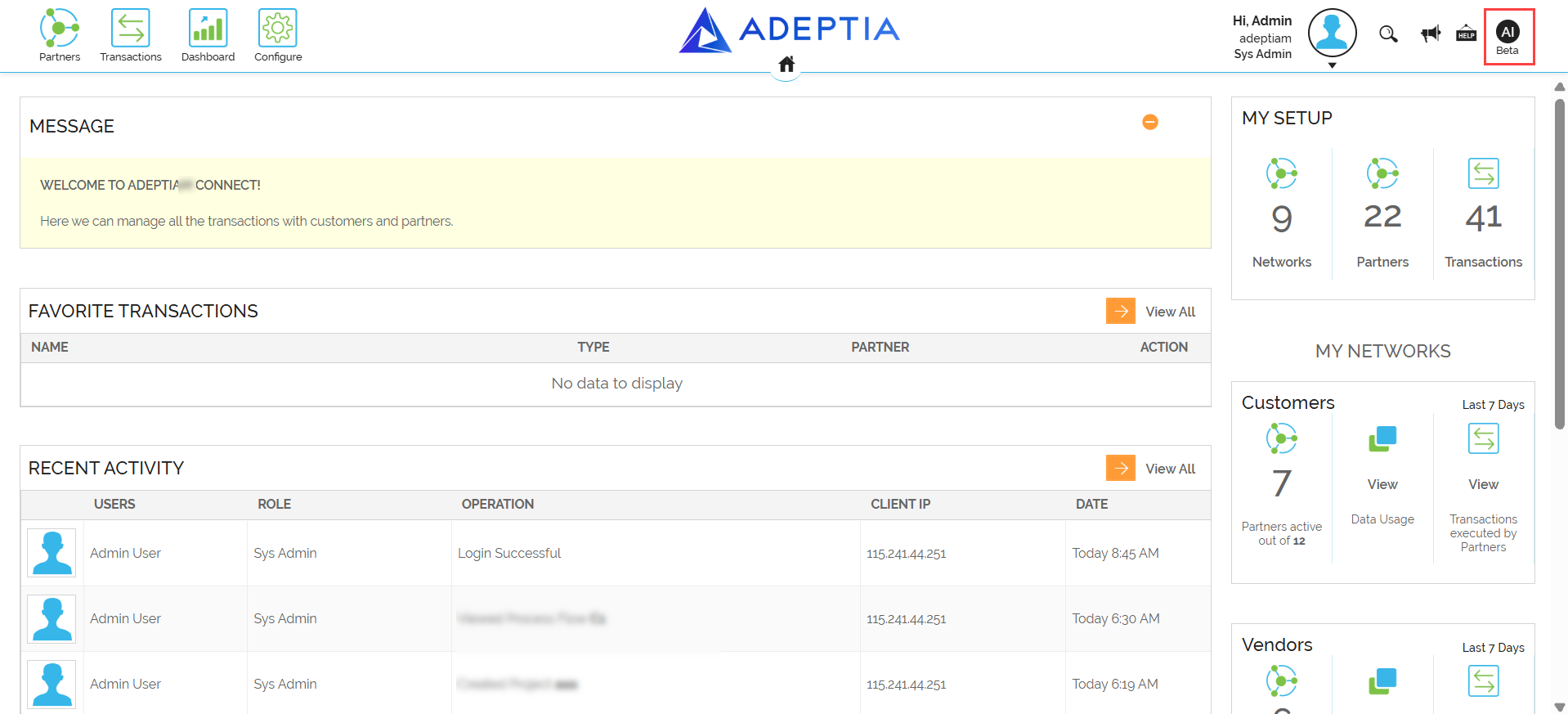
-
On the AI Knowledge Base (Beta) screen, Click
 .
.
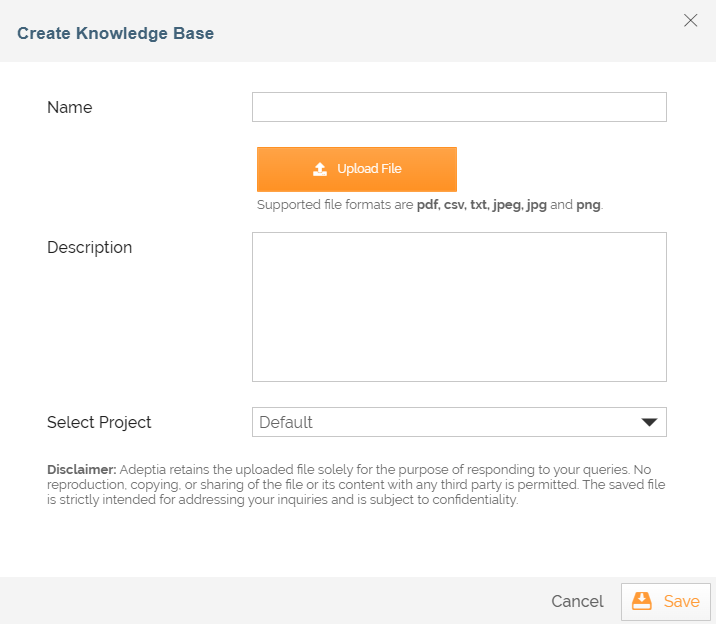
The Create Knowledge Base screen displays. -
On the Create Knowledge Base screen, do the following:
-
In the Name field, enter the name of the Knowledge Base.
-
Click
 to upload the Knowledge Base file.
 The supported formats to upload your file are: pdf, csv, txt, jpeg, jpg and png. -
In the Description field, provide a description of the Knowledge Base.
-
-
Click Save.
Accessing a knowledge base
You can access information from a user-created knowledge base by using the AI chatbot Interact.
To access information from a knowledge base, do the following,
-
On the top-right corner of the Home page, Click
. -
On the AI Knowledge Base (Beta) screen, navigate to the knowledge base you want to use and click
 .
.
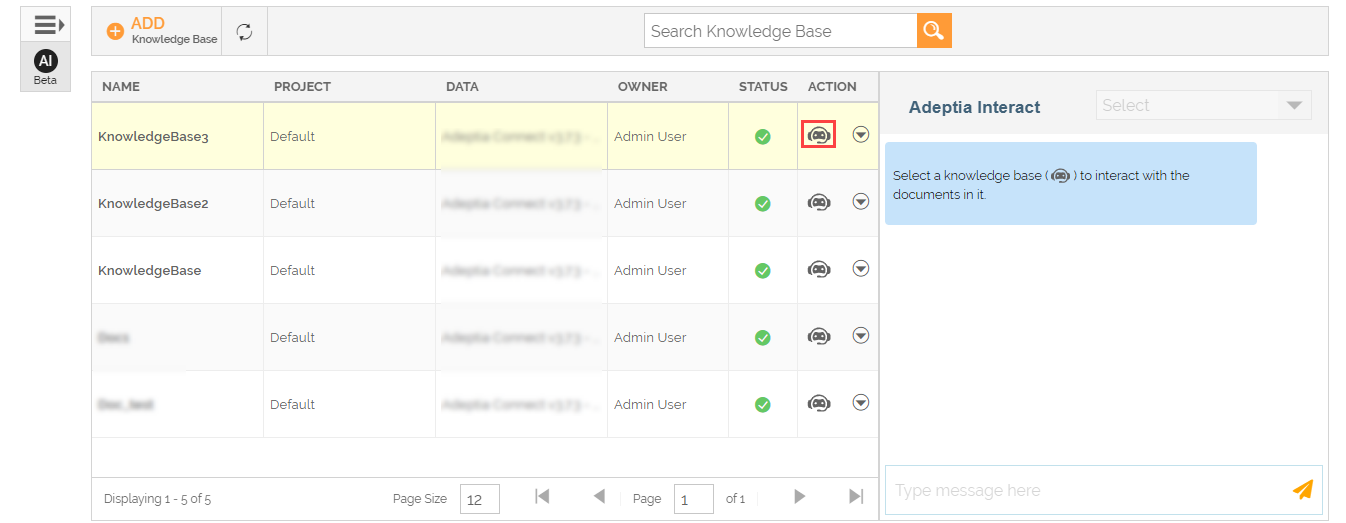
-
In the Adeptia Interact panel, write the query for the information you want to seek and click
 . Adeptia Interact responds to your query based on the information obtained from the selected Knowledge base.
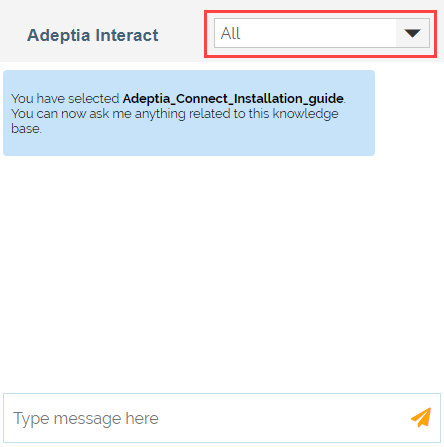
- When the Knowledge Base contains multiple documents, by default Adeptia Interact fetches results from All the documents in the repository.
- If you want Adeptia Interact to fetch answers from a specific document in the repository, select the document from the dropdown menu within the Adeptia Interact chatbot.
- When the Knowledge Base contains multiple documents, by default Adeptia Interact fetches results from All the documents in the repository.
Viewing knowledge base details
Adeptia Connect provides a designated screen 'View Knowledge Base' for you to view the details about an user-created knowledge base, including knowledge base name, creation date, endpoint, etc. The View Knowledge Base screen dynamically presents information based on the current metadata of the knowledge base.
To view the Knowledge base details:
-
On the top-right corner of the Home page, Click
. -
On the AI Knowledge Base screen, Click
 > View on the Knowledge base you want to view.
The View Knowledge Base screen displays the details of the Knowledge base as shown below.
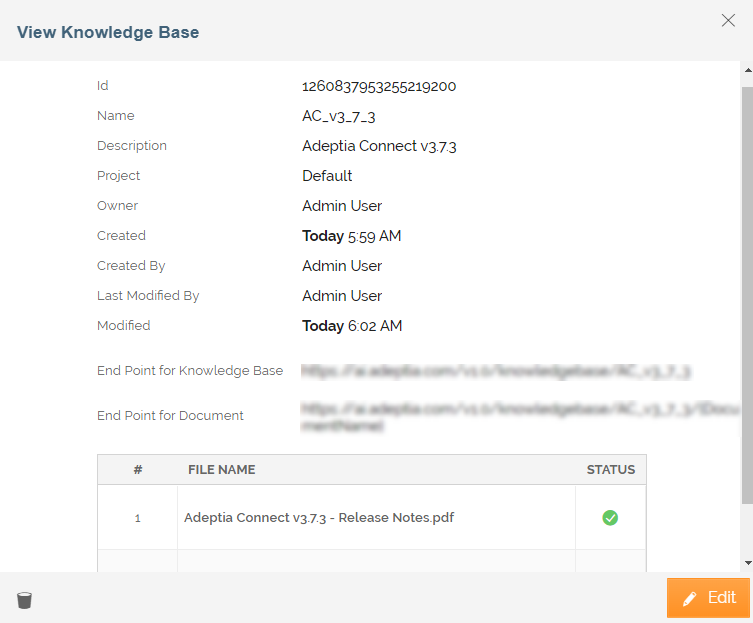
You can also edit and delete the Knowledge base from the View Knowledge Base window. Click  to edit the knowledge base details. Click
  to delete the knowledge base.
Editing knowledge base details
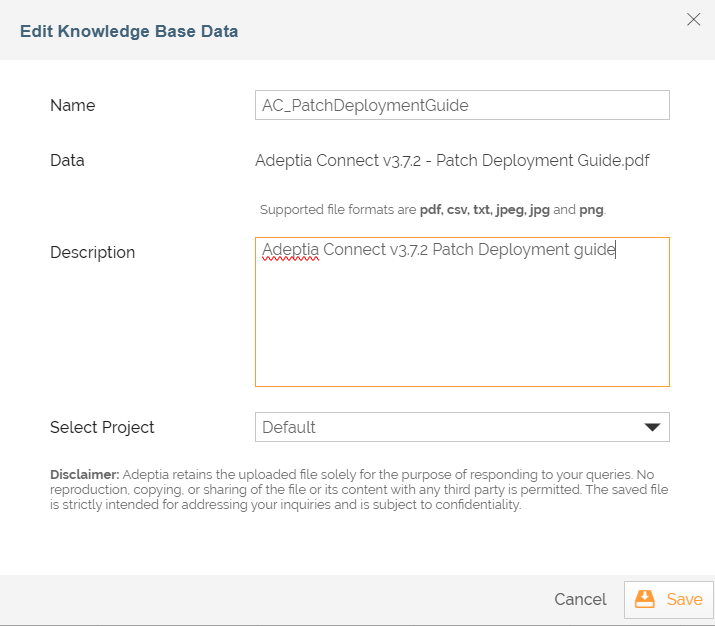
You can edit the details of a Knowledge base. It includes:
- Editing the description of the knowledge base
- Modifying the Project within which the object can be saved
To edit the Knowledge base details:
-
On the top-right corner of the Home page, Click
. -
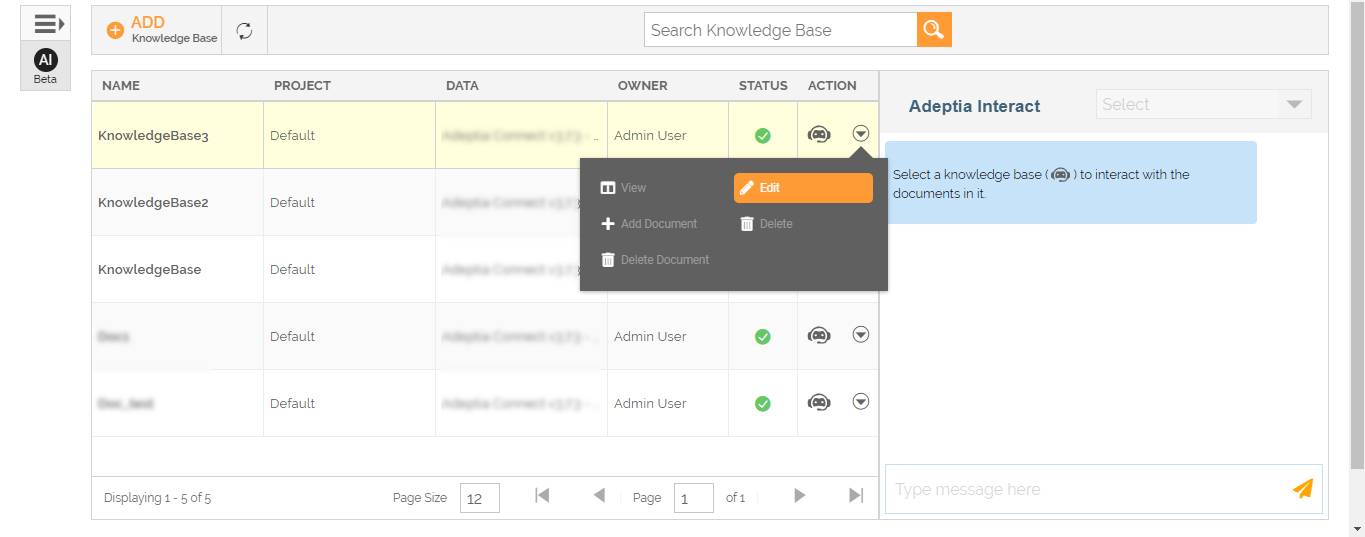
On the AI Knowledge Base (Beta) screen, Click
> Edit on the knowledge base you want to view.
-
Edit the details of the knowledge base from the Edit Knowledge Base Data screen.
-
Click Save.
Adding a document to knowledge base
To add a document to your Knowledge base, do the following,
-
On the top-right corner of the Home page, Click
. -
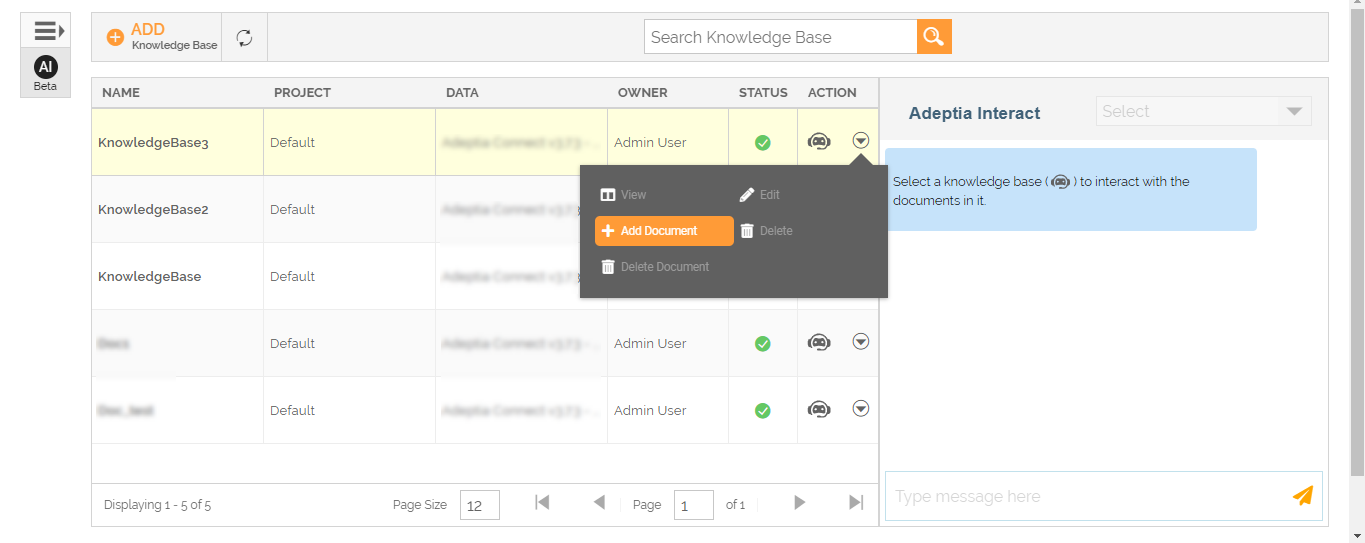
On the AI Knowledge Base (Beta) screen, Click
> Add Document on the knowledge base you want to add a document.
-
Upload the document you want to add to your knowledge base.
The document gets added to the knowledge base.
To check the status of the requested document and confirm its addition to the knowledge base, refresh the page and view Status section.
Deleting a document from knowledge base
To delete a document to your Knowledge base, do the following,
-
On the top-right corner of the Home page, Click
. -
On the AI Knowledge Base (Beta) screen, Click
> Delete Document on the knowledge base you want to delete a document from.
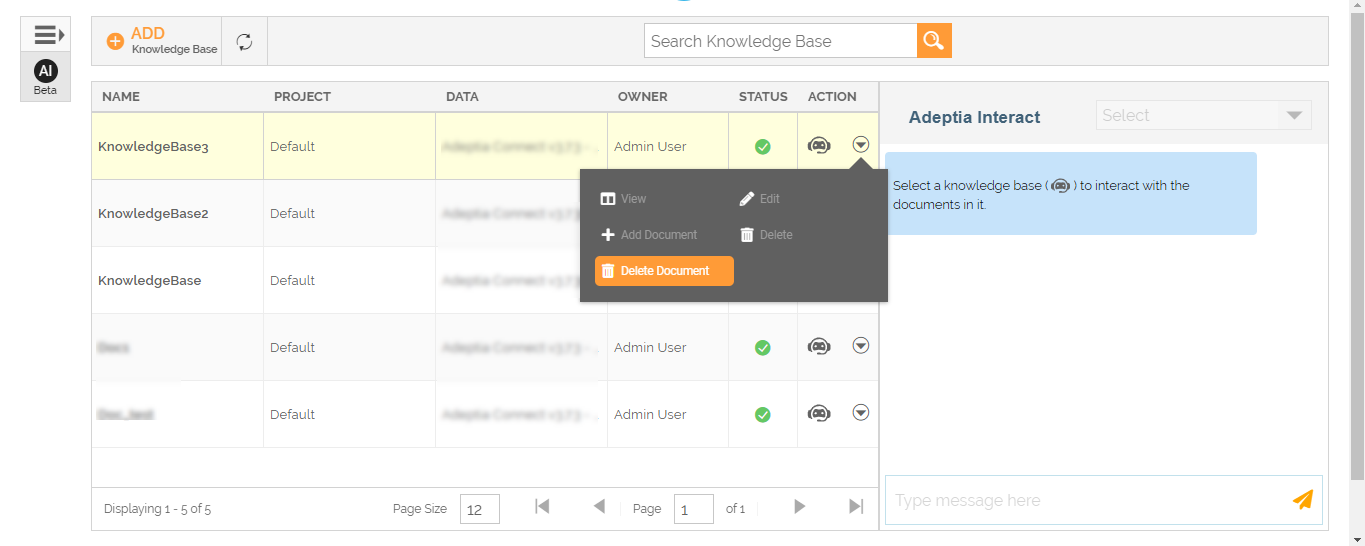
A selection screen is displayed to choose the document you intend to delete. -
In the Select Document field, select from the drop-down the document you want to delete from your knowledge base.

-
Click Continue.
-
Click Yes, delete it, when prompted to confirm. This deletes the document. A confirmation message is displayed.
Deleting a knowledge base
To delete a Knowledge base, do the following,
-
On the top-right corner of the Home page, Click
. -
On the AI Knowledge Base (Beta) screen, Click
> Delete on the knowledge base you want to delete.
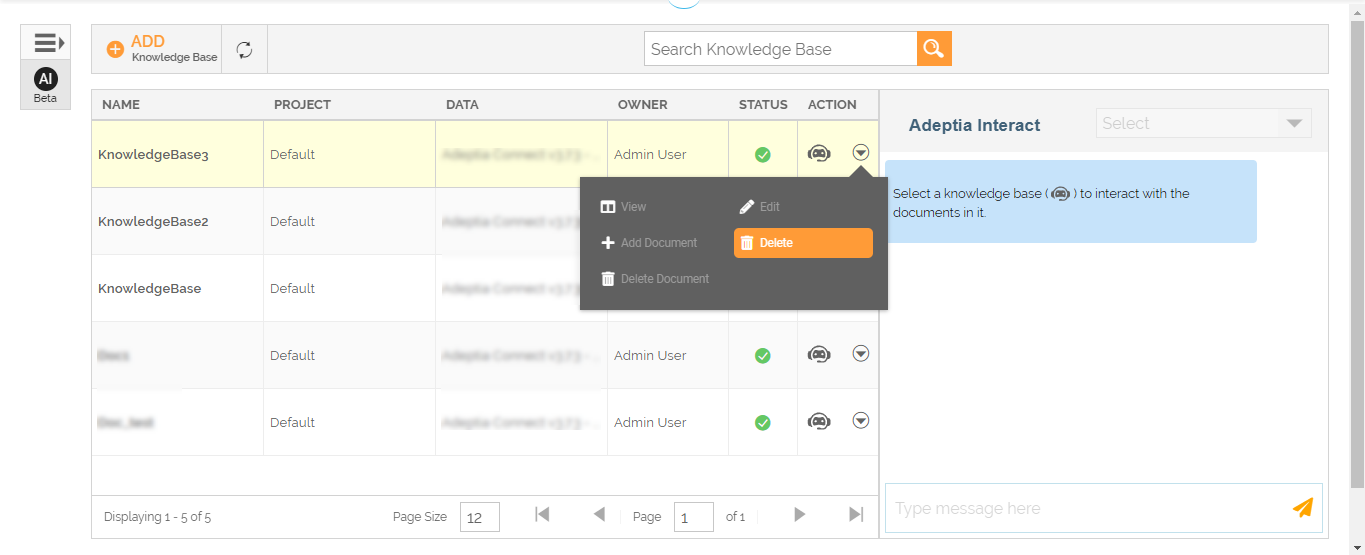
-
Click Yes, delete it, when prompted to confirm.
This deletes a Knowledge base.