Version: 4

Licensing application

This section discusses how you can activate Adeptia Connect by registering a valid license.

Activating license​

License activation is required when you purchase a license for the first time or renew an expired license. 

Information

Adeptia Connect is installed with 60 days trial license. After 60 days of using the trial license, you need to purchase the license according to your requirement for using the application.

There are two methods to activate the license – automatic and manual. Before you activate the license, make sure that you have placed the valid License.jar in the shared/license folder.

Automatic activation​

If the Adeptia License server (license.adeptia.com) is whitelisted and accessible in your cluster, you need to restart the license microservice, and the license will be assigned/registered automatically. 

Manual activation​

If the Adeptia License server (license.adeptia.com) is not whitelisted and accessible in your cluster, follow the steps given below to activate the license manually.

InformationYou must have at least one machine outside the cluster on which the Adeptia License server (license.adeptia.com) is whitelisted and accessible.
  1. Go to Connect Portal. 
    This will open a Manual License Activation page.
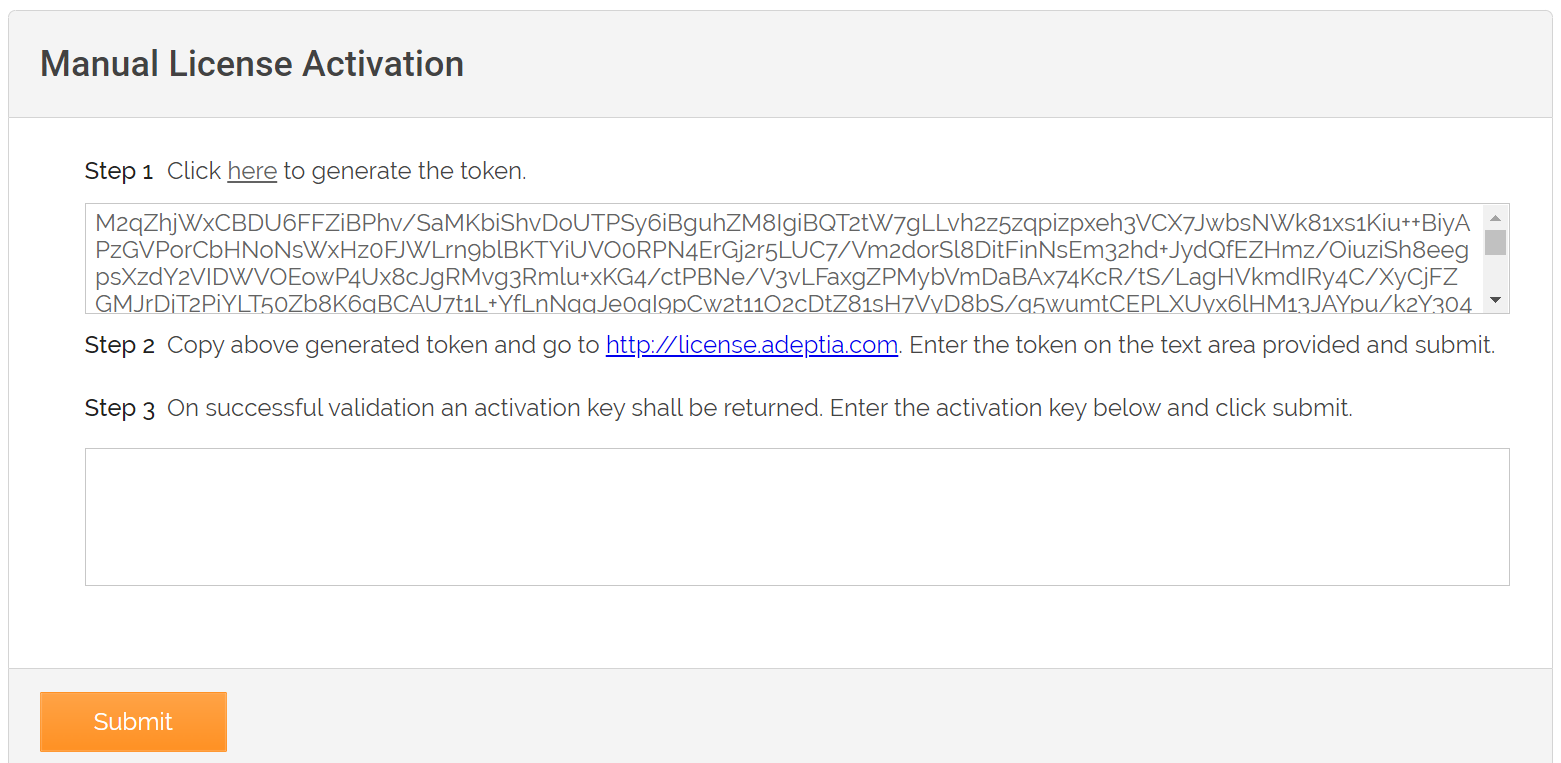
  2. Generate the token.

  3. Copy the token, and do the following.

    1. Open the internet browser and visit https://license.adeptia.com/#activate.
    2. Provide your name and email id.
    3. Paste the token in the Activation token box.
    4. Click Submit to generate the Activation Key.
    5. Copy the generated Activation Key.
    6. Paste the Activation Key in the blank text area indicated as Step 3 on the Manual License Activation page.
  4. Click Submit.
    On successful activation of the license, you receive the following message:
     

License violation​

The following table encapsulates the scenarios of license violation and their effects. The violations can fall under either Hard or Soft violation category. 

CategoryScenarioEffect
Hard violation
  • The license has expired.
  • The installation date has been modified.
  • The license authentication has failed (License server call).
  • The Soft violation grace period is over.
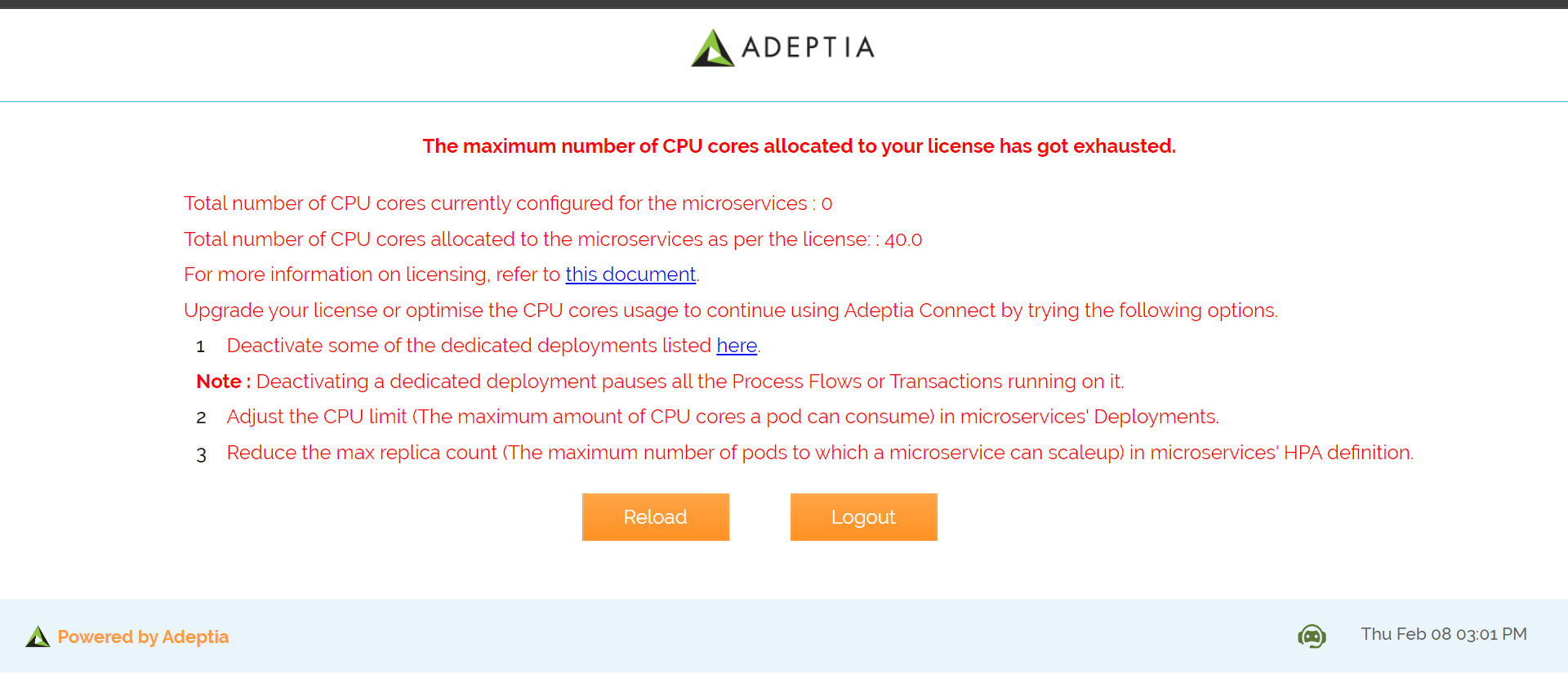
  1. When a license hard violation occurs due to the total count of the CPU cores configured for all the microservices together exceeding the licensed limit, the users will be restricted from accessing the GUI. 
    A warning screen displays along with the guidelines to address the violation. 


    Warning

    To deactivate a dedicated deployment you must be logged in as an Admin user. 


    WarningDespite the occurrence of a hard violation, the following services will not be stopped: ​
    • The process flow execution on the container
    • Launch of a new pod.
  2. Webrunner shows the relevant message in the "Notification Message Center".
  3. The application logs the message in the microservices logs.
Soft violation


The Soft violation occurs in the following scenarios:

  • When the total count of the CPU cores configured for all the microservices together exceeds the total number of CPU cores permitted by your license.  

    Warning
    • You can calculate the maximum count of CPU cores you have configured by aggregating the values you get after multiplying Max replicas and CPU limit values you have set for each microservice.
    • You can view the details of the total CPU cores configured and CPU cores allowed for the license in the CPU CORES COUNT/MICROSERVICE section by navigating to:
      Tools > System Console > License > View


  • When any of the following parameters exceeds its set limit:
    • The user count
    • The Process Flow count
    • The Activities count
    • The Group count
    • The Trading Partner count
    • The Relationship count
    • The Data Interface
    • The Hub user count
    • The Partner user count
    • Partner count
  1. Webrunner shows the relevant message in the "Notification Message Center".
  2. The application logs the message in the microservices logs.
Information
  • Soft violation has a grace period of 7 days. If it is not resolved within the limit, it is treated as a Hard violation.
  • The Message Center may continue to show the warning regarding Soft and Hard violation of license for up to one hour of resolving the violation.