Importing the select AC v3.x activities
After you've created the export.zip file, you can import the objects using import.xml file. A successful import completes the migration process, and you'll be able to access all the exported objects in your new environment.
 | If you want to retain the activities while importing the objects, you need to configure the parameters in the retain.xml that you want to retain. The objects can be retained at service and field level. You will find retain.xml in the <shared>/migration/template folder. For more information, refer to Structure of RetainXML. |
Pre-requisite
- Ensure that you have followed the required steps to avoid the creation of rollback zip file while importing the objects at the target.
 | If you ever make any changes to the resources in the migration values.yaml file, you need to change the JVM parameters accordingly through the environment variable JAVA_OPTS – It can be up to 70% of the allocated resources. |
Steps to import the objects
-
Copy the exported zip file to a Kubernetes shared location in the PVC.
-
Optional: Configure the retain.xml by following the steps given below:
-
In the target environment, locate the retain.xml file by navigating to:
shared/migration/template -
Copy the retain.xml and paste it into a custom folder, for example:
shared/migration/custom -
Open the retain.xml you copied into the custom folder and configure it to ensure that activities already present (if any) in the target environment are retained during the import process. You can retain activities at both the service level and the field level.
-
-
Locate the import.xml by navigating to:
shared/migration/template -
Copy the import.xml and paste it into a custom folder, for example:
shared/migration/custom -
Open import.xml in a text editor and do the followings.
-
Enter the path of the exported zip you copied into target environment in the <SourceZipLoc> tag.

-
Optional: Enter the path of the retain.xml file you configured to retain the required activities in the RetainXmlLocation tag.
If you do not want to retain the activities in the target environment, remove any existing value from the RetainXmlLocation tag. -
In the OverrideUser and OverrideModifiedUser tags, enter the User ID of an IT or Admin user who should own the deployed activities. If you want to retain the original activity owner, remove any existing values from these tags.
In case of AC v4.1.3, apart from an IT user, you can also enter the User Id of any Admin user while importing the User type of objects from one environment to the other. -
Add <CreateRecovery>false</CreateRecovery> tag to disable the creation of rollback zip.
Alternatively, you can set the environment variable RECOVERY_ENABLED to false in the values.yaml file. -
Save the file.
-
-
Select the appropriate version of the helm chart to view the details of migration helm package.
-
Click INSTALL.
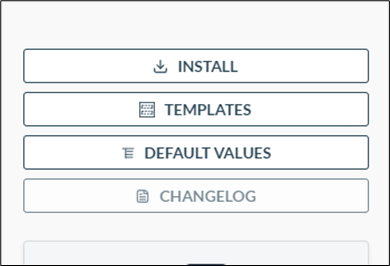
-
On the migration pop-up, click this link to download the package.
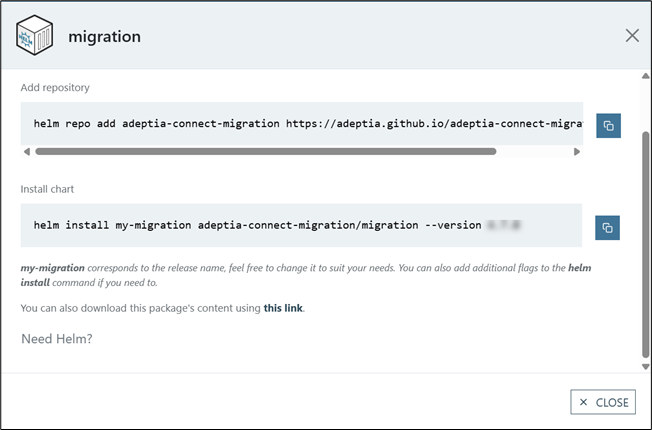
-
Extract the downloaded package.
-
Locate the values (Type: Yaml Source File) file in the extracted package and open it.
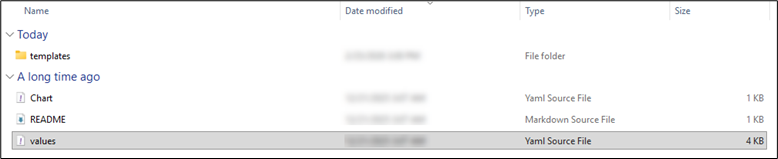
-
In the values.yaml file change the name of the service account (under serviceAccount > name) to an unique service account name (for example, Adeptia-migration).
-
If you are deploying the migration Helm chart in an Azure Red Hat OpenShift (ARO) cluster, remove the default values of the following parameters (under securityContext > podSecurityContext) and keep it blank:
-
runAsUser
-
runAsGroup
-
fsGroup
-
-
Provide values for the following properties and environment variables in values.yaml file as shown in the table below.
Variable/Property
Value
BACKEND_DB_URL - Value for Azure SQL DB:
jdbc:sqlserver://<DB Hostname>:<Port Number>;database=<Backend Database Name>;sendStringParametersAsUnicode=false; - Value for Oracle DB:
jdbc:oracle:thin:@<hostName>:<portNumber>:<S ID/ServiceName> - Value for Azure MySQL DB:
jdbc:mysql://<hostName>:<portNumber>/<Backend DB Name>?sslMode=VERIFY_IDENTITY&fallbackToSystemKeyStore=false
BACKEND_DB_USERNAME <Username of your backend database server> BACKEND_DB_PASSWORD <Password for your backend database server> BACKEND_DB_DRIVER_CLASS <Backend database driver class name> BACKEND_DB_TYPE - Value for Azure SQL DB: SQL-Server
- Value for Oracle DB: Oracle
- Value for Azure MySQL DB: MySQL
SHARED_PATH <Environment variable in the values.yaml file that contains the configured shared path> The default value for this variable is /shared. This is the folder created at the root level in the PVC when you deploy Adeptia Connect. MIGRATION_XML_FILE_PATH <Path of the import.xml in PVC> For example, shared/migration/custom/import.xml. <ch:anchor>RECOVERY_ENABLED</ch:anchor>
true (default). - Value for Azure SQL DB:
-
Add the environment variable SKIP_OVERRIDE_USER in the environmentVariables section of the migration values.yaml file and set it to:
-
true: To disable overriding of activity ownership in the target environment.

Before proceeding with this action, ensure that the same users in the source environment are also available in the target environment. -
false: To enable overriding of activity ownership in the target environment.
-
-
Save the migration values.yaml file.
-
On the command line interface, navigate to the directory where you extracted the Migration Helm package.
-
Add migration repo by running following command:
Where,
adeptia-connect-migration is the repo name. -
Navigate to the migration directory, and run the below command to import the objects.
The Migration job does not get deleted automatically after the migration is complete. You need to manually delete it before you start a new migration process.