Exporting objects using DevOps pipeline
You can use a CI/CD pipeline for exporting the Adeptia Connect objects from one environment to another automatically. The CI/CD pipeline uses the Export XML file that you must have created as a prerequisite for export operation, and generates an exported ZIP that contains the objects you want to migrate. After you create the Exported ZIP from the source environment, you need to import the objects to the new environment by running the import pipeline.
How the Export pipeline works
The diagram below represents how the export pipeline works, and automates the export process.

When triggered, the pipeline performs the following sequence of actions.
- Connects to the GIT repository, pulls the Export XML file, and places it to a location in the PVC (shared folder).
- Pulls and deploys the migration utility helm chart to create the Exported ZIP using the Export XML file at a PVC (shared) location.
- Downloads the newly created Exported ZIP, and pushes it to the GitHub repository.
- Deletes the migration workspace created during the export process.
To start with exporting the objects, you first need to create an export pipeline having all the required parameters for exporting the objects.
 | Adeptia provides you with an export pipeline file that you can use to create the export pipeline. The parameters' values you pass in the pipeline supersede the corresponding existing values in the Export XML file. |
After you create the pipeline, you need to trigger the pipeline to perform the export operation.
Creating and triggering the Export pipeline
To create the pipeline in Jenkins using the export pipeline provided by Adeptia, follow the steps given below.
-
Log in to the Jenkins with admin privileges.
-
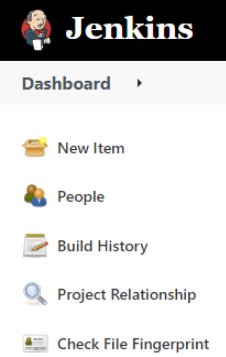
Select New Item.
-
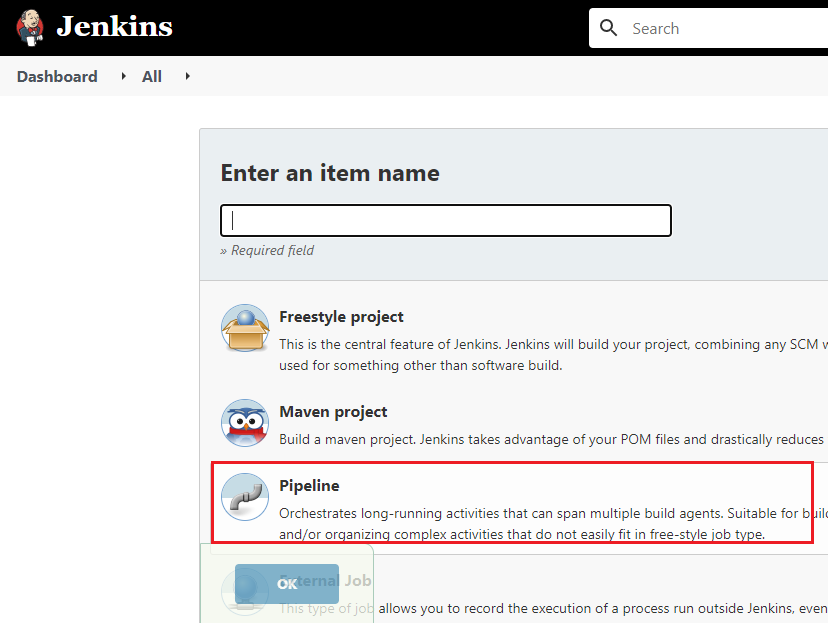
Enter a name for the Export pipeline, and then select Pipeline.
-
Click OK.
-
Copy the content from the provided export pipeline file.
[+] Export Pipeline
[-] Hide
-
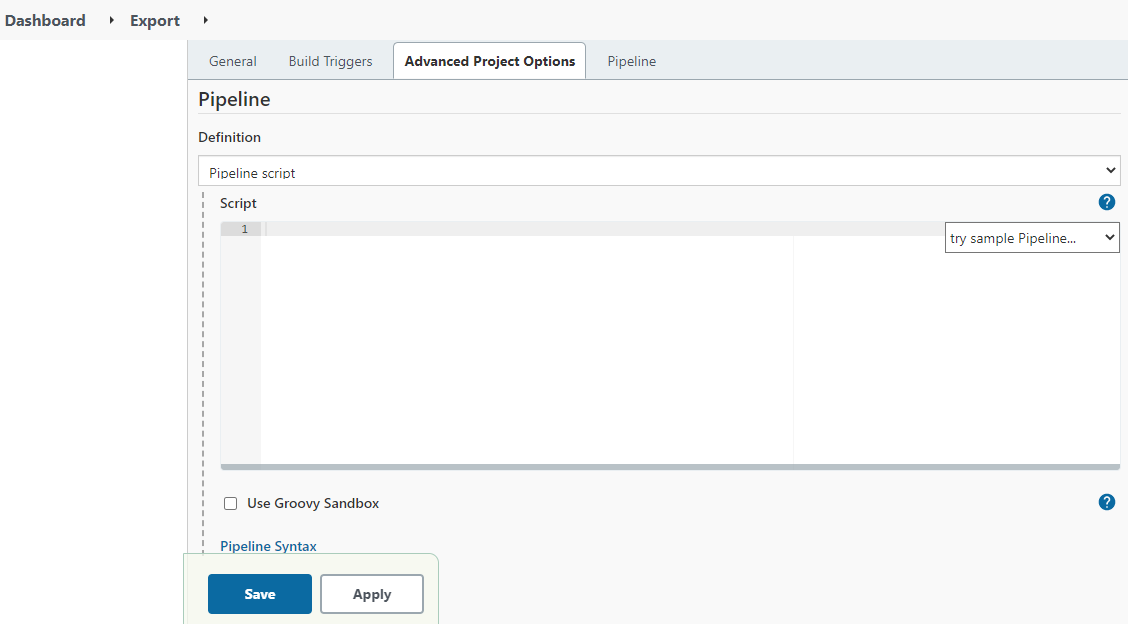
In the Pipeline Definition section, paste the copied content and uncheck the Use Groovy Sandbox checkbox.
If you are using Jenkins on Windows OS, and have created an agent on Linux OS, you need to do the followings in the export pipeline file.
1. Uncomment the following code snippet.
<ch:codesample>Where,
LinuxAgent is the name of the agent that you have created.
2. Comment the following lines of code.
<ch:codesample></ch:codesample></ch:codesample> -
Click Save.
-
On the screen that follows, click Build Now.
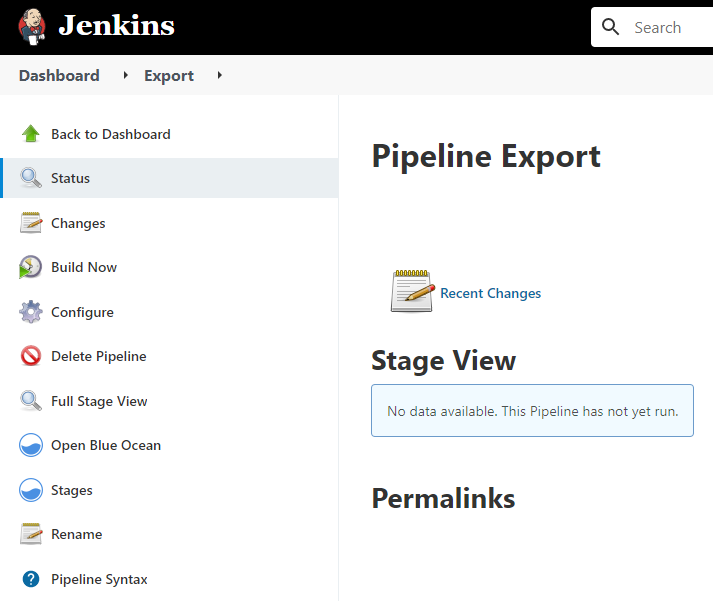
As you build the pipeline for the very first time, all the parameters get initialized. -
Refresh the page.
The Build Now option now changes to Build with Parameters. -
Click Build with Parameters.
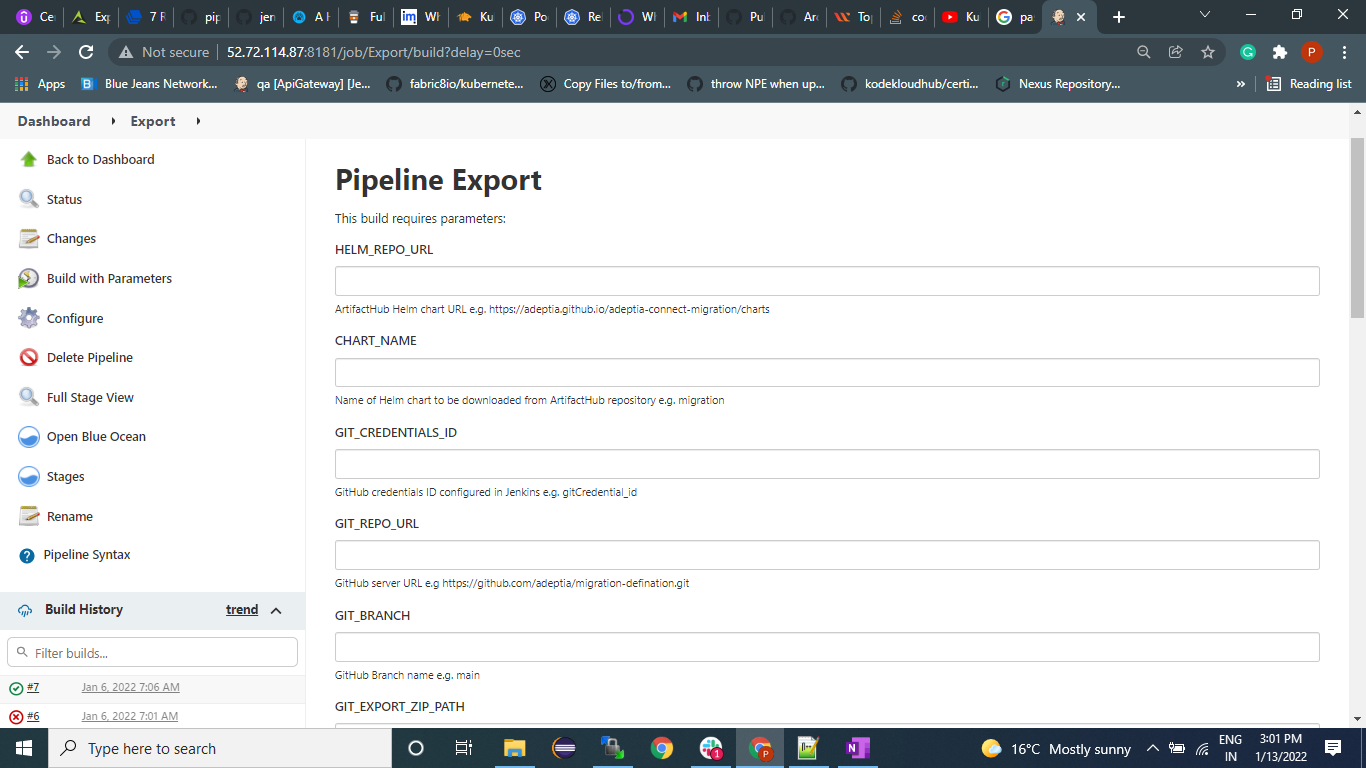
You will see all the parameters inherited from the export pipeline file.
-
Enter the parameter values as per your requirement.

It is mandatory to provide a valid value for all the Jenkins parameters. [+] Click here to expand the list of Export parameters
[-] Hide
Parameters Value Description Helm Chart
HELM_REPO_URL https://adeptia.github.io/adeptia-connect-migration/charts Migration Helm chart repository URL. CHART_NAME migration Migration Helm chart name. GitHub GIT_CREDENTIALS_ID <credential ID generated by Jenkins>
Credential ID for GitHub in Jenkins.
Refer to the prerequisites for more details.
GIT_REPO_URL https://github.com/adeptia/migration-defination.git URL of the GitHub repository. GIT_BRANCH main GitHub branch name. GIT_EXPORT_XML_PATH xml/export.xml Path of the export XML in the GitHub repository. GIT_EXPORT_ZIP_PATH test/SA_PF.zip Path of the exported ZIP in the GitHub repository. Migration OPERATION export The type of operation for which deployment will be performed. MIGRATION_XML_FILE_PATH /shared/migrationtest1/export.xml Path of the export XML in the PVC. EXPORT_ZIP_PATH
/shared/migrationtest1/SA_PF.zip Path of the exported ZIP in the PVC. LOG_IDENTIFIER Test_Identifier_Tag Log identifier to capture logs from MS environment. Kubernetes Cluster CLUSTER_TYPE - Amazon Elastic Kubernetes Service (cluster in AWS)
- Azure Kubernetes Service (cluster in MS Azure)
Type of Kubernetes cluster.RESOURCE_GROUP Resource group name Resource group of Kubernetes cluster.

The field is available only if AKS is configured as the Cluster Type. K8_CREDENTIALS_ID <credential ID generated by Jenkins> Credential ID for Kubernetes in Jenkins.
Refer to the prerequisites for more details.
SERVER_URL https://<host name of the Kubernetes cluster>:<Port number> URL of the Kubernetes cluster. CLUSTER_CONTEXT test-dev Kubernetes cluster context. NAMESPACE namespace Kubernetes cluster namespace for deployment. Backend Database BACKEND_DB_URL jdbc:sqlserver://<DB Hostname>:<Port number>;database=<Backend Database Name> Backend database URL used in the deployment of migration Helm chart. Database info configured in value.yaml file. DATABASE_CREDENTIALS_ID <credential ID generated by Jenkins> Credential ID for database in Jenkins.
Refer to the prerequisites for more details.
BACKEND_DB_DRIVER_CLASS com.microsoft.sqlserver.jdbc.SQLServerDriver Backend database driver class used in the deployment of migration Helm chart. Database info configured in values.yaml file. BACKEND_DB_TYPE SQL-Server Backend database type used in the deployment of migration Helm chart. Database info configured in values.yaml file. Log Database LOG_DB_URL jdbc:sqlserver://<DB Hostname>:<Port number>;database=<log Database Name> Log database URL used in the deployment of migration Helm chart. Database info configured in value.yaml file. LOG_DATABASE_CREDENTIALS_ID <credential ID generated by Jenkins> Credential ID for database in Jenkins. LOG_DB_DRIVER_CLASS com.microsoft.sqlserver.jdbc.SQLServerDriver Log database driver class used in the deployment of migration Helm chart. Database info configured in values.yaml file. LOG_DB_TYPE SQL-Server Log database type used in the deployment of migration Helm chart. Database info configured in values.yaml file. -
Click Build to trigger the pipeline.
The exported ZIP is created and pushed to the GitHub repository.
All the log statements generated by the migration utility during the export process are tagged with a unique identifier. This allows you to search for this unique identifier in the centralized logging system, and fetch all the associated logs.