Prerequisites for migration using the APIs
Before you perform the migration steps, you need to make sure that you have met the prerequisites discussed in this section.
Prerequisites for export
To perform an Export operation, you need to make sure that you have:
- Execute permission on Solution Export activity. For more details on creating a role and assigning permissions to it, refer to this page.
- The required Export package using which you want to perform the Export operation. To create the Export package, follow the steps from 1 through 18 on this page.
- The Id of the required Export package. To view the Id of a package, refer to this section.
Prerequisites for import
To perform an Import operation, you need to make sure that you have:
- Execute permission on Solution Import activity. For more details on creating a role and assigning permissions to it, refer to this page.
- The required Import package using which you want to perform an Import operation. To create the Import package, follow the steps from 1 through 8 on this page.
- The Id of the required Import package. To view the Id of a package, refer to this section.
Additional prerequisites
Following are the additional prerequisites that you need to meet to perform an import, export, or rollback operation.
-
Installed Linux OS and the following tools/plugins on your system:
-
Jenkins

If you have Jenkins installed on Windows OS, you need to add a Linux agent in Jenkins. Refer to this page to know how to create a Linux agent. -
Java 1.8+
-
Git CLI
-
-
Installed the following Jenkins plugins:
-
Git (git plugin 4.8.3, Git client plugin 3.9.0)
-
Mask Passwords
-
Credentials Binding (1.27)
-
Parameter Separator (Optional)
-
HTTP Request
-
BlueOcean (Optional)
-
-
Access to a GitHub repository.
-
Created the credential IDs for GitHub. For more details refer to this section.
Viewing the Id of an Export or Import package
- Click Account > Tools > Solution Promotion.
- In the left panel, select Export Packages or Import Packages based on the type of operation you want to perform.
- Click More (under ACTION) against the required package.
- Click View.
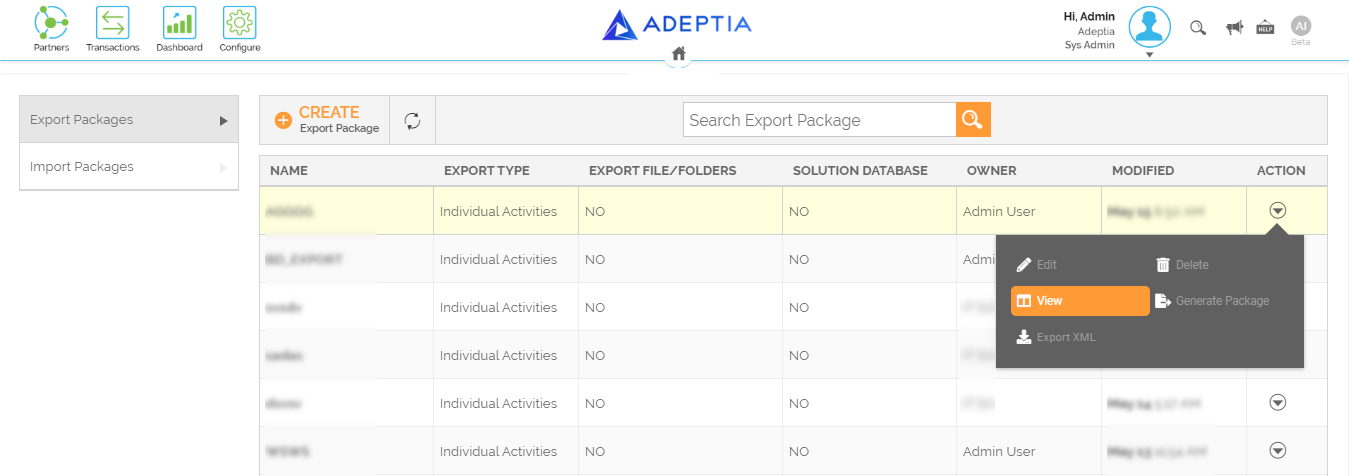 On the View screen, you will be able to see the package Id.
Generating the Credential IDs
You can generate credential IDs in Jenkins by using the Credentials Binding plugin that helps you store an application's credentials in Jenkins. As you store the credentials in Jenkins, a credential ID is generated which is accessible globally in Jenkins and can be used in lieu of the actual credentials for the application. For more details on creating the credential IDs using the Credentials Binding Plugin, refer to this page.
 |
|