Importing objects using Adeptia Connect APIs in Jenkins
Adeptia provides an import pipeline file that incorporates Adeptia Connect APIs for importing, allowing you to generate the import pipeline. This section outlines the steps for creating an import pipeline and then activating it to import objects into a target environment.
The import pipeline requires the ID of the Import package, which should be created beforehand as a prerequisite for the import process. For more details on the necessary prerequisites for importing objects, refer to this page.
Creating and triggering the import pipeline
To initiate the import of objects, the initial step involves creating an import pipeline with all necessary parameters. Once the pipeline is established, it must be triggered to execute the import operation.
Follow the steps below to create the pipeline using the provided import pipeline file from Adeptia and activate it.
-
Log in to the Jenkins with admin privileges.
-
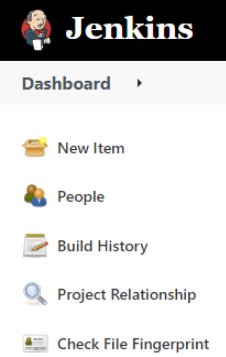
Select New Item.
-
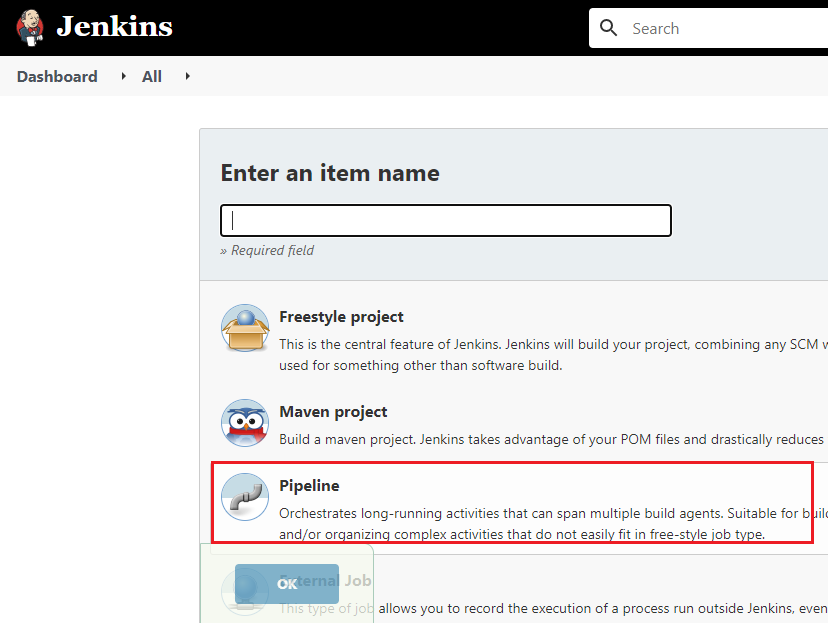
Enter a name for the Import pipeline, and then select Pipeline.
-
Click OK.
-
Copy the content from the provided import pipeline file.
[+] Import Pipeline
[-] Hide
-
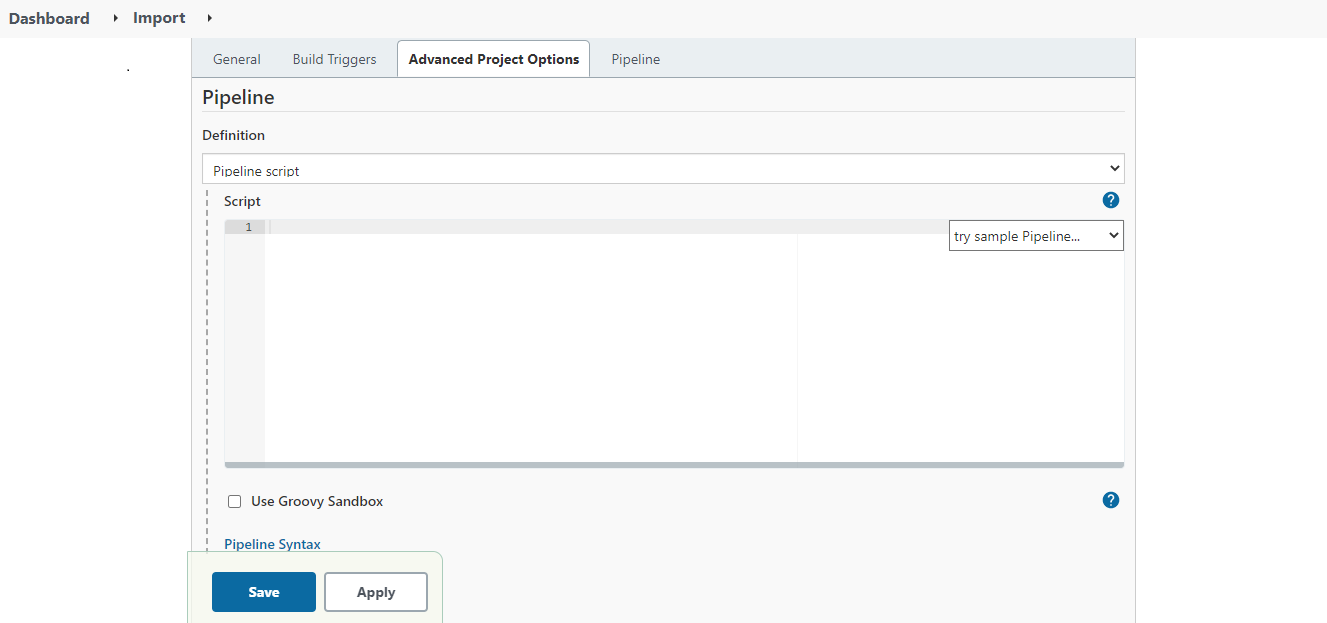
In the Pipeline Definition section, paste the copied content and uncheck the Use Groovy Sandbox checkbox.

If you are using Jenkins on Windows OS, and have created an agent on Linux OS, you need to do the following in the export pipeline file.
1. Uncomment the following code snippet.
<ch:codesample>Where,
LinuxAgent is the name of the agent that you have created.
2. Comment the following lines of code.
<ch:codesample></ch:codesample></ch:codesample> -
Click Save.
-
On the screen that follows, click Build Now.
As you build the pipeline for the very first time, all the parameters get initialized. -
Refresh the page.
The Build Now option now changes to Build with Parameters. -
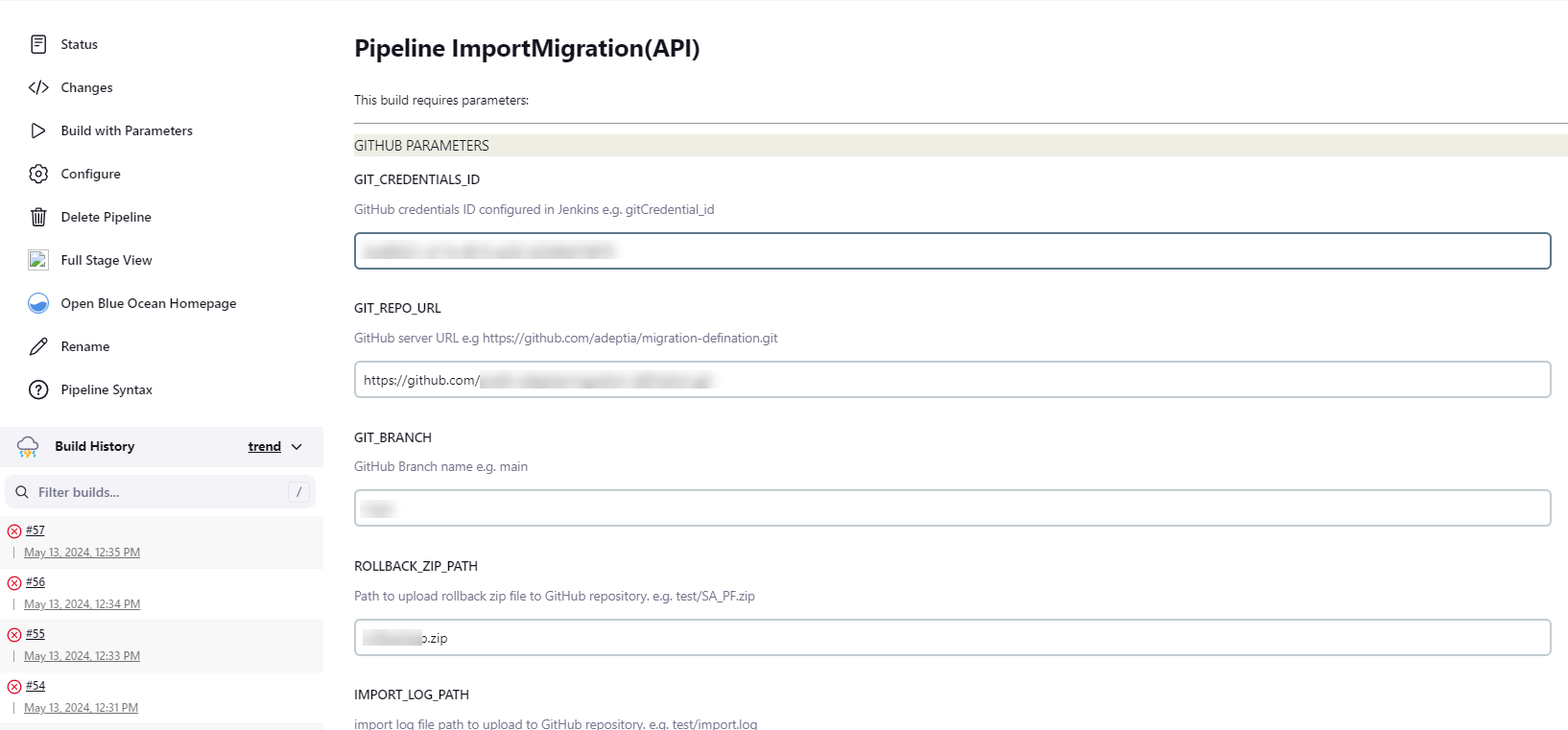
Click Build with Parameters.
You will see all the parameters inherited from the import pipeline file.
-
Enter the parameter values as per your requirement.

It is mandatory to provide a valid value for all the Jenkins parameters. [+] Click here to expand the list of Import parameters
[-] Hide
Parameters Value Description GIT_CREDENTIALS_ID <credential ID generated by Jenkins>
Credential ID for GitHub in Jenkins.
Refer to the prerequisites for more details.
GIT_REPO_URL https://github.com/adeptia/migration-definition.git URL of the GitHub repository. GIT_BRANCH main GitHub branch name. APPLICATION_URL https://abc.com Adeptia Connect application URL. APPLICATION_CREDENTIALS_ID user@abc.com Adeptia Connect User Id to be used for performing the Import operation. SOURCE_ZIP_PATH test/export.zip GitHub repository path of the export zip file that you want to use to perform the Import operation. IMPORT_LOG_PATH test/migration.log Path in the GitHub repository where the import logs file will be placed after the import operation completes. IMPORT_PACKAGE_ID 1235472230119257845 Id of the Import package.
For more details on viewing the Id of an Import package, refer to this section.
ROLLBACK_ZIP_PATH test/rollback.zip Path in the GitHub repository where the rollback zip will be placed after the import operation completes. -
Click Build to trigger the pipeline.
This imports the objects to the target environment and creates a corresponding rollback zip which is placed in the GitHub repository at the location you defined in the ROLLBACK_ZIP_PATH parameter.