Using Git for overriding an activity configuration
Adeptia Connect allows you to override an activity configuration at runtime by using a properties file stored in a Git repository. This feature provides flexibility to dynamically modify activity settings without requiring direct changes to the activity itself, ensuring seamless and efficient workflow customization.
 | To use this feature, it is mandatory that you enable Git Configuartion by setting the property configmanagement.gitconfig.enabled to true in Settings > Common > Git Config section. |
To override the value of a property for an activity using the properties file in Git, you need to do the following in the same order:
Creating Project-Git mapping
Project-Git mapping helps you define the details of the Git repository from which you want to fetch the values for the fields (properties). It is required when you want to map an Adeptia Connect project with a Git project so that the activities in the mapped project can fetch the property values from the specified Git project.
| If you do not define a project-git mapping for a project, the application uses configuration defined in Settings > Common > Git Config section of the application to get the details of the Git repository. For more details, refer to this page. |
To map an Adeptia Connect project with a Git project, follow the steps given below:
-
Click Account > My Company.
-
Select Project-Git Mapping.
-
Provide a value for the fields described in the following table.
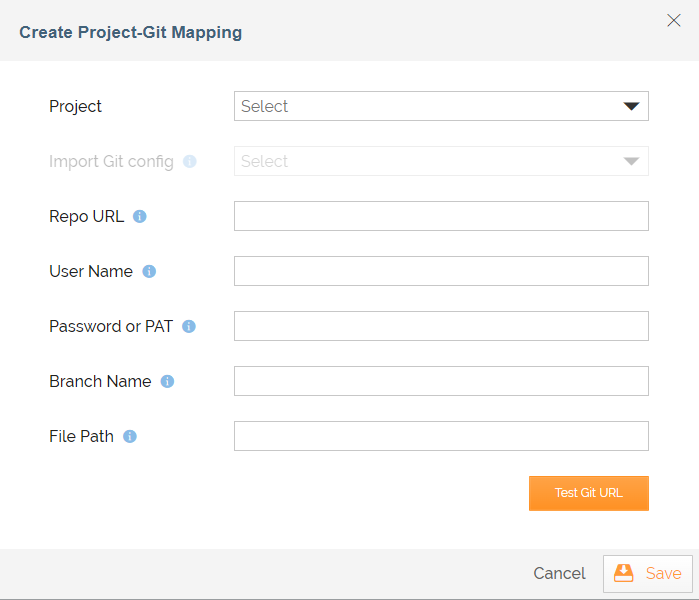
Field Description Project Select an Adeptia Connect project that you want to map with a Git project Import Git config Select a Git project. This autopopulate the values in the fields to follow based on the corresponding properties' values you have provided in the Git project. Repo URL Enter the URL of your Git repository. User Name Enter the username for your Git account if you are using a private repository. Password or PAT Enter the password or Personal Access Token for your Git account if you are using a private repository. Branch Name Enter the Git branch name, for example Dev, QA, or Prod, that you want to use for overriding the properties' values. File Path Enter the path for the properties file in the Git repository from which you want to fetch the properties' values. The value for this field varies based on the location of the properties file that may be present at the root of the repository or nested under multiple subfolders, for example, <Folder1>/<Folder2>/application.properties. -
Click Save.
On the Project-Git Mapping screen, you can View, Edit, or Delete a Project-Git Mapping activity by using the respective options in the More  menu (under the ACTION column).
Using variables to fetch the properties' values
A property (field), for example, Host Name and its corresponding value, is maintained as a key-value pair in a property file in the Git repository. In order to fetch a property value from a Git repository, you need to enter a variable in the field for which you want to fetch the value. The variable you enter must be in the following format:
${Config:<Key>}
Where, <Key> is the key defined in the Git repository for the field for which you want to fetch the value.
When you use this variable with an appropriate key, the application fetches the value corresponding to that key.
For example, if you want to fetch the value for the Host Name field in an FTP source activity, and the key corresponding to this field in the Git repository is FTPhostname, you can enter ${Config:FTPhostname} as the variable to fetch the value for the field.