Using an external vault for secrets
The activities that you create and use in Adeptia Connect may contain sensitive information like User Id and Passwords. You may want to store this sensitive information as secrets in an external Vault for added security. Adeptia Connect enables you to fetch secrets for activities from HashiCorp Vault and use them at runtime.
Adeptia Connect supports role-based Kubernetes authentication wherein Kubernetes service account credentials are used for authenticating to the Hashicorp Vault. Once the application is able to authenticate to the Vault, it is ready to fetch secrets from the Vault.
To enable you to use the secrets stored in a Vault for an activity, you need to do the following in the same order:
Prerequisites
Before you start using this feature, ensure that you have set the HashiCorp Vault related parameters in the global values.yaml file. The following table contains the list of parameters and their description.
 | If you have deployed Adeptia Connect using Adeptia Connect Rancher package, refer to the Additional configurations section to configure the variables discussed on this page. |
Parameter | Description | ||
|---|---|---|---|
configManagement: | |||
PROFILE: | The Profile in Hashicorp Vault that you want to use for fetching the secrets. | ||
CONFIG_MANAGEMENT_SEGREGATION_CRITERIA: | The variable to define the basis for the segregation of your secrets. The value for this variable is either project (in case of project-based segregation) or it can be left blank. | ||
backend: | |||
hashicorp: | |||
HASHICORP_VAULT_ENABLED: | Set this variable to true to fetch the secrets from HashiCorp Vault. | ||
HASHICORP_VAULT_KV_VERSION: | The variable to define the version of the kv secret engine. The possible values are v1 and v2. | ||
HASHICORP_VAULT_SECRET_PATH_PATTERN: | Pattern of the path for the secrets stored in the Vault. The default value for this variable is: $PROJECT_VAULT_MAPPING$/$PROFILE$/ Where,
| ||
HASHICORP_VAULT_URL: | Access URL (endpoint) of the HashiCorp Vault. | ||
HASHICORP_VAULT_SECRET_BASE_PATH: | Enter the complete path to the base folder that contains secrets.
| ||
HASHICORP_VAULT_AUTHENTICATION: | Enter the type of authentication to be used by AC application to authenticate to the Vault. The possible values are KUBERNETES and TOKEN. | ||
HASHICORP_VAULT_TOKEN: | Enter the Vault token.
| ||
HASHICORP_VAULT_KUBERNETES_ROLE: | Enter the name of the role associated with the Kubernetes authentication method you have defined in the Vault.
| ||
HASHICORP_VAULT_KUBERNETES_SERVICE _ACC_TOKEN_PATH: | Enter the path where the Service Account token is stored within the pod. The default value for this variable is /var/run/secrets/kubernetes.io/serviceaccount/token.
| ||
HASHICORP_VAULT_KUBERNETES_PATH: | Enter the name of Kubernetes authentication method defined in the Vault.
| ||
| HASHICORP_VAULT_TOKEN_TYPE | Enter the type of token defined in the Kubernetes authentication method. The possible values for this variable are:
|

| You need to restart the runtime (shared and dedicated) pods if you redeploy the application with an updated value for a HashiCorp parameter. |
Creating project mapping
Project mapping is required if the HashiCorp Vault projects' folders do not have the same name as that of the associated projects that you have in Adeptia Connect.
 | You don’t need to create project mapping if your Hashicorp Vault doesn't have folders corresponding to the projects in Adeptia Connect. |
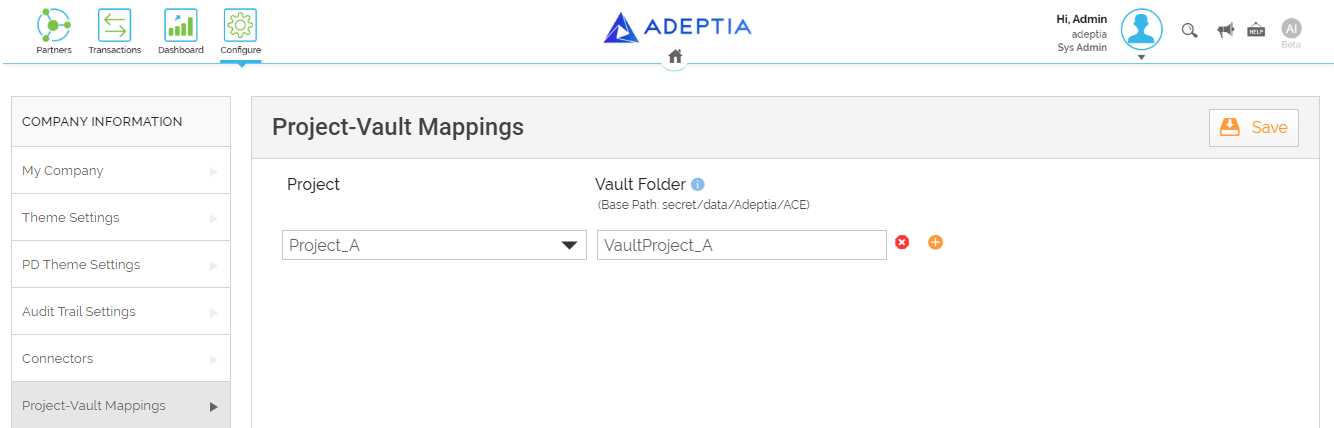
To map one or more projects to a folder in HashiCorp Vault, follow the steps given below:
-
Click Account > My Company.
-
Select Project-Vault Mappings.
-
In the Project field, select the projects that you want to map.
-
In the Vault Folder field, enter the name of the folder in HashiCorp Vault that contains the secrets for the project(s) you have selected in the Project field.
-
Click Save.
This creates a project mapping. You can click Add More to create another mapping.
Using variables to fetch secrets
A secret, for example, username and its corresponding value, is maintained as a key-value pair in HashiCorp Vault. In order to fetch a secret from HashiCorp Vault, you need to enter a variable in the field for which you want to fetch the secret. The variable you enter must be in the following format:
${Vault:<Key>}
Where, <Key> is the key defined in Hashicorp Vault for the field for which you want to fetch the secret.
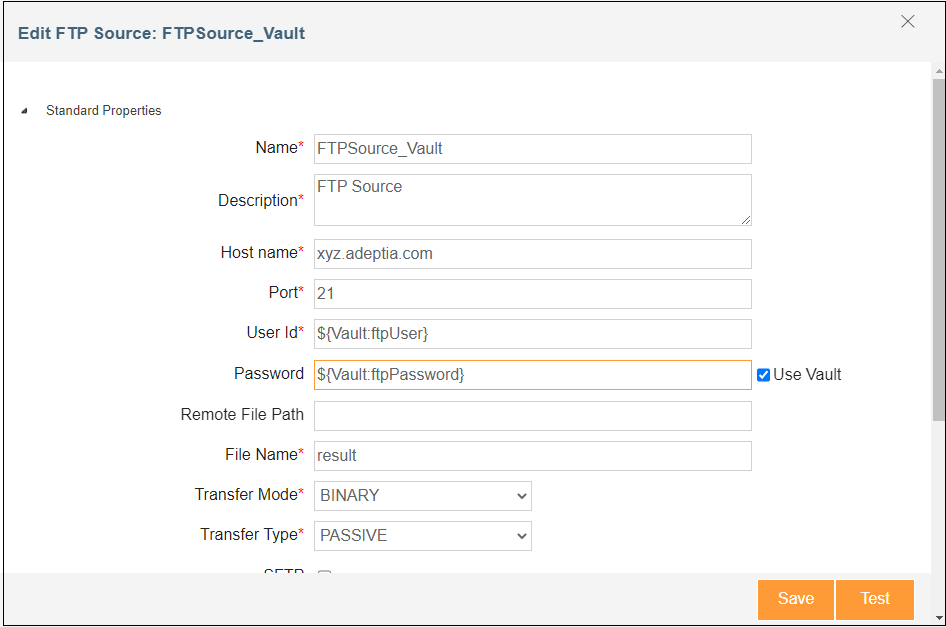
When you use this variable with an appropriate key, the application fetches the value corresponding to that key.
For example, if you want to use HashiCorp Vault to fetch the value for the User Id field in an FTP source activity, you first need to have a key having a value defined for the User Id field in HashiCorp Vault. You can use that key in the variable and enter it in the field. Considering User.Id as the key defined in the Vault for User Id field, the variable to be entered in the field should look like the one given below:
${Vault:User.Id}