Viewing Transaction details
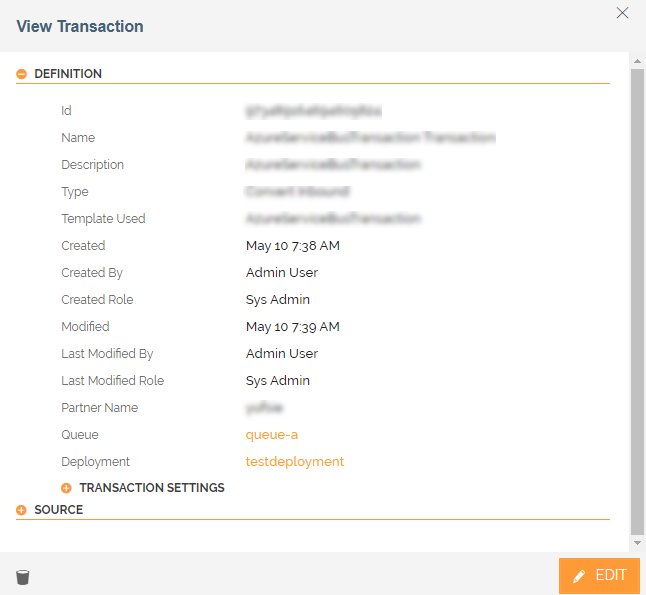
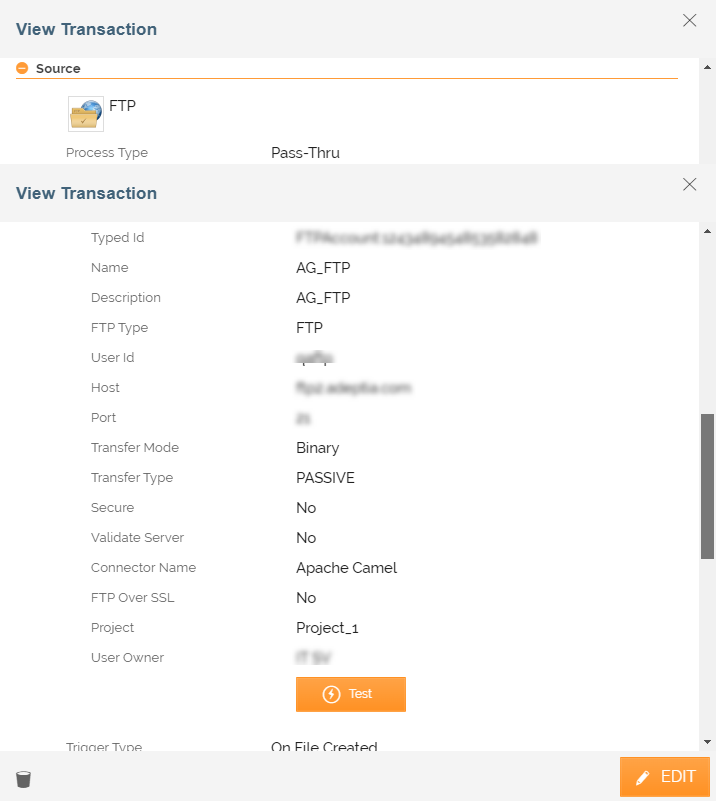
Adeptia Connect provides a designated screen 'View Transaction' for you to view the details about a Transaction, including Transaction name, type, Template used, Creation date, Source and Destination application, associated Queue and Deployment, etc. This View Transaction screen is dynamic in nature in the sense that it shows you the information based on the current metadata of the Transaction. While some details (Definition section) are available on the View Transaction screen upfront, you need to expand the other sections (for example: Source, Destination, Mapping, etc.) to view the relevant details.
To view the Transaction details:
-
Click Transactions > Transactions.
-
On the Transactions screen, do either of the following:
-
Click
 > View.
 -
Click the name of the Transaction to view details.
The View Transaction screen displays the details of the Transaction as shown below.

- You can expand or collapse the sections in the View Transaction screen using
 to show or hide the Transaction details.
 - You can also test the connection with the application at Source or Target by using the
 button in the Source > Account section.
If you have configured the Partner Parameter while creating a Template then you will find the configured parameter value in the Location field. It displays the role of the logged-in user who performs any of the following actions:
- Create
- Update
- Activate
- Deactivate

For transactions from the previous version, the two fields 'Created Role' and 'last Modified Role' show the value as 'Not Configured'. You can also edit and delete the Transaction from the View Transaction window. Click  to edit the Transaction details. Click
  to delete the Transaction.
 -