Copying an EDI Transaction
You can now copy an EDI Transaction and use it to create another EDI Transaction. When you copy an EDI Transaction, all the accounts, layouts, and mapping used in the transaction will get copied to another Transaction.
Follow the steps given below to create a copy of an EDI Transaction:
-
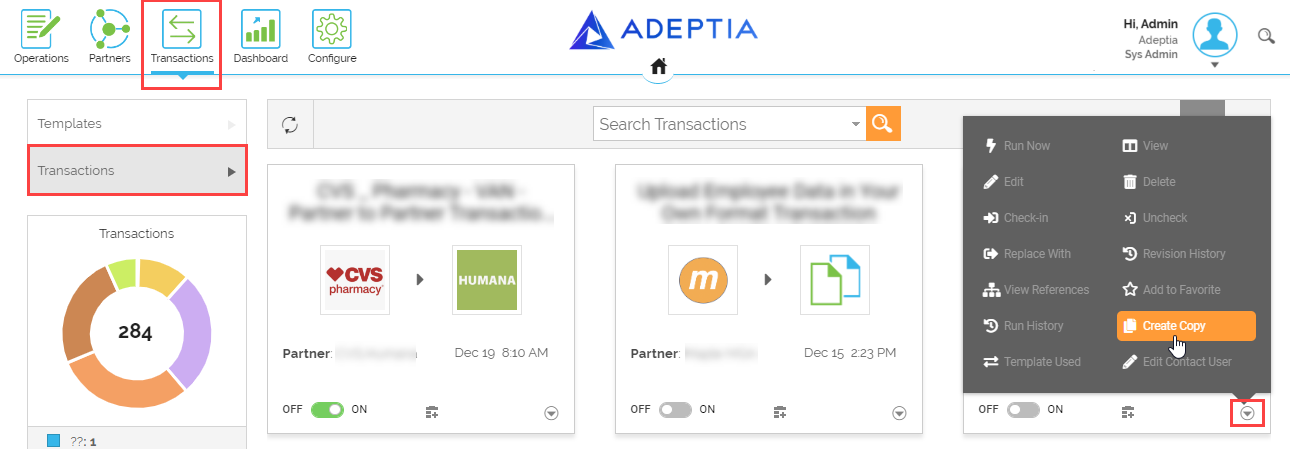
Click Transactions > Transactions.
-
On the Transactions screen, select EDI Transaction and click More
 > Create Copy.
-
On the Create Copy window, provide the name and description of the Transaction.
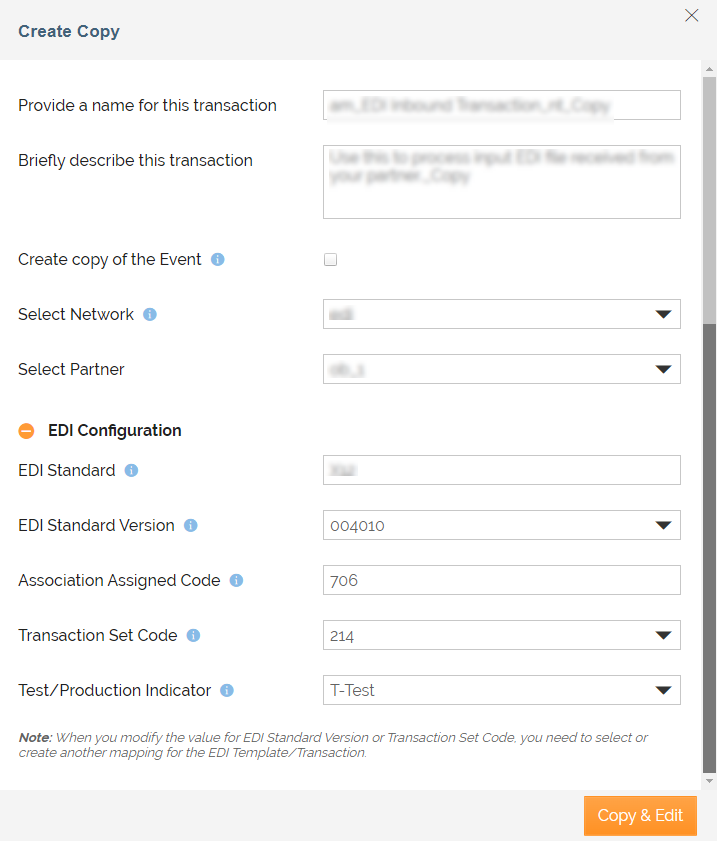
The name and description of the Transaction are generated automatically based on the selected Transaction. You can edit the Transaction name, description, Network, Partner, and EDI Configuration.
As a prerequisite to creating a copy, you need to change one of the following EDI configuration parameters.
- EDI Standard Version
- Transaction Set Code

- To create a copy of the Event associated with the Transaction, select the Create copy of the Event checkbox. By default, the field is checked for an EDI Outbound Transaction and unchecked for an EDI Inbound Transaction.
- The Create copy of the Event checkbox is available for:
- All the EDI Inbound/Outbound Transactions created using the bundled Templates.
- An EDI Inbound Transaction associated with a self created Template, the "Create copy of the Event" checkbox is available only when the Event is defined in the Transaction.
- The Create copy of the Event checkbox is not available:
- For an EDI Outbound Transaction associated with a self created Template.
- When an FTP Event is bound with an EDI Transaction.
- The EDI Configuration section will be displayed only when you have checked the Partner will define this step checkbox at the EDI Configuration step while creating the template.
- Based on the selected EDI template type (Inbound/Outbound) EDI Configuration parameters will differ.
-
Click Copy & Edit to copy the transaction and open it in edit mode.
-
Edit the Transaction as per your requirement and click Save**&**Exit.