Creating a Template - Post Process
In a typical scenario of a data transaction, the data is transferred from source to destination. However, in some cases, a Company or Partner may need to further process the data received at the destination. For further processing of this already processed data, you would use post-processing Transaction.
Like any other Transaction, you need to create a Template first for post-processing. A post-processing Template will include a Process Flow published in Adeptia Connect. Based on your requirement type for the post-processing of the received data, you can also use an already created transaction (for which the Pre Process app is the source) instead of a Process Flow. You must use the Post Process app in the destination to facilitate the creation of post processing Template/Transaction.
You can create a Post Process Template either
Creating a Post Process Template Using a Process Flow
Prerequisites
For using a Process Flow in a Post Process Template, ensure that you have:
- Created a Process Flow in the Adeptia Connect using File Source activity and set the value of the eventContextEnabled property to true in the Process Designer.
- Published Process Flow in Adeptia Connect.
To create a Template:
-
Go to Configure > Templates > Create Template. The following are the high-level steps that you need to select while creating a Template.
-
On the Create New Template screen, provide the name and description of the Template.
-
Select the Project from the Select Project drop-down list and Provide the display name for the Template.
-
Select Convert from the Select Template Type drop-down list.
-
Select Inbound in the Select direction drop-down list.
-
Select the application from the list while defining the Source application, for example, FTP.
-
Define the source data format for a Template.
-
Select the event to be triggered.
-
Select the source layout and format of a Template.
-
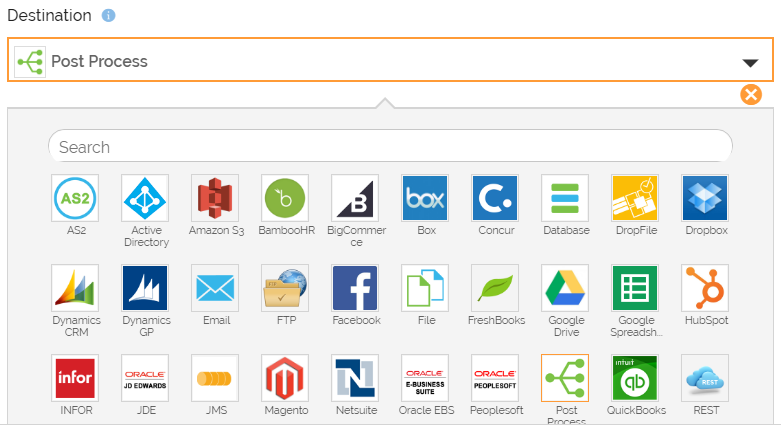
Select the Post Process app while defining the Destination application.
-
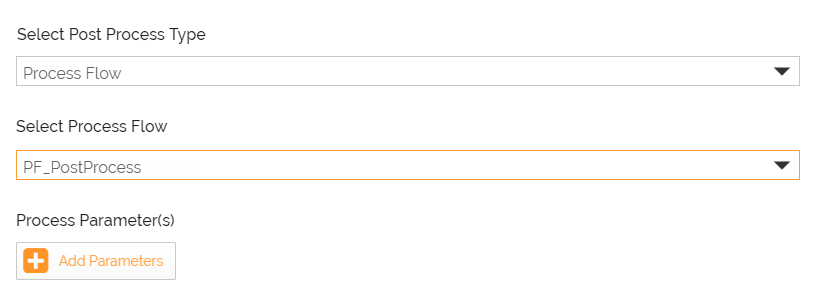
Select Process Flow from the Select Post Process Type drop-down list.

You can also allow the partner to define this step by selecting Partner will define this step. -
Select the process flow from the Select Process Flow drop-down list. Only published process flow will be populated in the drop-down list.
-
Click Add Parameters to add parameters. Define the keys and their values. The specified values will be put in the context of the child flow.
-
Define the target data format and layout.
-
Define the mapping between the fields.
-
Click Save and Exit to save the Template.
Creating a Post Process Template Using a Transaction
To create a Template:
- First, create a Template using the Pre Process application as a Source application. The following are the high-level steps that you need to select while creating a Template.
- Click Configure > Templates > Create Template.
- Select File & Message from the Select Template Type drop-down list.
- Select Inbound in the Select direction drop-down list.
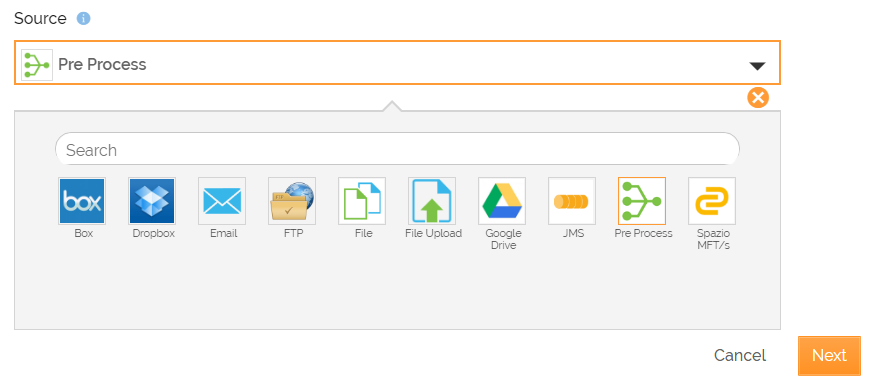
- Select the Pre Process app while defining the Source application.
- Select the source data format for a Template.
- Select the source layout and format of a Template.
- Select the Destination application, for example, FTP.
- Define the action to be taken at the destination.
- Define the Destination application account and configuration details.
- Define the target layout and format of a Template.
- Click Save and Exit to save the Template.
- After creating a Template, create a Transaction using this Template.
- Now, create a Template using the Post Process application as a Destination application. The following are the high-level steps that you need to select while creating a Template.
-
Click Configure > Templates > Create Template.
-
Select either File or App from the Template Type drop-down list.
-
Select Inbound in the Select direction drop-down list.
-
Select the Source application, for example, QuickBooks.
-
Define the source data format for a Template.
-
Select the event to be triggered.
-
Select the Post Process app while defining the Destination application.
-
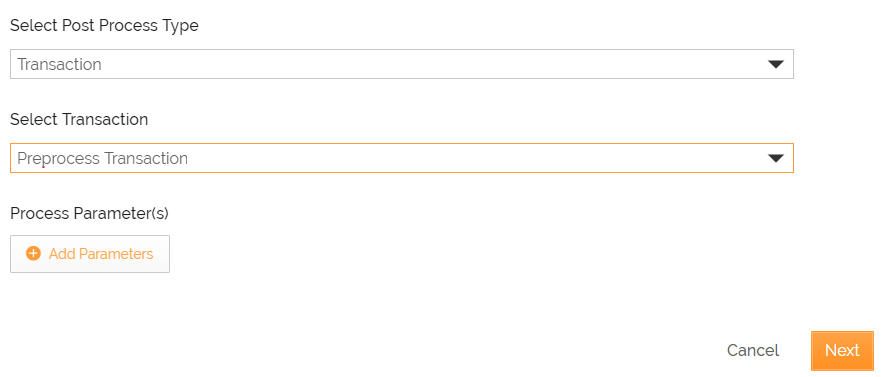
Select Transaction from the Select Process Type drop-down list.
You can also allow the partner to define this step by selecting Partner will define this step. -
Select the Pre Process Transaction from the Select Transaction drop-down list. Only Pre Process Transactions will appear in the drop-down list.
-
Click Add Parameters to add parameters. Define the keys and their values. The specified values will be put in the context of the child flow.
-
Define the target data format and layout.
-
Define the mapping between the fields.
-
Click Save and exit to save the Template.
-