Activating a Template
After you have mapped the fields of the Source and the Target application of the Template or you have defined the Source and Target application of a Template, you will be prompted to turn on the Template. Unless you confirm it, the state remains OFF. You may choose to turn ON/OFF either at the time of creation or through the Templates screen later. Turning On a Template means activating a Template to create Transactions.
 | Only a Company administrator and an IT User can activate a Template. |
To activate a Template:
-
Click Configure > T****emplates.
-
On the Templates screen, click
 to activate.
 indicates a deactivated Template.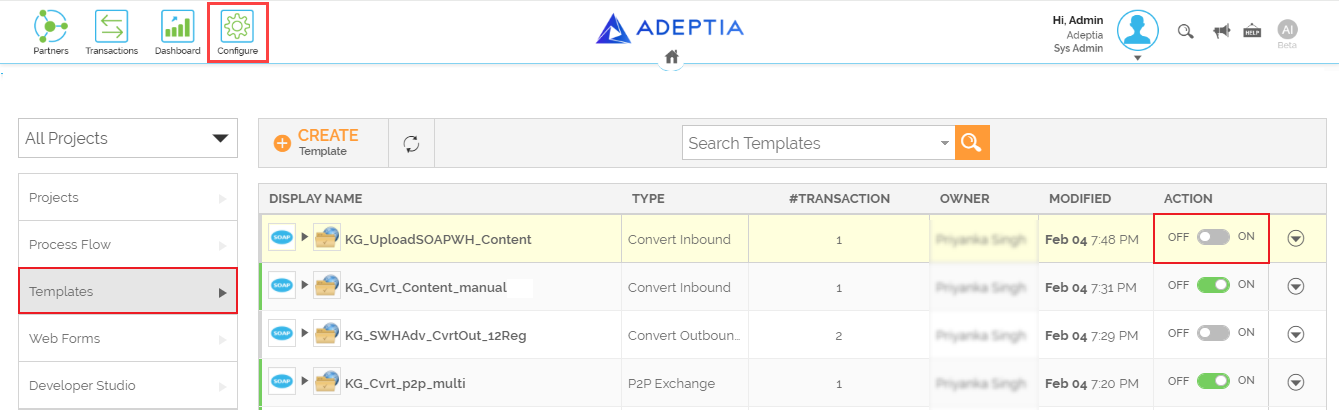
-
Click Yes, turn On, when prompted to confirm.
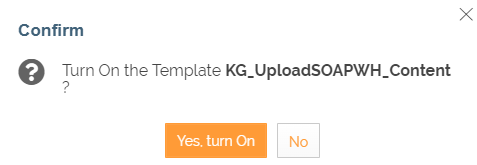 This activates a Template. You can now use it to create Transactions.
 indicates activated Template.
- You can sort the Templates listed on the Template Manage page by clicking
 next to the required column and then selecting Sort Ascending or Sort Descending as per your need.
 - You can also hide or show a column on the FTP Event Manage page. To do so, click next to a column and then select Columns to choose from the following list:
- Actions
- ID
- NAME
- DESCRIPTION
- PROJECT
- OWNER
- MODIFIED
- Actions
- You can sort the Templates listed on the Template Manage page by clicking