Creating REST Provider
This section explains the process of creating web service provider service for RESTful Web Service.
Follow the steps below to create a REST Provider:
-
Click Configure > WEB SERVICES > REST Provider.
-
Click Create REST Provider.
-
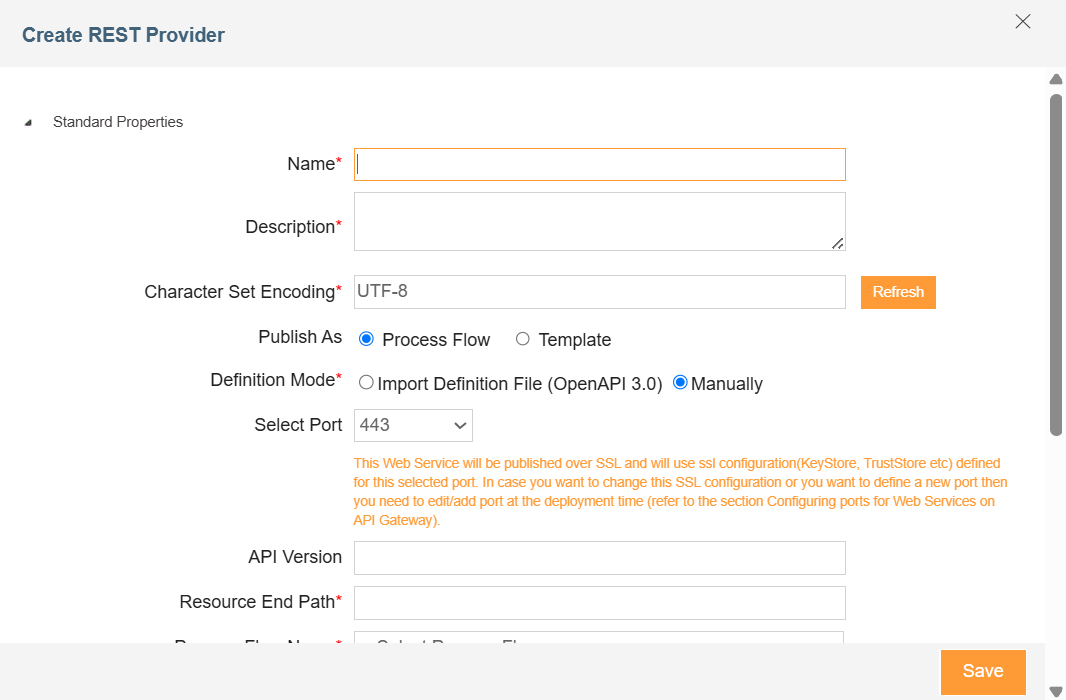
In Create REST Provider window, type the name and description of the new Web Service Provider service in the Name and Description fields respectively.
-
In the Character Set Encoding field, enter the character set encoding for the REST Provider that you are creating.

By default, this field displays the character set encoding that you have defined at the application level. In case the character set encoding for the REST Provider that you are creating is other than the default one (UTF-8), you can change this in the Character Set Encoding field. -
Select either Process Flow or Template based on how you want to publish this REST Provider.
The REST providers that are published as Process Flows and set to be executed in Sync mode bypass the queue and get executed immediately. -
In the Definition Mode field, do either of the followings:
-
Select Manually if you want to define the REST Provider manually, and skip to step 7.
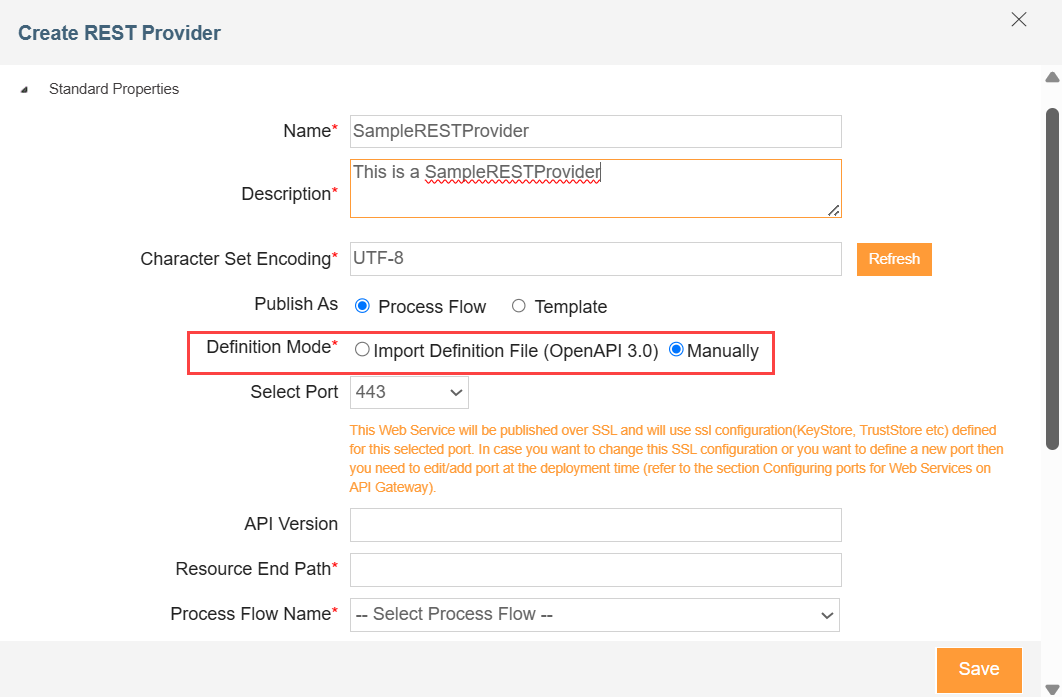
-
Select Import Definition File (OAS 3.0) if you want to define the REST Provider using a Swagger YAML/JSON file.
A sample Swagger YAML file
If selected, follow the steps i through iv.
-
Click Choose File.
-
Browse to select the Swagger file to be uploaded.

Make sure that the Swagger file you upload is in YAML or JSON format and adheres to the OAS 3.0 standards. -
Select a resource end path in the Select Resource End Path field.
The Select Resource End Path field lists the endpoints mentioned in the Swagger file. -
Follow the rest of the steps from step 7 onwards.
-
-
-
Select the Asynchronous check box if you want the Transaction based on this Template (with REST Webhook as a source) to be asynchronous.

This field is available only when you publish the REST Provider as a Template. -
In the Select Port field, select the port on which you want to publish the REST provider.
All the ports that are available on API Gateway will be visible in this field. You can also define/edit/delete a custom port through an environment variable in values.yaml file. Click here to know how to configure the ports. -
In the API Version field, enter the API Version. For example, your API version can be 1.1.
-
In the Resource End Path field, enter the resource end path URL. The URL can be static or dynamic.
Static URL example: /rest/WeatherForecast
Dynamic URL example: /rest/{ServiceName} where service name is a variable, for example, WeatherForecast.- This field is available only when you select Manually as the Definition Mode.
- The variable name in the Dynamic URL must be in the curly braces {}.
-
In the Process Flow Name field, select a Process Flow to trigger with the REST provider.
This field is available only when you publish the REST Provider as a Process Flow. - The selected Process Flow must have Context Source and Context Target activity – GET and DELETE can only have Context Target, whereas PUT and POST can have both Context Source and Context Target activity.
- The parameterName attribute of the Context Source should be restRequest.
- The parameterName attribute of the Context Target should be restResponse.
-
In the Resource Parameter section, enter the name, default value, and style in the respective fields to define the parameters that you want to pass.
To pass a parameter as a part of HTTP header, select Header in the Style field corresponding to that parameter. -
Click Add Method.
-
In the window that opens on your browser, do the followings to add a method to your activity.
-
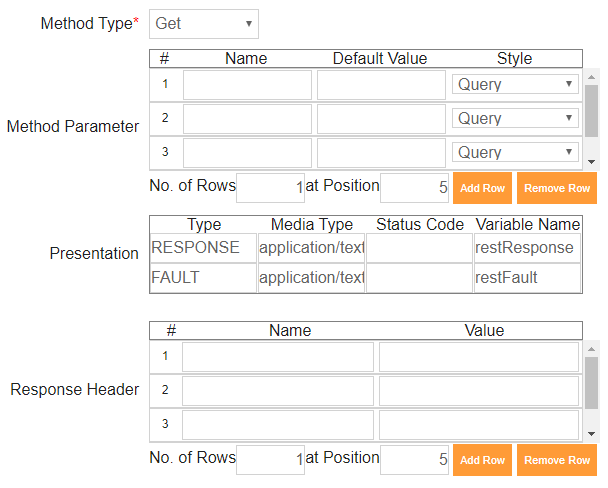
Select the type of method from the Method Type field. The available methods are PUT, GET, POST, and DELETE. Depending upon the selection of the method type, the content of the Presentation table appears.
- If you use GET method in the REST provider being published as a Template,
- The Context File Based Routing is not supported.
- You don’t get a REQUEST Type of Presentation. However, for DELETE method you will find the REQUEST Type of Presentation.
- The Context File Based Routing is not supported.
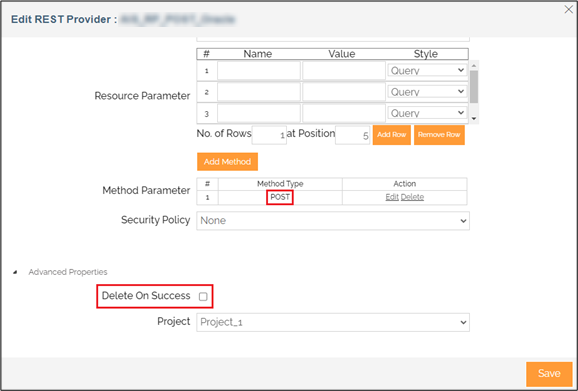
- If you use PUT or POST method, you can select the Delete On Success option to delete the attachments saved after the successful execution of the REST Provider that has been published as a Process Flow.
- If you use GET method in the REST provider being published as a Template,
-
In the Method Parameter section, define the method parameters. Enter the name, default value, and style in the respective fields.
To pass a method parameter as a part of HTTP header, select Header in the Style field corresponding to that parameter. -
In the Presentation section, set the Media Type as application/text, application/xml, or application/json based on your requirement. If you set the Media Type as xml or json, select a Layout (Schema) for the respective media type.
-
Set the Status Code for Request, Response, and Fault.
-
In the Response Header section, define the headers. Type the response header names and values in the respective fields.
-
Click Save.
This will add the method in Method Parameter section in the Create REST Provider page.
-
-
In the Authentication Type field, select the authentication type. The possible values are None, Basic, API Key, Kerberos.
-
In the Security Policy field, select a security policy.
You can also edit the selected security policy by clicking  , or create a new security policy by clicking
 icon.
icon.The security policies corresponding to the selected Authentication Type are listed in this field. For information on how to create a Security Policy, refer to Creating Security Policy for Web Service. -
Expand the Advanced Properties section
-
Select a project from the Project field.
-
Click Save.
| The REST provider once published as a template can be used as a Source in a Template . For more details, refer to the page Using REST Webhook in a Template. |
After you have finished creating the REST Provider:
- You can see its type (Template or Process Flow) under the TYPE column on the REST Provider manage page.
- You can also publish or unpublish the REST Provider from the same page, click here for more details.
- You can add the API Documentation.
| When a RESTFul web service is invoked by a Consumer, following information is saved in the Process Flow context:
You can view the value of these variables in Process Flow context, within Process Flow Logs. You can also view these variables within your Process Flow using put-context-var action. |