Spazio MFT/s Source
A Source service enables you to specify the location from where you can fetch the data. The Spazio source service allows you to fetch data from a Spazio MFT/s queue. This activity can either be triggered by an event or explicitly run.
To create spazio source:
-
Click Configure > SOURCES > Spazio MFT/s Source.
-
Click Create Spazio MFT/s Source.
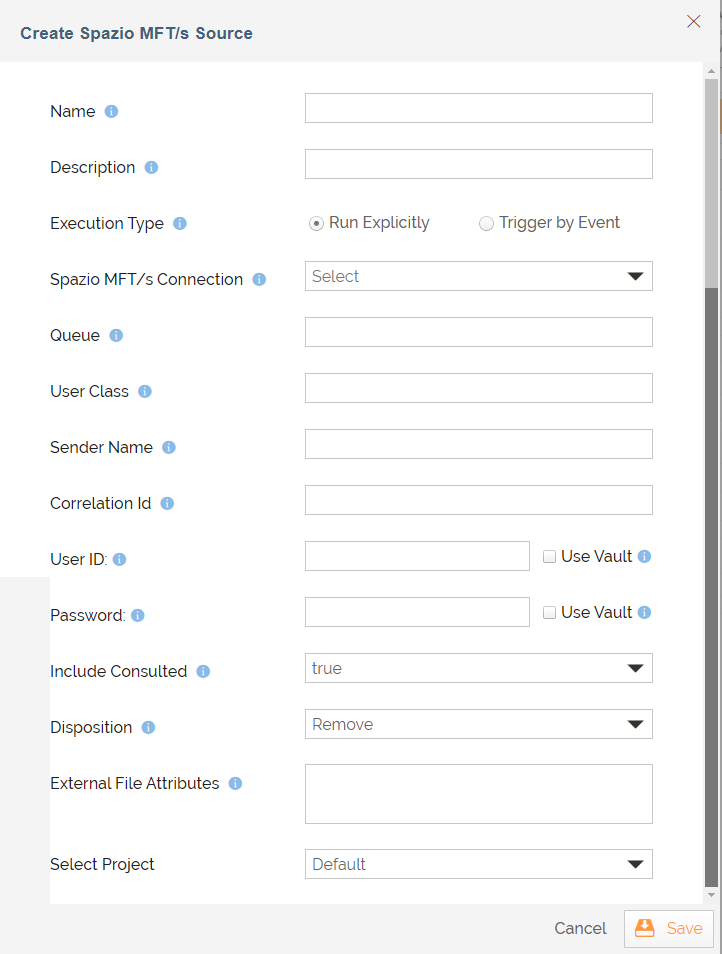
-
On the Spazio MFT/s Source screen, provide a unique Spazio source name and description.
-
Select the execution type - Run Explicitly or Trigger by Event.
Run Explicitly: Select this option to execute the process flow manually.
Trigger by Event: Select this option to trigger the process flow through Spazio Listener. In this case, you need to create a Spazio Listener and bind this event with the source activity in the process flow. -
Based on the option chosen in the previous step, the list of fields differ.
For Run Explicitly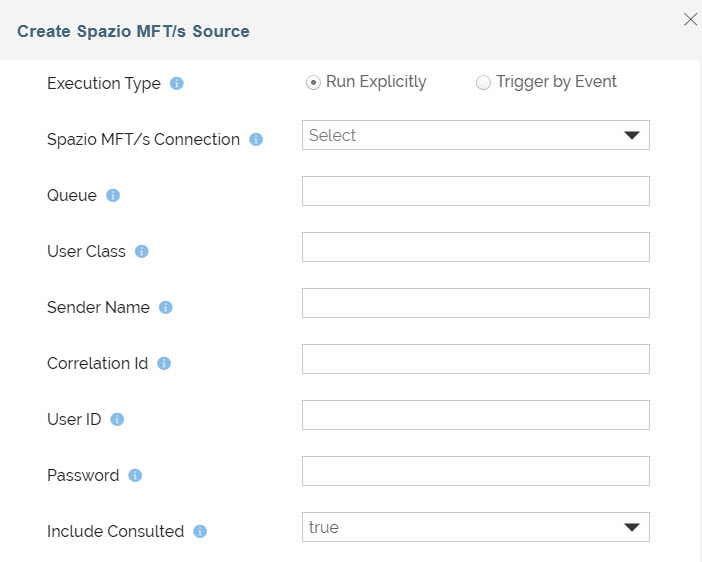
Field Name
Description
Spazio Connection Select the Spazio MFT Server Connection from the drop-down list under which you want to create MFT File Source. Queue Name of the default Queue where files are queued. User Class Name Name of the Primeur Spazio MFT/s user class. Sender Name Name of the Primeur Spazio MFT/s sender. The sender in this context is a logical MFT level sender identifier (not the actual userid/subject in AuthN/AuthZ terms) and can be used for filtering. Correlation Id Name of the Primeur Spazio MFT/s correlation identifier. Correlation identifier is a logical tag that can be associated with Primeur Spazio MFT/s files having some business level affinity (for example, "PAYROLL.FILES") and can be used for filtering.
User Id Primeur Spazio MFT/s connection user id. Password Primeur Spazio MFT/s connection password. Include Consulted Set the value to true to read the file multiple times. Disposition Whether to keep the file or remove it after successful execution.
Keep: Retain the file on the input queue after successful execution.
Remove: Remove the processed file from the input queue.
External File Attributes Optional extended metadata elements that can be attached to a file (very similar in nature and purpose with JMS message selectors). The value for this attribute can also be set explicitly in the process flow context. Select Project Select the project from the drop-down box. 
You can also use HashiCorp Vault to fetch the following secrets (credentials): - User Id
- Password
Each secret is maintained as a key-value pair in Hashicorp Vault. Select the checkbox against the respective fields to use Vault to fetch secrets for the fields. Enter the variable in the following format in the field:
${Vault:<Key1>}Where, <Key1> is the key in Hashicorp Vault that is defined for the field.
For example, you need to enter ${Vault:spazioSourceUserId} in the User Id field, if you have defined spazioSourceUserId as the key for this field in the Vault.
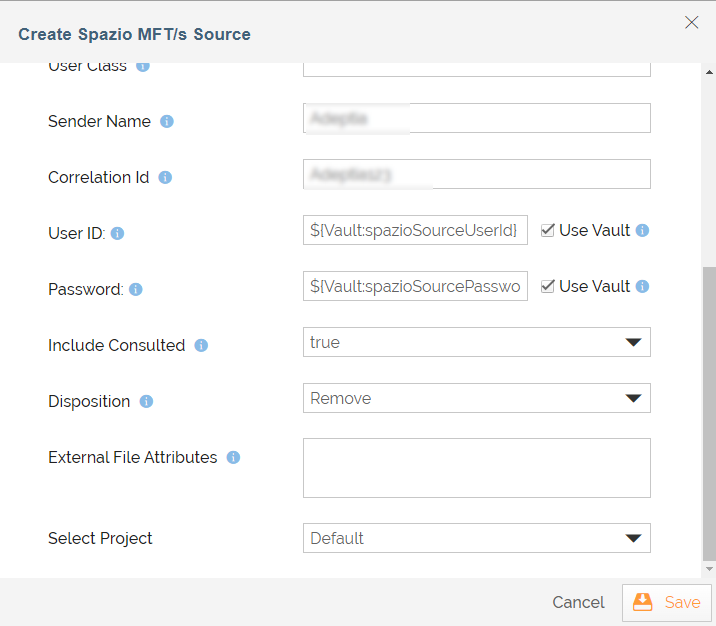
For more details, refer to this page.
For Trigger by Event
Field Name
Description
Disposition Whether to keep the file or remove it after successful execution.
Keep: Retain the file on the input queue after successful execution.
Remove: Remove the processed file from the input queue.
External File Attributes Optional extended metadata elements that can be attached to a file (very similar in nature and purpose with JMS message selectors). The value for this attribute can also be set explicitly in the process flow context. Select Project Select the project from the drop-down box. -
Click Save.