File Source
File Source service is used to retrieve the data from a file stored on the computer where Adeptia Connect is running. This section describes how to create a file source service.
 | As this File Source service has now been deprecated in Connect, it is recommended that you use LAN File Source service instead of this. Click here to know how to create an LAN File Source service. |
Follow the steps below to create a file source:
-
Click Configure > SOURCES > File Source.
-
Click Create File Source.
-
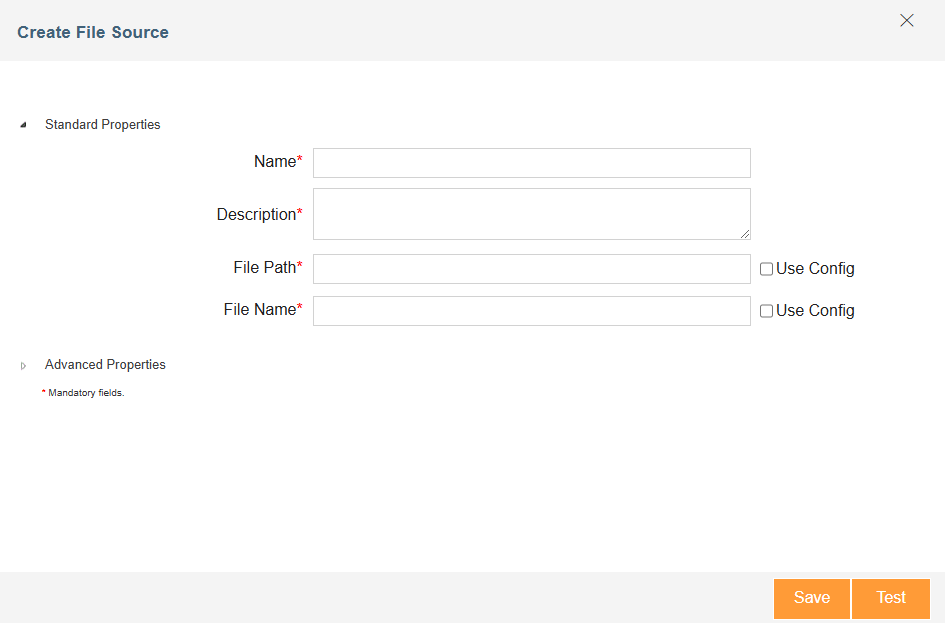
On the Create File Source window, type the name and the description of the new File Source activity in the Name and Description.
-
In the File Path field, enter the path of the source file, or select the Use Config checkbox to dynamically fetch it from a Git repository at runtime through a variable.
-
In the File Name field, enter the name of the source file, or select the Use Config checkbox to dynamically fetch it from a Git repository at runtime through a variable.
-
Expand Advanced Properties.
-
Select Delete File on Success check box, if you want to delete the source file after it is used in the process flow execution. The service will delete the source file once the process flow is executed successfully.
-
Select the project from the drop-down list of Project.
-
Click Save.

While creating File Source service, you can also test it to ensure that the path and file name specified in this service is correct or not by clicking Test.