Secret Key
A secret key helps you to create encryption or decryption activity that are required to encrypt outgoing data and decrypt incoming data respectively.
This document contains the information to create, export, and import the secret key:
Creating Secret Key
-
Click Configure > SECURITY > Secret Key.
-
Click Create Secret Key.
-
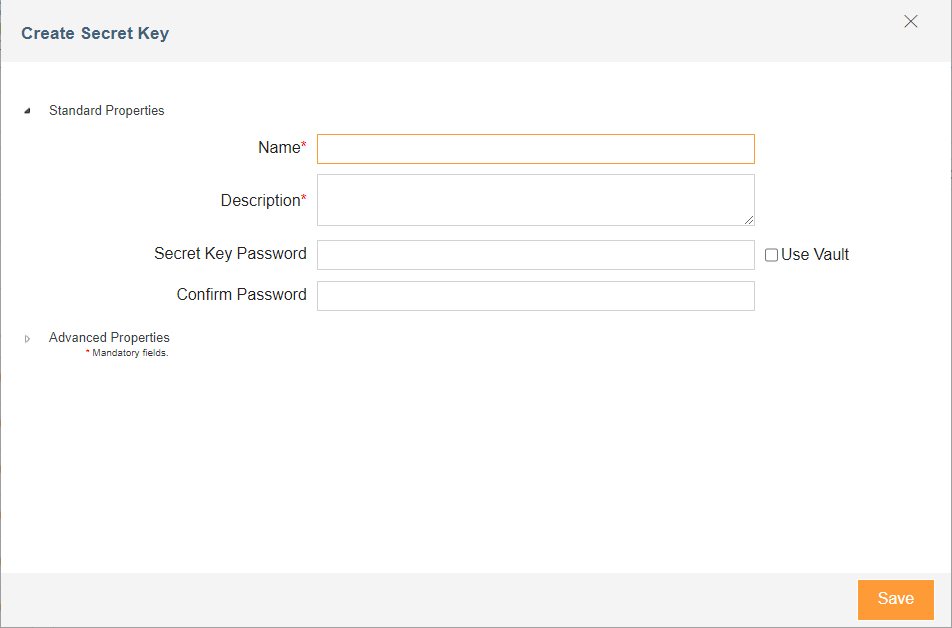
Enter the name and description of the new Secret Key in the textboxes Name and Description fields respectively.
-
Follow the steps below based on whether you are using Hashicorp Vault to fetch the secrets (credentials) or you want to enter the secrets manually.

To use Hashicorp Vault, you must enable Config Management feature and you may also need to do project mapping. For more details, refer to this page. -
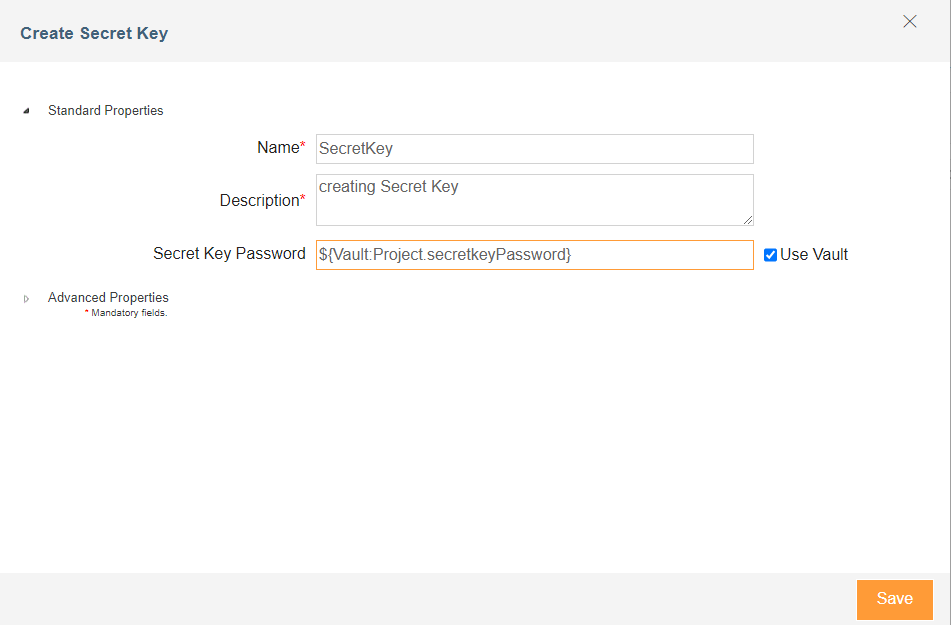
To fetch the secrets from the Hashicorp Vault, do the followings:
- Select the Use Vault checkbox if you want to use Vault for retrieving the Secret Key Password.
- In the Secret Key Password field, enter the variable in the following format:
**${Vault:<Key1>}**Where, <Key1> is the key assigned to the Secret Key Password in the Hashicorp Vault.
-
To enter the secrets manually, do the followings:
- In the Secret Key Password field, enter the password.
- In the Confirm Password field, re-enter the password.
-
Expand Advanced Properties and select the Project from drop-down list of Project.
-
Click Save.
Exporting Secret Key
- On Manage Secret Key screen, under Action, click More
 arrow and then click Export Key for the key to export.
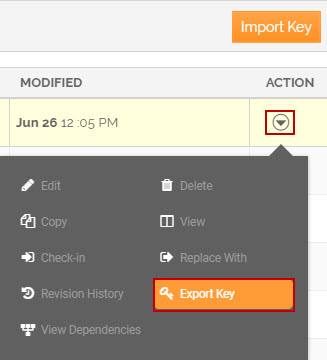 A screen is displayed confirming that the Secret Key has been exported successfully and stored in …<AdeptiaConnectInstallFolder>/ServerKernel/etc/security/secret keys folder.
Importing Secret key
-
On Manage Secret Key screen, click Import Key button.
-
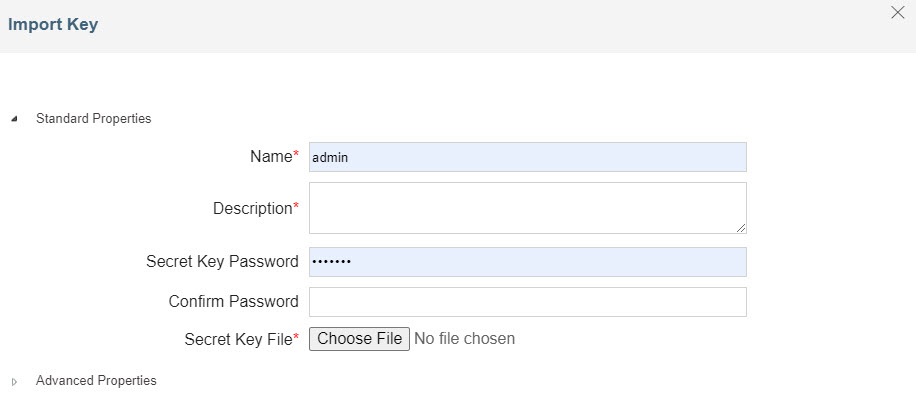
Enter the name and description for the Import Secret Key activity in the textboxes Name and Description respectively.
-
Enter the secret key password to be used for encryption and decryption in Secret Key Password and Confirm Password fields respectively.
-
Click Choose File and select the Secret Key file to be imported from …<AdeptiaConnectInstallFolder>/ServerKernel/etc**/security/keystore** folder. The path of Secret Key file is displayed in Secret Key File field.
-
Expand Advanced Properties and select the Project from drop-down list of Project.
-
Click Save.