SAP Client
SAP client is a service created in Adeptia Connect to communicate with the SAP server. While sending Intermediate Document (IDoc) it does not require any gateway, IDoc is directly sent to a client. However, when receiving IDoc from SAP, Adeptia's SAP Server acts as a gateway, and the client is the receiving end of a service in a client/server model type of system.
Creating a SAP Client
-
Click Configure > SAP > SAP Client.
-
Click Create SAP Client.
-
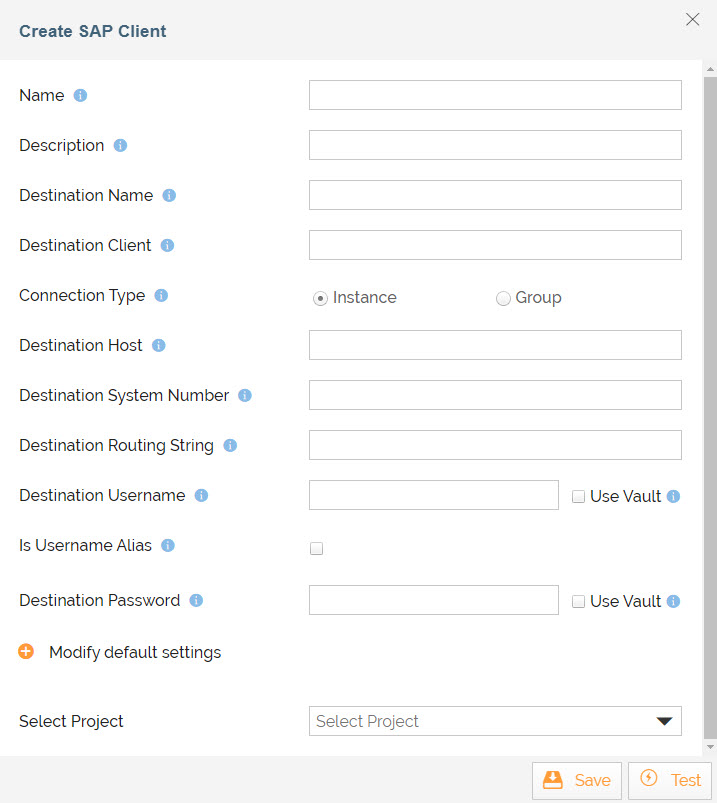
On the Create SAP Client screen, enter the details as explained in the table below:
Field Name
Description
Name
Name of the SAP client.
Description
Description of the SAP client.
Destination Name
Client destination from which to obtain the repository.
Destination Client
SAP client.
Connection Type
The number of connections that should be registered at the gateway.
Destination Host
SAP application server host.
Destination System Number
SAP system number.
Destination Routing String
SAP router string to use for networks being protected by a firewall.
Destination Username
Logon user.
Destination Password
Logon password.

Contact your administrator managing your SAP server to know what values to enter in the above fields. 
You can also use HashiCorp Vault to fetch the following secrets: - Destination Username
- Destination Password
Each secret is maintained as a key-value pair in Hashicorp Vault. Select the checkbox against the respective fields to use Vault to fetch secrets for the fields. Enter the variable in the following format in the field:
${Vault:<Key1>}Where, <Key1> is the key in Hashicorp Vault that is defined for the field.
For example, you need to enter ${Vault:sapClientPassword} in the Destination Password field, if you have defined sapClientPassword as the key for this field in the Vault.
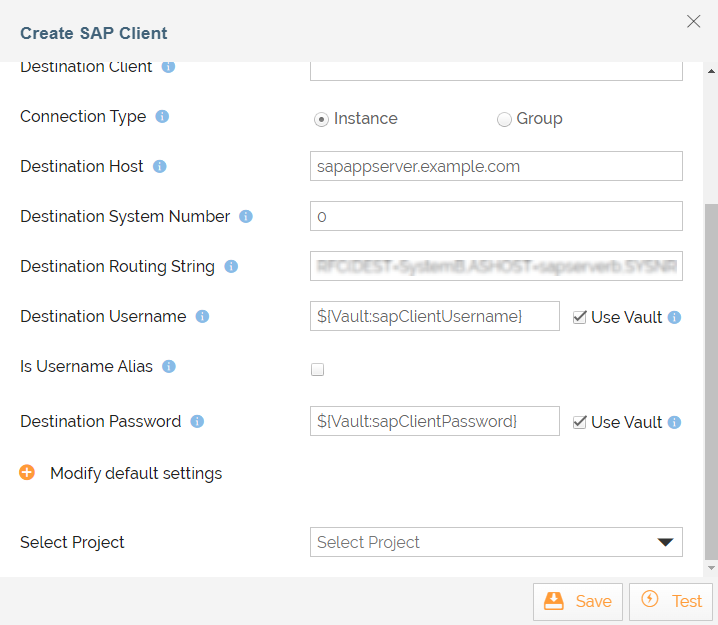
For more details, refer to this page.
-
Expand Modify default settings option if you want to modify the default settings for SAP Client.
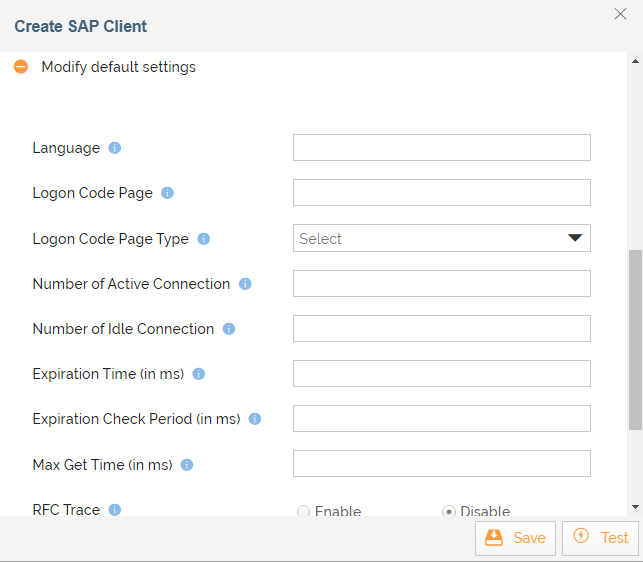
Field Name
Description
Language
Logon language.
Logon Code Page
Initial logon code page in SAP notation.
Logon Code Page Type
Initial logon code page type (1-non unicode or 2-Unicode enabled).
Number of Active Connection
Maximum number of active connections that can be created for a destination simultaneously.
<label>Number of Idle Connection </label>
Maximum number of idle connections kept open by the destination. A value of 0 has the effect that there is no connection pooling i.e. connections will be closed after each request.
Expiration Time (in ms)
Time in ms after that the connections hold by the internal pool can be closed.
Expiration Check Period (in ms)
Interval in ms with which the timeout checker thread checks the connections in the pool for expiration.
Max Get Time (in ms)
Max time in ms to wait for a connection, if the max allowed number of connections is allocated by the application.
RFC trace
Enable/disable RFC trace.
CPIC Trace
Enable/disable CPIC trace (0 no trace, 1,2,3 different trace levels).
SNC Mode Secure Network Communications (SNC) mode. -
Select the project from Select Project field.
-
Click Save.
You can click Test to test SAP Client.