File Polling
The File Polling service is used to check the arrival or modification of file(s) on the Local LAN location.
Steps to create a File Polling service:
-
Click Configure > POLLING > File.
-
Click Create File Polling.
-
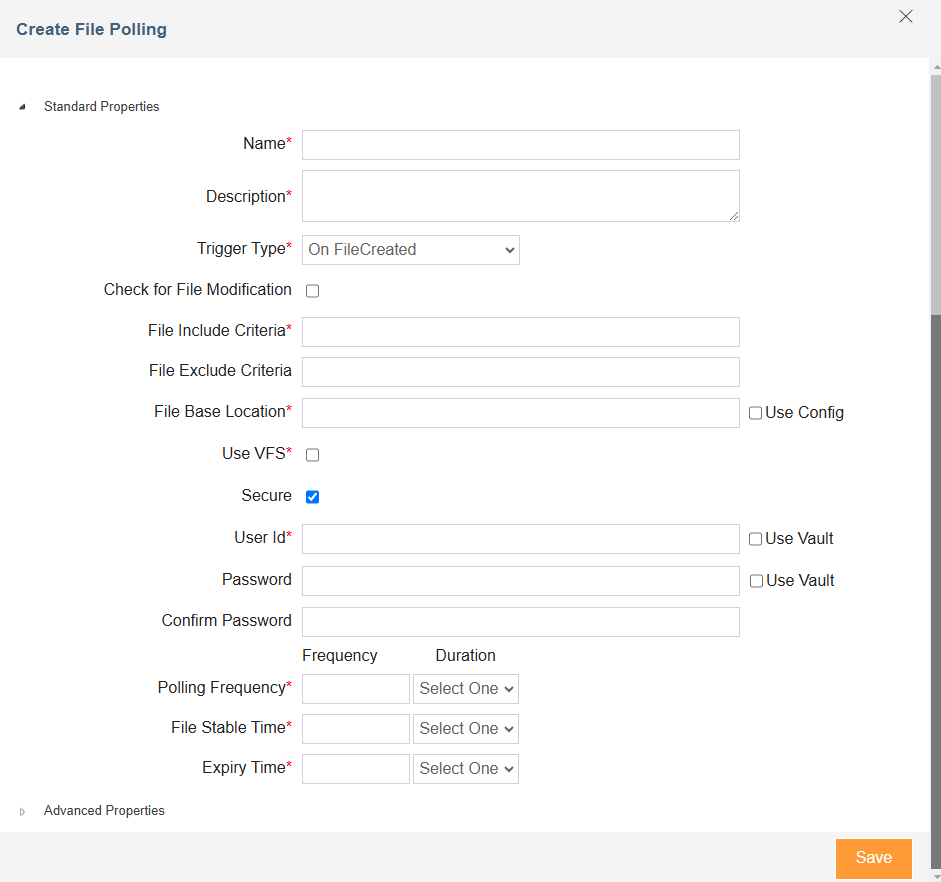
On the Create File Polling window, enter the name and description of the new File Polling service in the Name and Description fields.
-
Select the trigger from the Trigger Type drop-down list.
On FileModified
To configure the File Polling service to check for any modification in the file(s).
On FileExists
To configure the File Polling service to check for the existence of the file(s).
On FileCreated
To configure the File Polling service to check for the creation of a new file(s).

In case a file is being created and after that it is being modified, then you need to enable the Check for File Modification option. This option is only used with On File Created option. Trigger Name
Description
-
Select Check for File Modification check box if you want to process files that are modified after creation. This option is enabled only if On FileCreated option is selected in the Trigger Type drop-down list.
-
In the File Include Criteria field, enter the file name that the file polling service needs to verify.
-
In the File Exclude Criteria field, enter the name of file that the file polling service does not need to verify. For example *.txt is entered in File Include Criteria, but two files Gdata.txt and Gdata1.txt are not required to be verified by File Polling service. Then Gdata.txt and Gdata1.txt file name need to be entered separated by comma in File Exclude Criteria field. You can use regular expressions listed in the table below.
Expression Description . For all files with some extension * For all files in a directory a*.txt For files starting with a and having extension txt (e.g. arch.txt) a??????.txt For files starting with a and have 6 more character followed by txt extension (e.g. archive.txt) a[1-9] For a1, a2 ,a3 …………..a9 b[aiu]t For bat, bit or but a.txt, a.doc For two files named as a.txt and a.doc -
In the File Base Location field, provide the path of the file ( for example, C:/Gmdata) or select the Use Config checkbox to dynamically fetch it from a Git repository at runtime through a variable.
You can also use regular expression for folders, in File Include Criteria and File Exclude Criteria fields. For example, if you enter h*/*.txt in File Include Criteria field and C:/Gmdata in File Base Location field, it will search for all .txt file inside all directories which starts from h under C:\Gmdata. -
Select Use VFS check box if you want to enforce the validation of User ID and Password every time while accessing the file on a remote machine. When Connect Server is installed on Windows Operating System, File Polling service uses windows service to connect to the remote machine to access any file. It just connects once and uses the same connection with the same User ID and Password (which is stored in the cache) every time.
-
Select the Secure checkbox, if the File Polling service is secured, that is, username and password are required to access it.
-
Follow the steps below based on whether you are using Hashicorp Vault to fetch the secrets (credentials) or you want to enter the secrets manually.
To use Hashicorp Vault, you must enable Config Management feature and you may also need to do project mapping. For more details, refer to this page. -
To fetch the secrets from the Hashicorp Vault, do the followings:
You can choose to use Hashicorp Vault for all or a specific field that need to contain secret.
-
Select the Use Vault checkbox if you want to use Vault for retrieving the User Id.
-
In the User Id field, enter the variable in the following format:**${Vault:<Key1>}**Where, <Key1> is the key assigned to the username in the Hashicorp Vault.
Each secret is maintained as a key-value pair in Hashicorp Vault. -
Select the Use Vault checkbox if you want to use Vault for retrieving the password.
-
In the Password field, enter the variable in the following format:**${Vault:<Key2>}**Where, <Key2> is the key assigned to the password in the Hashicorp Vault.
-
-
To enter the secrets manually, do the followings:
-
In the User Id field, enter the username.
-
In the Password field, enter the password.
-
In the Confirm Password field, re-enter the password.
-
-
Enter the time interval, the file polling service will check for the arrival of any file or modification of existing file in the textbox Polling Frequency. Enter the digit in the Frequency field and select the unit of time i.e. seconds, minutes or hours etc. from the Duration dropdown list.
We recommended minimum Polling Frequency to be more than 60 seconds. -
Enter the file stable time in the textbox File Stable Time. This is applicable only when you have selected On FileModified in trigger type. Polling will wait for the above specified time to become a file stable.
-
Enter the expiry time in the textbox Expiry Time. After expiry time process flow does not poll for the file.
When a file polling service is used in a process flow, it creates a Polling Status activity variable. For more information, refer to Polling Status.
-
Expand the Advanced Properties section.
- Select the Project from Project drop-down list.
-
Click Save.