Create a Text Layout using import definition file
On the Create New Text Layout screen if you select Import Definition File as the Definition Mode for the Text Layout you want to create, follow the steps outlined below:
- On the Create New Text Layout screen, in the Definition File drop-down list box, select the type of file. The available options are: Data and JSON.
- Browse and upload the data file in the Upload Data File field.
- Click **Continue.
**The uploaded data is displayed on the screen that follows where you can define the Table Data and Control Total.
Steps to define the Table Data
You can define the control total to parse a single column value to the source side. Before defining the control total value, you must specify these values by creating Table data. To do so, follow the steps given below:
-
In File View Area, select the columns that you want to define as a header.
-
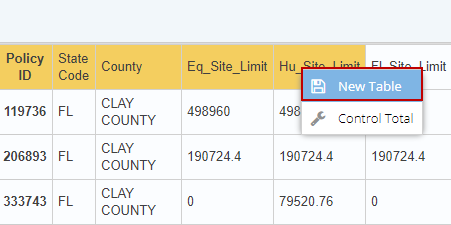
Right-click and select the New Table option to display the Table Data screen.
-
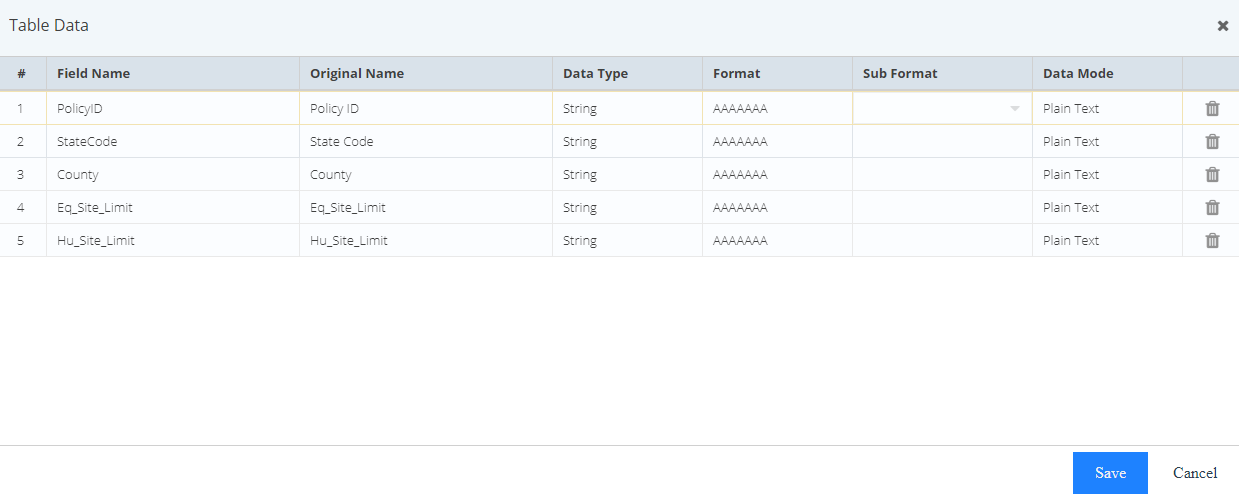
On the Table Data screen, do the following:
-
You can edit the Field Name value. If reference layout is defined, click the field to get the suggestions based on the reference layout.
-
Select the type of data from the Data Type drop-down list. The supported data types for text Layout are:
Data Type
Description
String
Select this data type if the field accepts a string value.
Number
Select this data type if the field accepts a numeric value.
Date
Select this data type if the field accepts a Date or Date and Time value.
-
If data type is Date, select the date and time format from the Format drop-down list.
-
Plain Text only is supported as Data Mode.
-
Click Save to save the table data.
-
-
You can see the created Table data in Data View Panel.

Click  button to open table data in data view panel. Also, click
  button to delete the table data.
 -
Click on Definition from the toolbar.
-
In the Definition panel, define the Row Start Position in case you want to parse value in header. The value must be more than 1.
-
Define the Bottom Row Skip Count in case you want to parse value in footer. The value must be more than 0.
Steps to define the Control Total
-
In the File View area, select the columns that you want to parse to the source side.
-
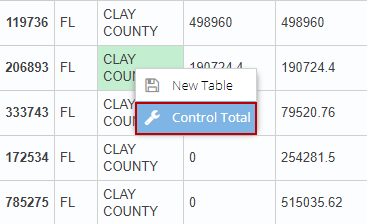
Right-click and select Control Total option to display the Control Total Data screen.
-
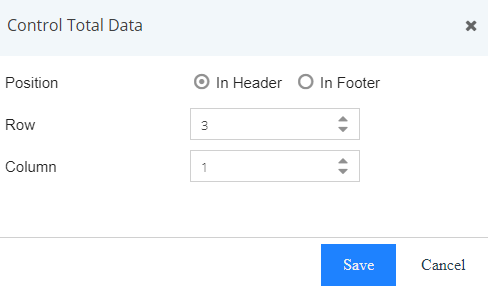
Select the In Header button if you want to parse the value in header. Similarly, select In Footer button to parse the value in footer.
-
Define the row and column values.
In case, you have selected In Footer then you must update the Row value as per Bottom Row Skip Count value. For example, if you defined Bottom Row Skip Count value as 3 then row column value must be from 1 to 3 based on the selected row. -
Click Save Layout.