Create a Text Layout by entering the fields sequentially
On the Create New Text Layout screen, if you select Enter the Fields Sequentially as the Definition Mode, then click Continue and follow the steps outlined below:
-
In the Table Data screen, provide the following details to create a record definition:
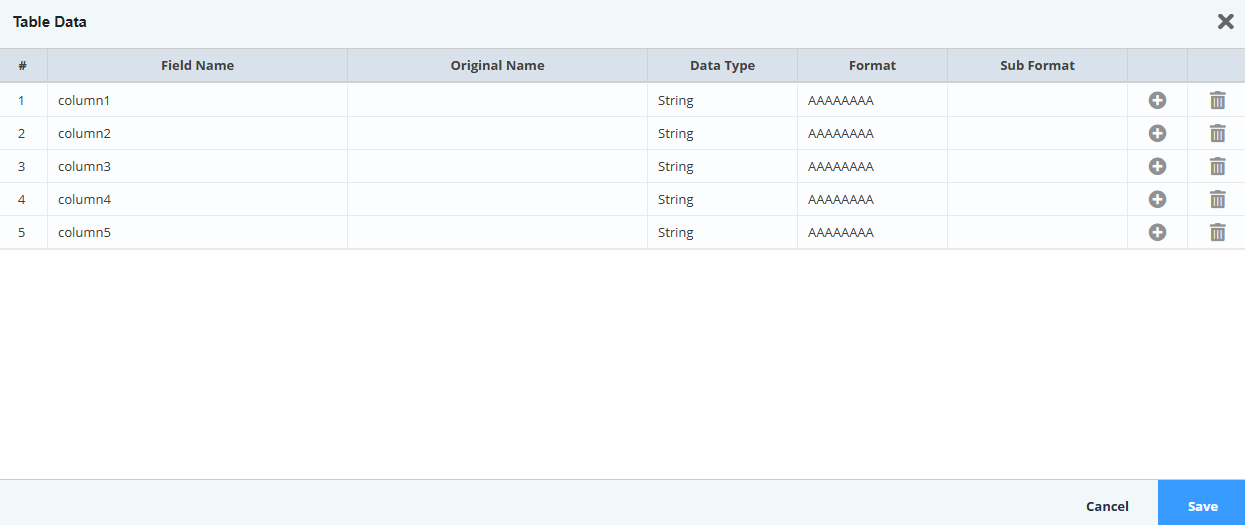
Column Description Field Name Enter a field name. Original Name Provide the original name of each field. Data Type Select the type of data from the Data Type drop-down list. The supported data types for text Layout are: String: Select this data type if the field accepts a string value.
Number: Select this data type if the field accepts a numeric value.
Date: Select this data type if the field accepts a Date or Date and Time value.
Format If data type is Date, select the date format from the Format drop-down list. Sub Format If data type is Date, select the time format from the Sub Format drop-down list. 
To add or remove a row from the Table data, select Add Row
 or Delete Row
  respectively.
 -
Click Save to save the Table Data.
- You can edit the Table Data by clicking Edit
 .
. - To collapse the record definition click
 .
.
- You can edit the Table Data by clicking Edit
-
Click Save Layout to save the Layout.