Creating a Text Layout using Layout Builder
This feature helps you to manually create text layout through a text file directly. You can choose a sample or an exact source file to define the layout by custom selection. By default, this feature remains disabled in the product. You need to enable this feature before you start working on this.
Steps to create a Text Layout
To define a Text Layout, follow the steps outlined below:
- Click Configure > LAYOUTS > Text**.**
- Click **Create Text Layout.
** - On the Create Layout screen, select the Layout Builder option from the drop-down list of Select Layout UI Type field.
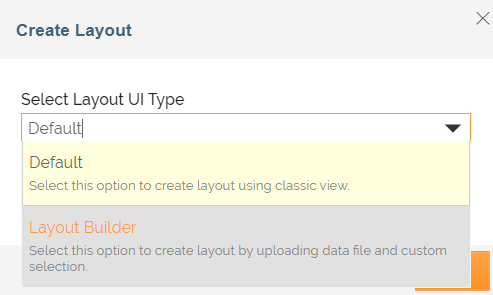
- Click Next.
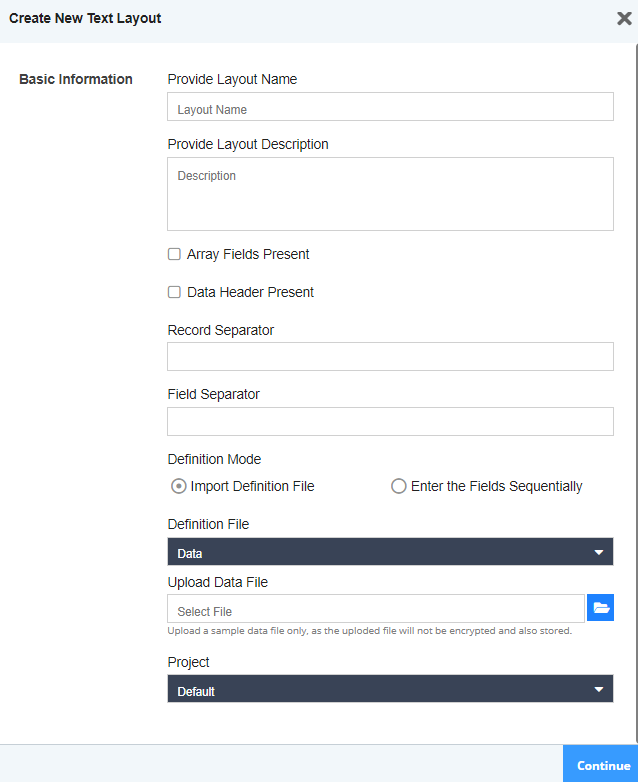
- On the Create New Text Layout screen do the following:
-
Type the name and description of the new Text Layout activity in the Name and Description text boxes.
Name: Only alphanumeric and underscore are allowed and you must start the layout name with an alphabet or underscore.
Description: Only alphanumeric and few special characters (_ - . : , @ $ ? \\ and space) are allowed and you must start the description with an Alphabet/Underscore/Number. -
Select the Array Fields Present checkbox if you want the Layout to parse the files having data in single or composite array format. Follow the steps outlined in this section to create a Text Layout with array fields. Else, skip to step c.

The Layouts created for files containing the data in array format can only be used at the Source.
-
Select the Data Header Present checkbox if you want to add the titles of the fields in your text file. The Data Header usually contains the names of the fields in the text file.
-
Provide the record separator, for example, \n for newline or " " for space, in the Record Separator. The record separator is used to separate the records.
-
In the Field Separator field, provide the field separator, for example, \t for Tab or " " for space. A Field Separator is used to separate fields.
-
In the Definition Mode field, select either the Import Definition File or Enter Fields Sequentially option to define the Text Layout.
Based on your selection, proceed with the steps outlined in the following sections:-
Create a Text Layout by entering the fields sequentially

Refer to this section for information on additional configurations of a Text Layout.
-