Creating a Key
Steps to create a key
-
Ensure that the source and destination layout are loaded and all their elements are listed under their respective nodes.
-
Click the
 icon against the Parameters tab on the right pane.
 -
Select Key Functions from the list of parameters to create a key.
-e2476d5d44e2bb06b5d5306347954175.png)
-
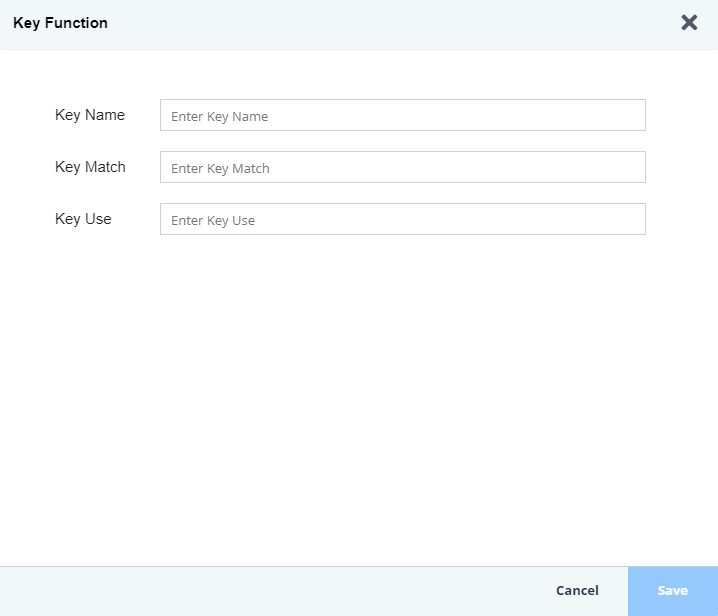
On the Key Function screen, do the followings:
-
Enter the name of the new key in the Key Name field.
-
Enter the path of the source element (at the root node) to be matched, in the Key Match field. The path always starts with a '/'.

While defining the path in the Key Match field, you need not enter the complete Xpath. You can enter only the Root and Record. For example: /Root/Record
-
Enter the name of the field to be matched in the Key Use field.
The Key Match and the Key Use fields are case-sensitive. -
Click Save. This key is added to the list of existing keys in the Key Functions tab
-