Using Data Viewer
The Data Viewer is an advanced feature of Data Mapper that allows you to interact with actual input data and observe the corresponding output after applying mapping rules. You can use the Data Viewer to:
- Preview the output of data mapping before executing the process flow.
- Validate enumerated values and display the list of enumerated literals for the destination element if an XML Schema is used.
- Identify and review any error records.
 | Before you use the Data Viewer, ensure that the source and destination layouts are loaded and all their elements are listed under their respective nodes. |
Working with Data Viewer
Once you have mapped the source and destination elements and applied the necessary mapping rules, follow the steps given below to use the data mapper:
-
Click the Data Viewer tab from the Mapping Function Panel.
Alternatively, click  icon to expand the mapping Function Panel and select Data Viewer tab.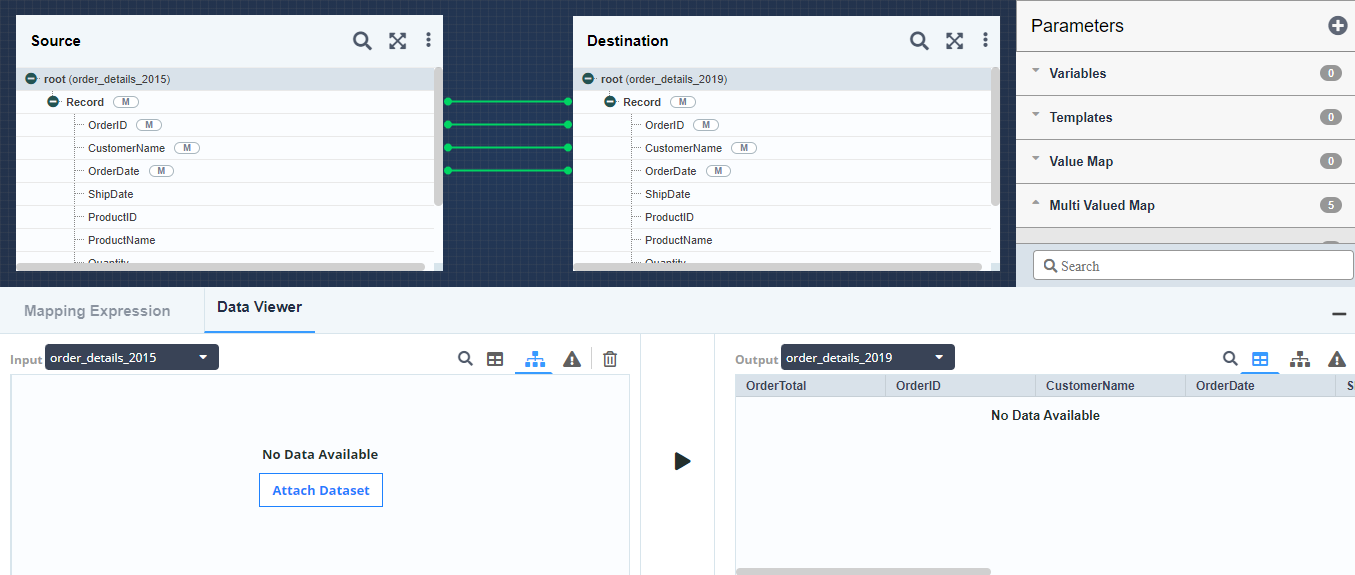

The positioning and relationships of elements in the hierarchy of a layout are represented by vertical lines. -
Click Attach Dataset and select the source file, to attach the source file.
-
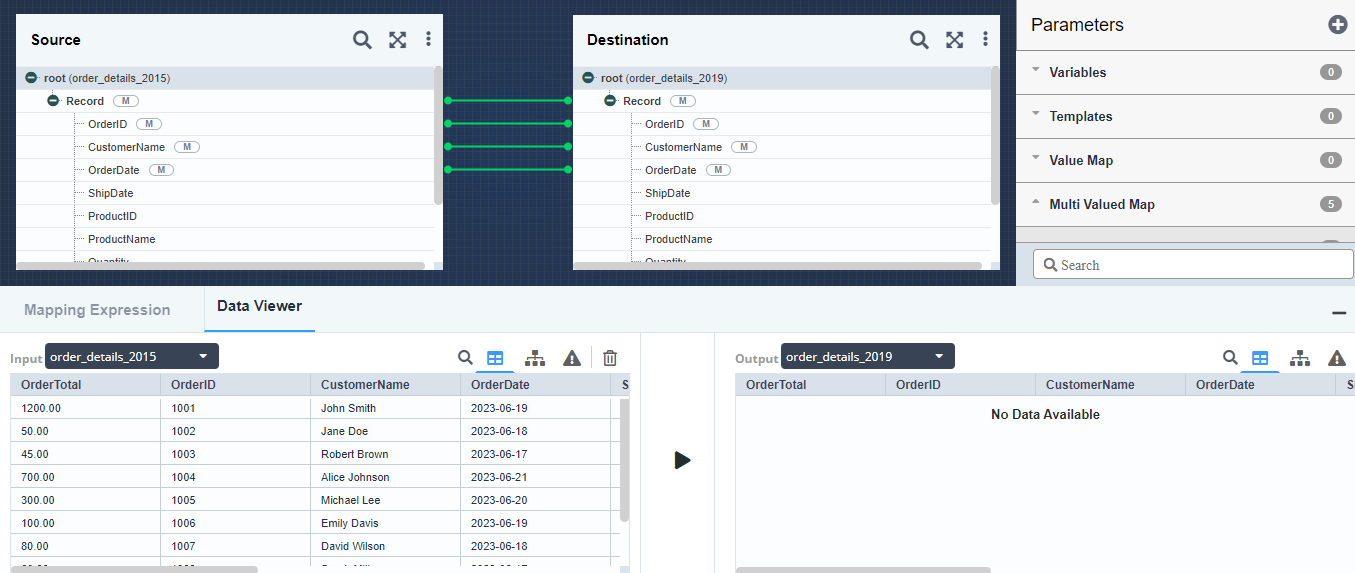
Click Open to load the file.
Source Data is displayed in the Input panel in **Grid View.
**
- By default, the Data Viewer displays a maximum of 50 records. To view more records, navigate to Open > Preferences > Miscellaneous. In the Set Data Viewer Record Count enter your desired value. After changing this setting, you will need to re-attach the source.
- You can search for a record within your Input (Source) or Output (Destination) data using
 . Switching between Grid and Tree view at either the Source or Destination will reset any ongoing search.
 - To delete the attached source file, click
 in the Input panel.
-
To view the source data in Tree View, click
 .
.
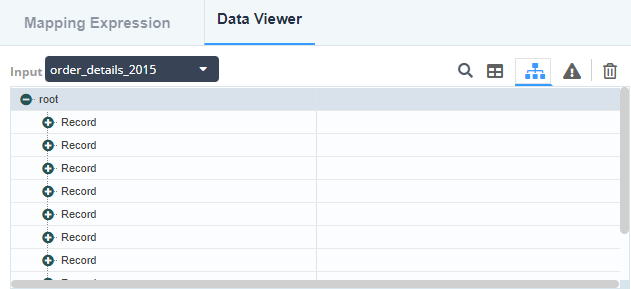
-
Click
 to expand a Record and view its values*.
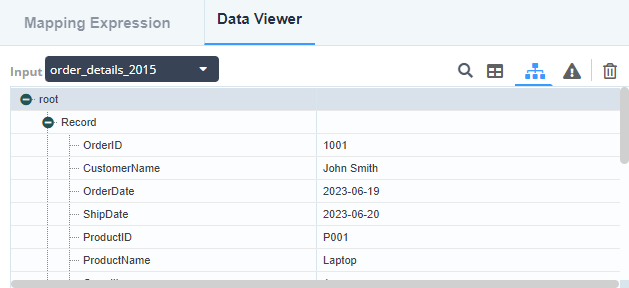 *
* -
Click the Generate Output button, to view the output record.
The generated output records are displayed in the Destination panel in Grid view.
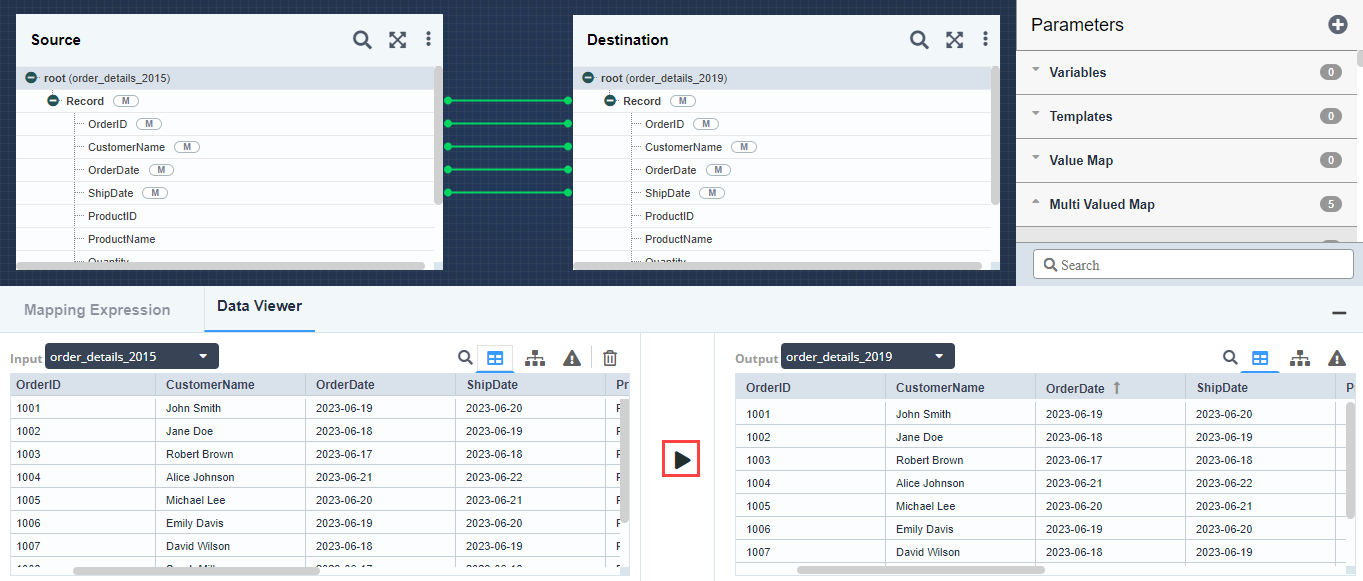
You can also view the output data in the hierarchy view, by clicking the Tree View button.
Viewing Error records
If any error is encountered in the source or destination data, the details of these error records are displayed in the Error view.
| You can search for an error record within your Input (Source) or Output (Destination) data using . |
-
To view the error records on the source side, click
 . It displays:
- Record number
- Error description
-
To view the error records on the destination side, click
. It displays:- The number of errors that occurred during the transformation.
- The list of errors that occurred during the transformation.
- A list of valid enumerated values for the destination element is displayed if invalid data is mapped to an element that is restricted to specific enumerated values.