Using XSLT Rule editor (Beta)
Adeptia Connect offers an integrated XSLT Rule editor (Beta) within the Data Mapper, allowing you to define XSL rules directly for mapping the elements. This enables you to define complex rules with greater precision and minimal effort.
Prerequisites
To use the XSLT Rule editor you need to:
- Enable the rule editor by setting the value for abpm.services.aimap.xsltRuleSuggestions property to true. Refer to the AIMap section in this page for instructions on how to configure this property.
Steps to use a XSLT Rule editor
Follow the steps below to use a XSLT Rule editor:
-
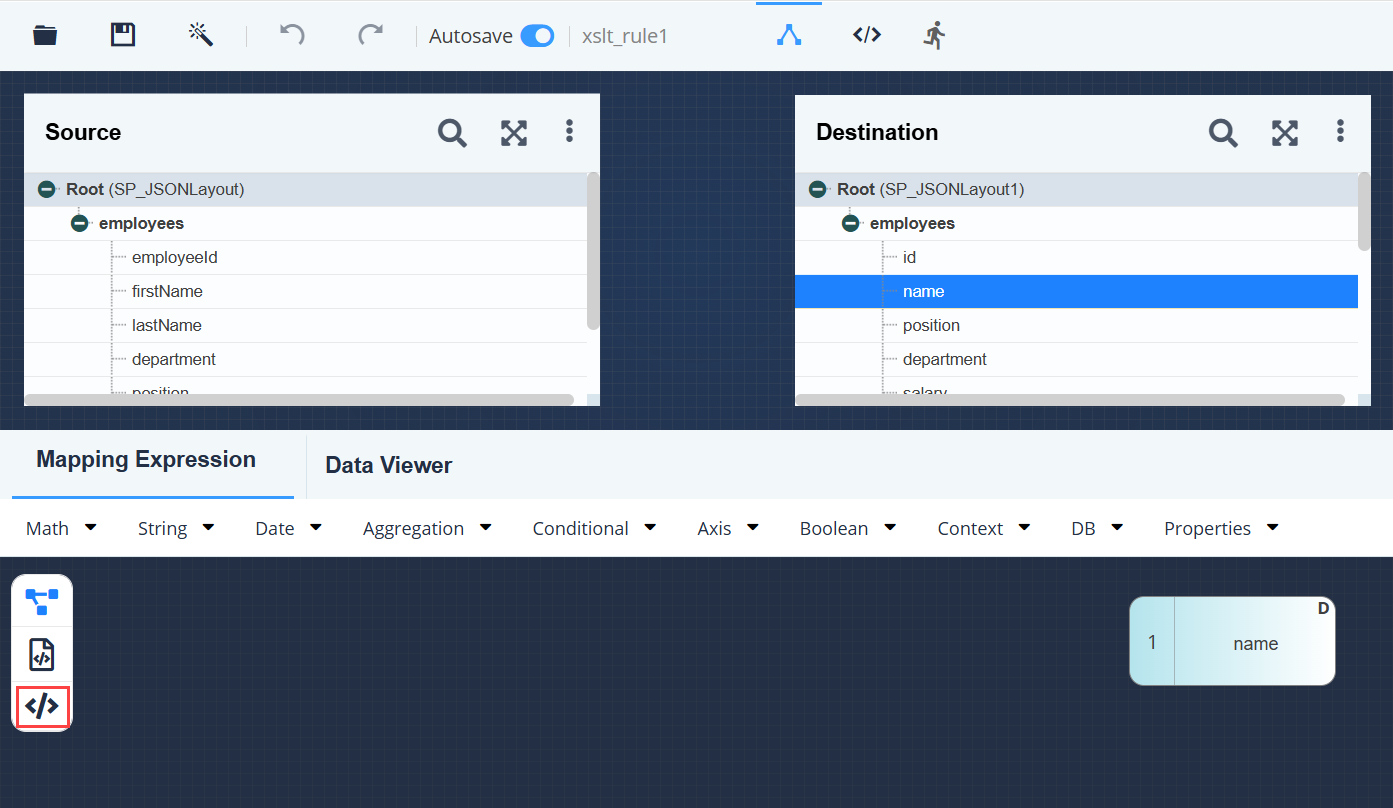
Click on the target element (e.g. name) on which you want to apply transformation logic.
-
Click Mapping Expression to expand the Mapping Functional Panel.
-
Select XSLT Rule.
-
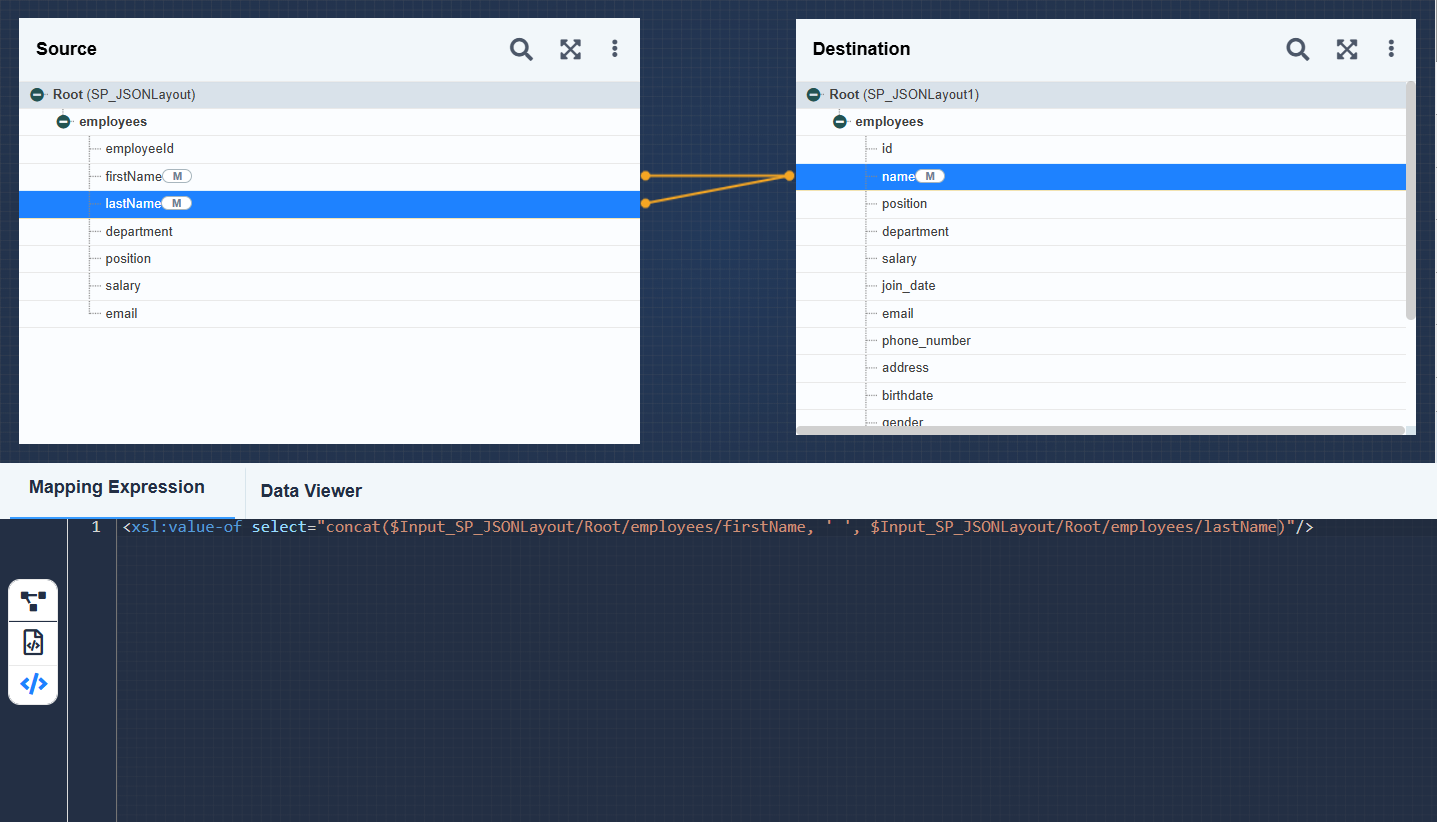
In the editor, define the XSL rule for mapping based on your requirement.
For example: If you want to map firstnameand lastnameelements from the source layout into a single name element in the destination layout, you can use theconcatfunction as follows:<xsl:value-of select="concat(<sourceField1XPath>, ' ', <sourceField2XPath>)"/>
-
Click Save.

If any XSLT rules contain incorrect logic or unsupported expressions that could potentially cause errors in the Data Mapping, you can remove them using the steps below:
- On the destination panel, click More on the top-right corner.
- Click Remove Invalid Mappings.
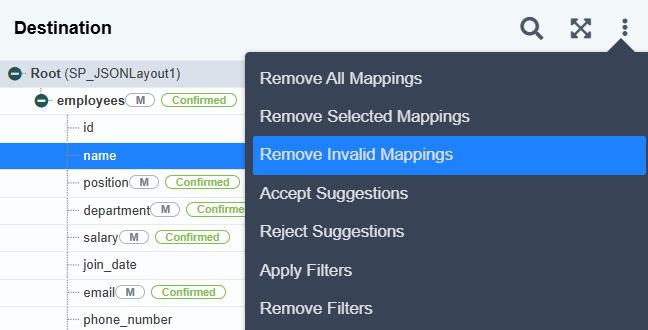
- Click Yes when prompted to confirm.
NOTE-
- The Remove Invalid Mappings feature only removes those erroneous mappings for which a valid xpath is available.
- Additionally, invalid mappings applied to cloned elements cannot be removed using this feature and must be corrected manually.