Running AIMap
Mapping Elements Using AIMap Wizard
AIMap will be automatically triggered once you load the source and destination layout in Web Mapper.
 | You can also access AIMap by clicking AIMap  icon on Mapper toolbar. icon on Mapper toolbar. |
-
After loading the source and destination layouts, AIMap begins analyzing the layouts to provide Confirmed matches.
- You can minimize the AIMap window while the matches are being fetched. The
 icon replaces the AIMap icon in the toolbar to indicate that an action is in progress. Click to open the AIMap window.
 - Click
 to configure the following AIMap settings as shown in the screenshot.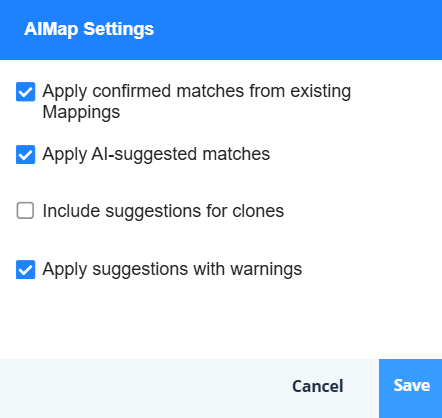
- You can minimize the AIMap window while the matches are being fetched. The
-
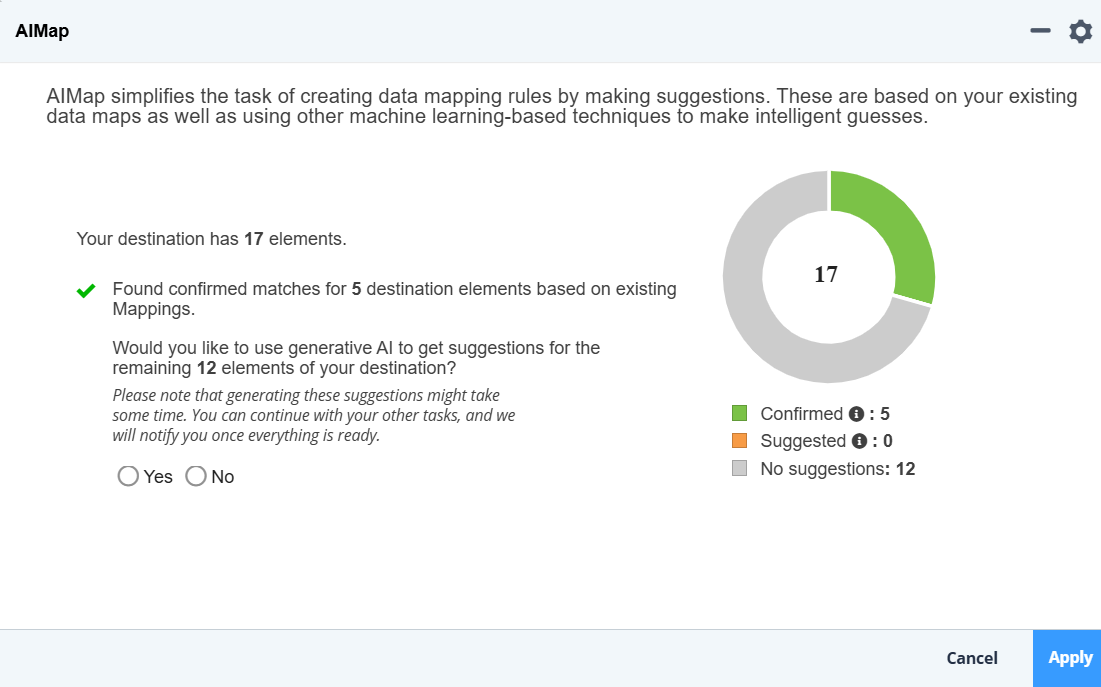
Click Yes when prompted to use generative AI for obtaining mapping suggestions, if you want to use it to fetch suggestions for the elements that AI Map could not initially retrieve. Else, click No.
- Before using Generative AI for fetching mapping suggestions, ensure that the Generative AI feature for AIMap is enabled in your setup. Refer to this page for detailed information on how to configure the feature.
- If you want to get Generative AI mapping suggestions based on the descriptions of Layout fields, set the value for the property abpm.services.aimap.adeptiaai.usingdescriptions (Account >Settings > Application settings > Common > AIMap) to true.
-
In the Describe your objective for this mapping field, provide a brief description of the business context, key outcomes, and any specific data transformation requirements for the mapping activity.
This information helps the AI generate more accurate and relevant mapping suggestions tailored to your needs. For example: "Integrate lead data from the CRM into the marketing automation system with field-level filtering and deduplication."
This option is available only when you have enabled the abpm.services.aimap.xsltRuleSuggestions property. 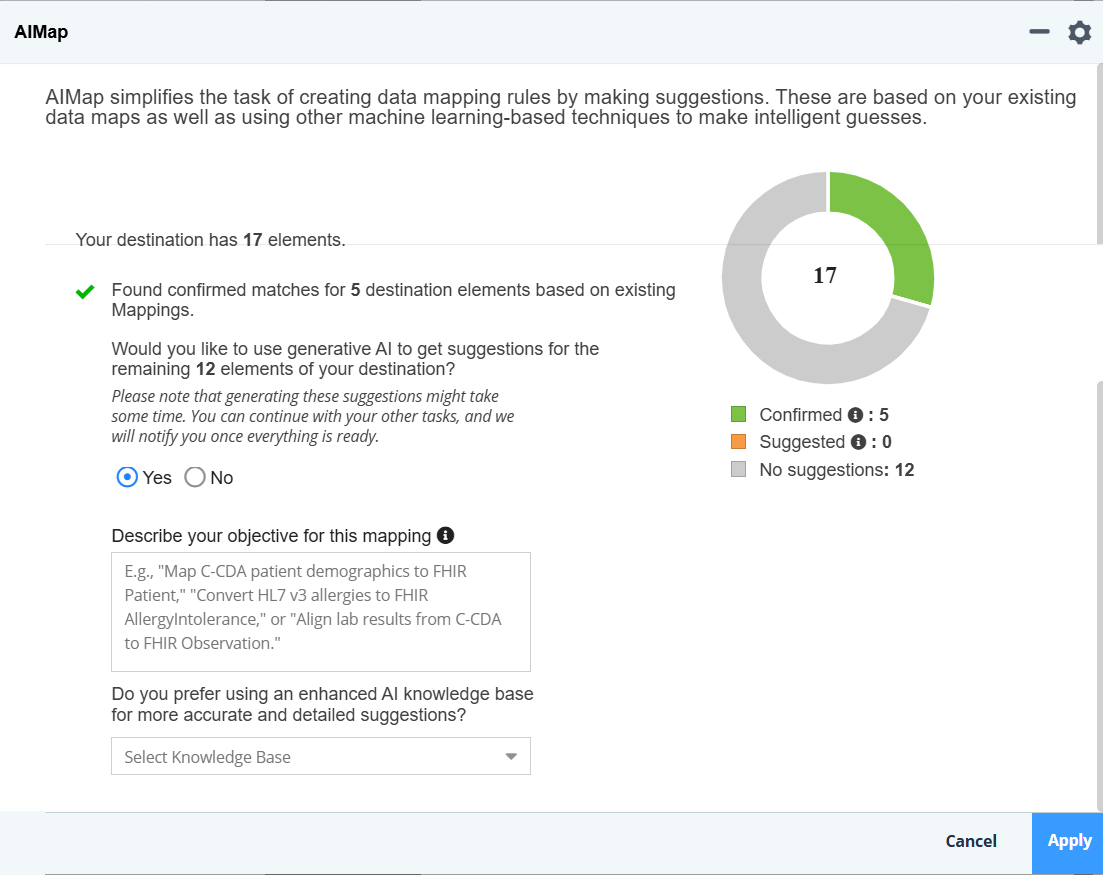
-
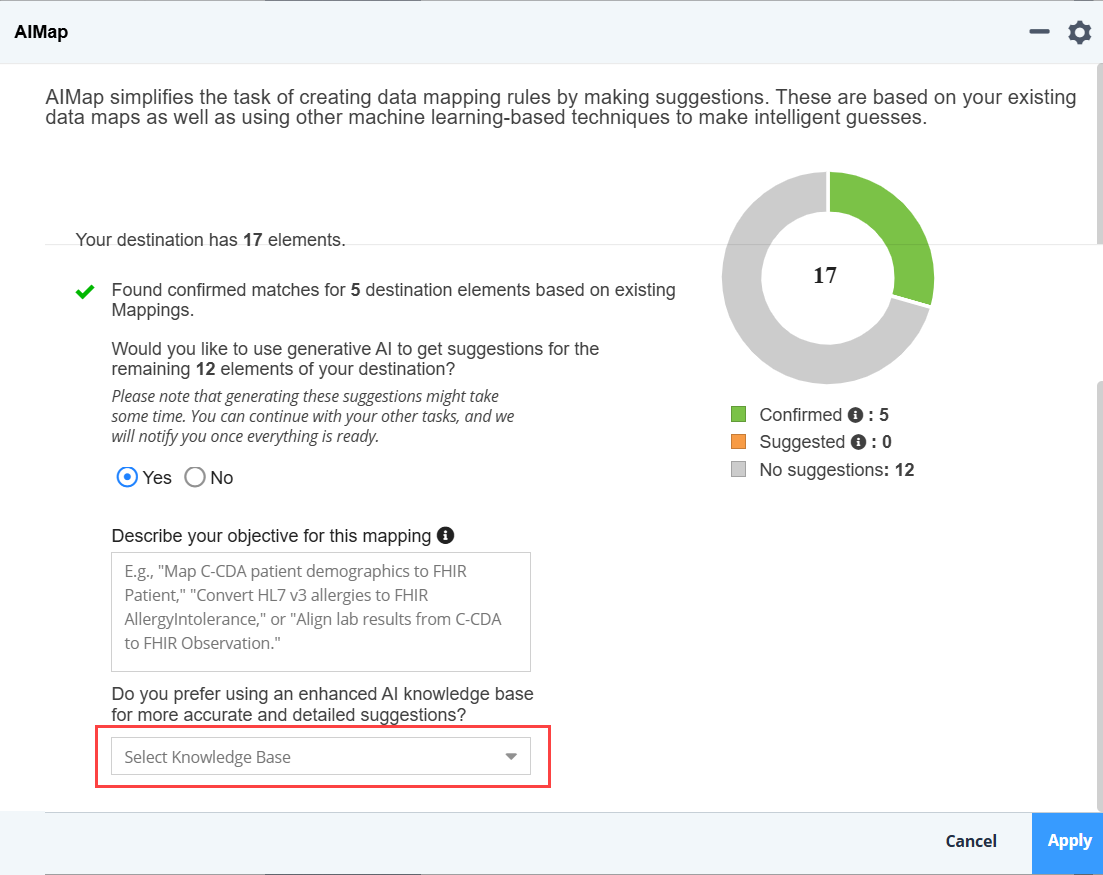
If you have opted to use generative AI for fetching suggestions, in the Select Knowledge Base field, choose a knowledge base from the dropdown that you want to be used for generating mapping suggestions. Select Do Not Use from the drop-down if you want to proceed to fetch suggestions without using a knowledge base.
Using an AI knowledge base enhances the suggestions as they are generated based on the contextual information of the data elements available within the knowledge base.
- The matches fetched using GenAI are listed as Suggested matches.
- Ensure that the value for the property sessionAffinity (under aimap > service section in the global values.yaml file) is set to ClientIP if multiple aimap pods are running in the environment and you intend to use a Knowledge Base to fetch Gen AI Mapping suggestions. This setting ensures consistent session routing and prevents related errors caused by session inconsistency.
The Mapping suggestions are defined as below:
Option Name
Description
<ch:anchor> Confirmed</ch:anchor> The destination elements for which exact matches were found in the existing Mappings.
Suggested The destination elements for which matches were suggested by AI based on pattern matching and field analysis.
- You can use the abpm.services.aimap.lowexactsuggestions.level property to control the level up to which the application matches XPath values between the source and target schemas for Suggested matches in AIMap.
- If you have enabled abpm.services.aimap.xsltRuleSuggestions property you can view and edit the XSL rules associated with the Suggested matches in the XSLT Rule editor (Beta).
-
Click Apply.
The mapping suggestion will be applied to the loaded layouts.
Once AIMap suggestions are applied to the loaded layout, you can review the suggestions.