Reviewing AIMap Suggestions
After applying AI-generated mapping suggestions using AIMap, you can review and manage the suggested mappings directly from the destination layout. For each target element, you have the option to accept or reject the AI-generated suggestions either individually or in bulk. This allows you to refine the mapping based on your data requirements.
You can also view and edit the XSL rules associated with AI-suggested matches directly using the XSLT Rule editor (Beta). The XSLT Rule editor helps you apply complex data transformation logic with minimal manual effort.
- Steps to review suggestions from each element
- Collective review of the AIMap matches
- Steps to change the rule
- Steps to view and edit XSL rules in XSLT rule editor (Beta)
Steps to Review Suggestions from Each Element
After applying the AIMap matches, Accept and Reject icons are displayed for each element of destination layout in which matches are applied.

You can Accept/Reject the AIMap matches:
-
Click Accept
 icon to apply AIMap matches. However, once the match is accepted:
- Accept/Reject icons of the element will not be visible.
- You can view the applied AIMap confidence in the Comments section of the mapper.
-
Click Reject
 icon to reject the AIMap matches. However, once the match is rejected:
- Any rules i.e. for each, local variable, etc. of the element that is applied as AIMap matches will be removed.
- No confirmation message will not be displayed.
- The indication of the type of match of the element will not be visible.
Collective Review of the AIMap matches
You can accept/reject a specific or multiple AIMap matches from all the elements of mapping in one go using Accept Suggestions/Reject Suggestions option.
To Accept the AIMap suggestions, follow the below steps:
-
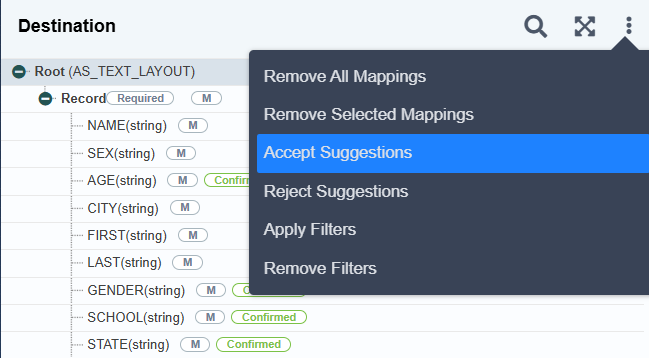
Select Destination layout and click More icon and select the Accept Suggestions option.
-
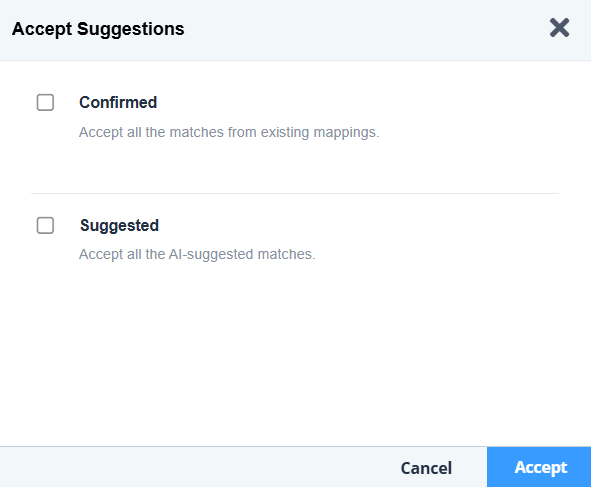
The Accept Suggestions window is displayed.
-
Select the type of AIMap match that you want to keep in mapping and click Accept.

You can choose to accept a specific match type or all types of AIMap matches.
To Reject the AIMap suggestions, follow the below steps:
-
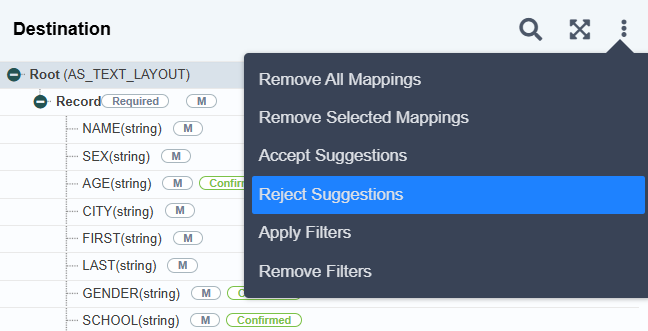
Select Destination layout and click More icon and select the Reject Suggestions option.
-
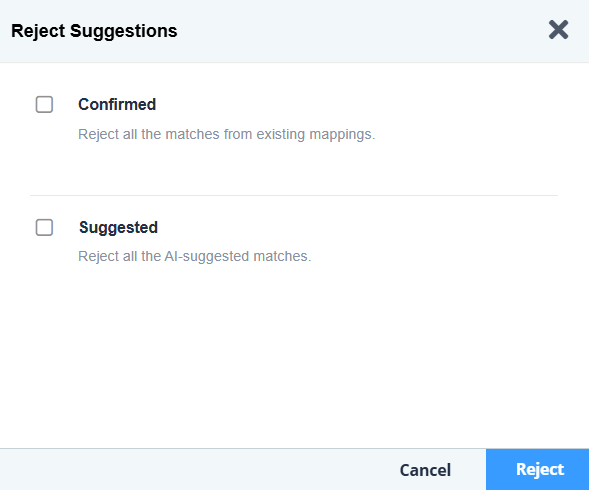
The Reject Suggestions window is displayed.
-
Select the type of AIMap suggestions which you want to remove from mapping and click Reject.
You can choose to accept a specific match type or all types of AIMap matches. Any rules that are applied as AIMap suggestions will be removed. -
The selected AIMap match is removed from the mapping.
You can also change the mapping rule applied to a particular destination element using View AIMap Suggestions option.
Steps to change the rule
- Select Destination element and click more icon and select View AIMap Suggestions option from the list.
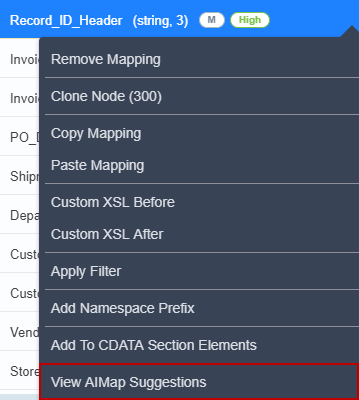
- A window will display with the mapping suggestions.
- Select the checkbox to apply the suggested mapping rule and click Apply.
- The mapping rule is applied to the particular destination element.
Steps to view and edit XSL rules in XSLT rule editor (Beta)
To view and edit the XSL rules associated with the AI-suggested matches ensure that you have configured the abpm.services.aimap.xsltRuleSuggestions property by following the steps given here.
-
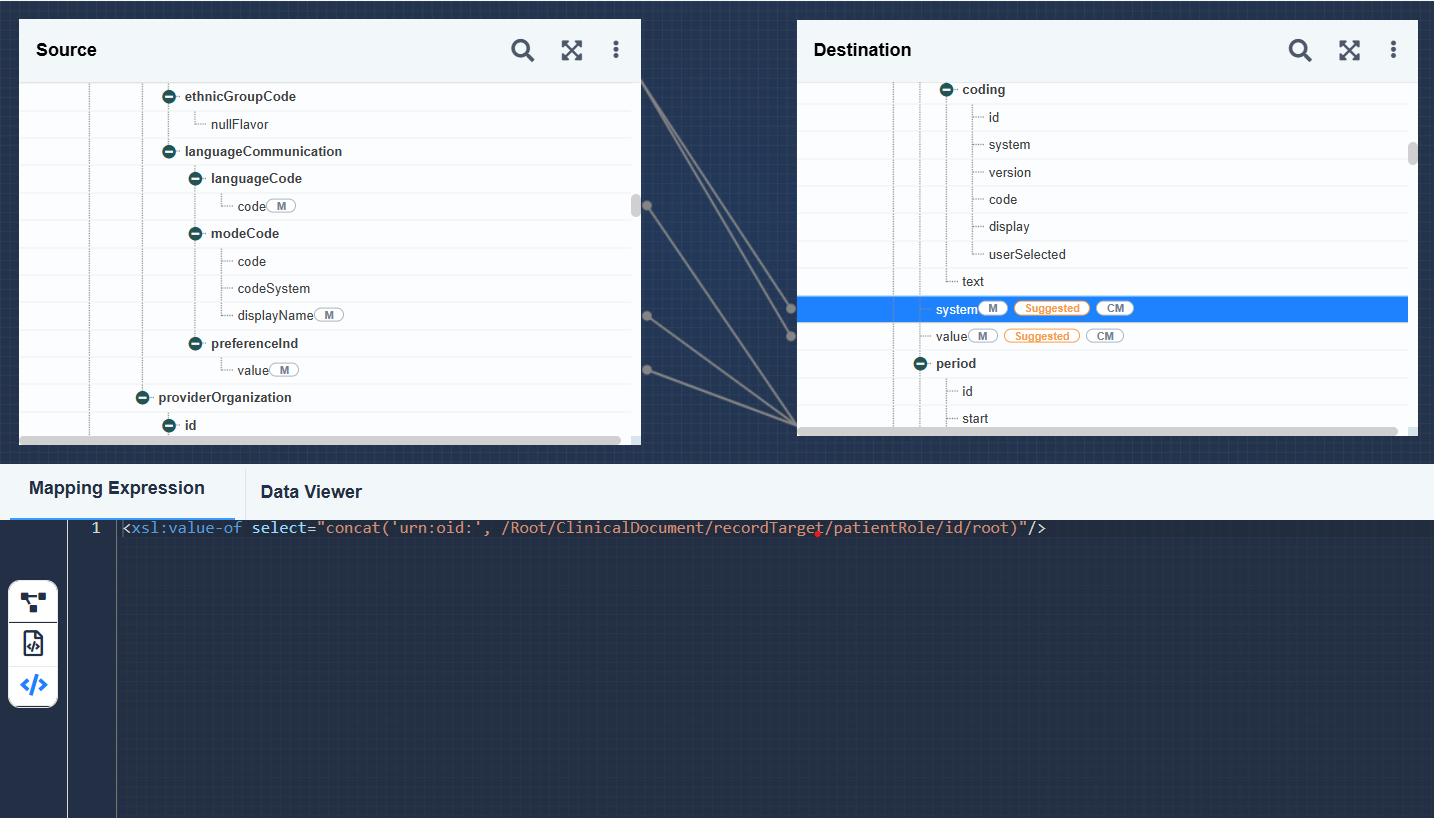
Select a destination element in the mapping layout where AIMap suggestions have been applied.
-
Click Mapping Expression to expand the Mapping Functional Panel.
-
Select XSLT Rule to view the transformation logic associated with the selected element.
-
Edit the rule in the editor as needed, based on your data transformation requirements.
-
Click Save.
If any XSLT rules contain incorrect logic or unsupported expressions that could potentially cause errors in the Data Mapping, you can remove them using the steps below:
- On the destination panel, click More on the top-right corner.
- Click Remove Invalid Mappings.
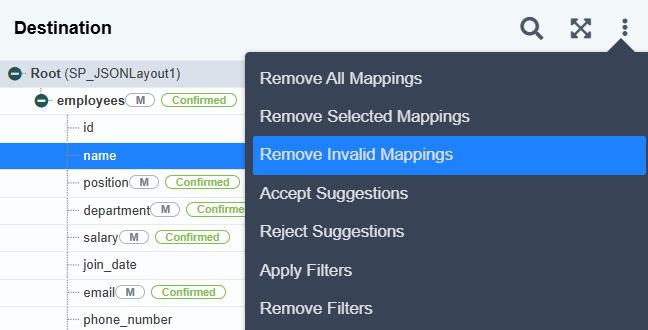
- Click Yes when prompted to confirm.
NOTE-
- The Remove Invalid Mappings feature only removes those erroneous mappings for which a valid xpath is available.
- Additionally, invalid mappings applied to cloned elements cannot be removed using this feature and must be corrected manually.