OAuth Profile
OAuth Profile helps to configure the OAuth related parameters like Application credentials, Authorization/Access Token URLs etc. to get the access token from the API provider.
Follow the steps below to create OAuth Profile:
-
Click Configure > ACCOUNTS > OAuth Profile.
-
Click Create OAuth Profile.
-
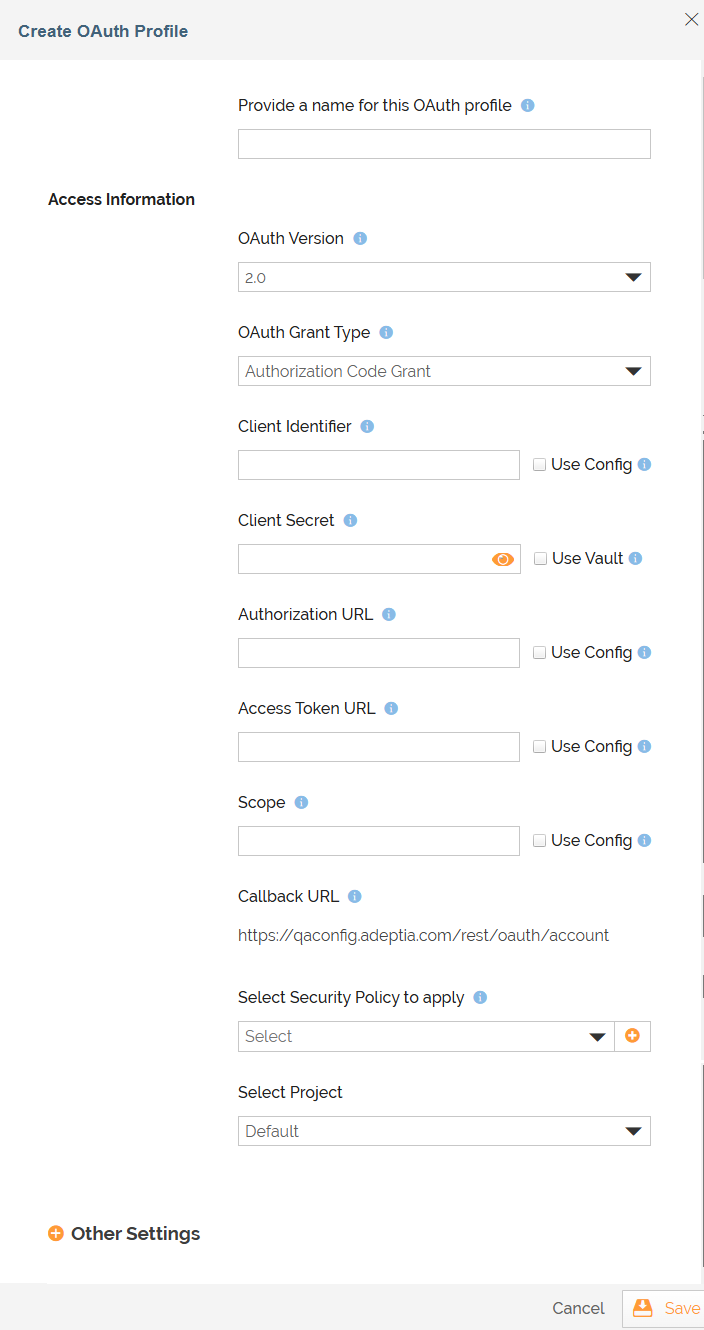
On the Create OAuth Profile screen, provide the name of the new OAuth Profile in the Provide a name for this OAuth profile field.
-
Enter the values in each field of Access Information.
Field Name
Description
OAuth Version
The protocol version to use to connect with your OAuth provider.
OAuth Grant Type
The way the application should interact with your OAuth provider to obtain access token. The available options are:
- Authorization Code Grant: Redirects the users to the application’s login page to authorize the application to access the resources.
- Implicit Grant: Redirection is involved; after users log in through the authorization page, the access token is returned directly to the application without an intermediate authorization code.
- Resource Owner Credentials Grant: No redirection is involved; users provide their credentials in the User Name and Password fields respectively while creating the OAuth profile to authorize the application to access the resources.
- Client Credentials Grant: No user redirection is involved; authentication occurs directly between the client and the authorization server.

Only the Authorization Code Grant and Client Credentials Grant types are supported when creating an OAuth profile for Microsoft Graph API.
Client Identifier
Enter the client identifier and client secret provided by the respective third-party application when you register AC Professional with it.
Refer to the pages on registering an app in the following third-party applications:Client Secret
Authorization URL The endpoint for authorization server. Access Token URL
The endpoint for authentication server.
Scope
The scope of the access request. The access token issued to the application will be limited to the scopes granted.
Callback URL The callback URL that you will be redirected to, after the application is authorized. You have to use this URL for Callback URL/Redirect URI fields during app registration process. Select Security Policy to apply Select a security policy that defines the SSL configuration, including the required certificates and/or keys, to ensure secure data communication and encryption. Or create a new Security Policy by clicking  .
. Select Project
Select the Project from drop-down list of Select Project.

For the fields that have Use Config checkboxes available against them, you can fetch the values from a Git repository at runtime using a variable. For more details, refer to this page. You can also use HashiCorp Vault to fetch the following secrets for OAuth Profile:

The supported OAuth Version to use HashiCorp Vault is 2.0.
- Client Secret (For Authorisation Code, Cilent Credential, and Resource Owner Credentials OAuth Grant Types)
- User Name, Password, and Client Secret (For Resource Owner Credentials OAuth Grant Type)
Each secret is maintained as a key-value pair in Hashicorp Vault. Select the checkbox to use Vault to fetch secrets for the fields. Enter the variable in the following format in the field:
${Vault:<Key1>}
Where, <Key1> is the key in Hashicorp Vault that is defined for the field.For example, you need to enter ${Vault:Project.ClientSecret} in the Client Secret field, if you have defined Project.ClientSecret as the key for this field in the Vault.
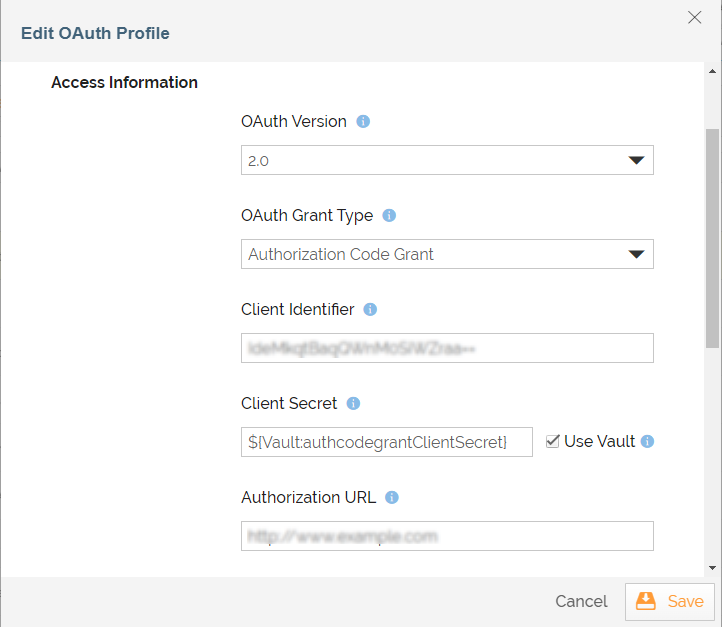
For more details refer to this page. -
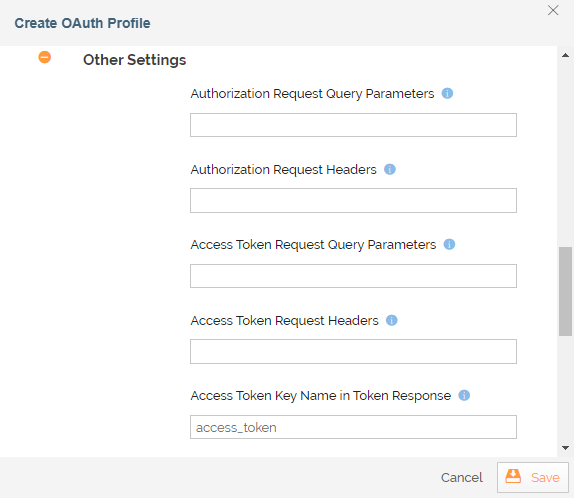
Expand Other Settings to view the advanced properties of OAuth Profile.
Field Name
Description
Authorization Request Query Parameters The Parameters (other than standard OAuth Parameters) to be sent into the authorization requests. Specify the comma separated list of key value pairs. Ex. param1=value1,param2=value2. Authorization Request Headers The Headers (other than standard OAuth Headers) to be sent into the authorization requests. Specify the comma separated list of key value pairs. Ex. param1=value1,param2=value2. Access Token Request Query Parameters
Enter the Access Token Request Query Parameter.
The parameters (other than standard OAuth parameters) to be sent into the access token requests. Specify the comma separated list of key value pairs. Ex. param1=value1, param2=value2.Access Token Request Headers The Headers (other than standard OAuth Headers) to be sent into the access token requests. Specify the comma separated list of key value pairs. Ex. param1=value1,param2=value2. Access Token Key Name in Token Response
The key name to use while extracting access token from token response.
Refresh Token Key Name in Token Response The key name to use while extracting refresh token from token response. Token Response Body Parameters to be fetched
The extra parameters to be captured from token response.
Token Response Query Parameters to be fetched
The extra parameters to be captured from token response query parameters.
Send Access Token as
Specify how the access token is to be sent into requests. The tokens can be sent as header or query param.
Access Token Key Name in API request
The Token Key Name to be sent into API requests. For ex: the value AUTH_TOKEN will be sent as AUTH_TOKEN: Bearer XXXXXXXX (in case of Header param).
Or AUTH_TOKEN=XXXXXXXX (in case of Query param).
Access Token Type in API request
The token Type to be sent into API requests. For ex: the value Bearer will be sent as: Authorization: Bearer XXXXXXXX.
-
Click Save.
| If you edit an Authorization Code Grant or Implicit Grant type of Oauth Profile, the associated Oauth Account will no longer work. You would need to create a fresh Oauth Account to associate with the updated Oauth Profile. |