Opening Existing Process Flow
You can open the existing Process Flow in Web Process Designer from the Repository View panel and also by using the Open Locally Saved Process Flow option from the toolbar.
Steps to open the existing Process Flow using the Open Locally Saved Process Flow option:
- In Web Process Designer, click the Open Locally Saved Process Flow
 icon from the toolbar.

- A window will appear, select the XML file that you want to upload and click Open.
- The process flow is displayed in the Canvas area.
Steps to open the existing process flow from the Repository View panel:
- In Web Process Designer, click the Repository View icon to display the Repository View panel.
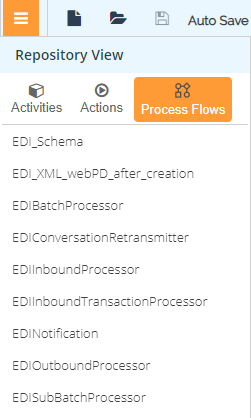
- Click the Process Flows option from the Repository View panel to display the list of existing Process Flows.
- Click the process flow to open.