Using Custom Report in Process Flow
A custom report sends the generated report (in PDF format) to a file-based target (in PDF format). Consider the following process flow:

In this process flow, data from a text file is converted to an Excel file using the schema and mapping activities. The data generated in the Excel file can be converted to PDF format using a custom report and then sent to the File Target.
To use a Custom Report:
-
In Web Process Designer, click the Repository View icon. All the items in the Activities list are displayed.
-
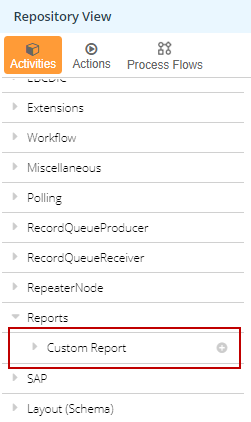
Expand Reports > Custom Report.
-
Click the custom report and drag it to the Canvas area.
-
Connect all the activities with appropriate control flows in the Canvas area.

On execution, this process flow will send the generated report to the File Target.