Creating Activity in Process Designer
You can create activities from Web Process Designer. You can create activities using these options.
- Repository View panel
- Activity Properties panel
- Using Context Pad
Steps to create Activity from Repository View Panel:
- In Web Process Designer, click the Repository View icon. All the items in the Activities are displayed.
- Select the activity which you want to create. For example, create an Adv. Database Source Activity.
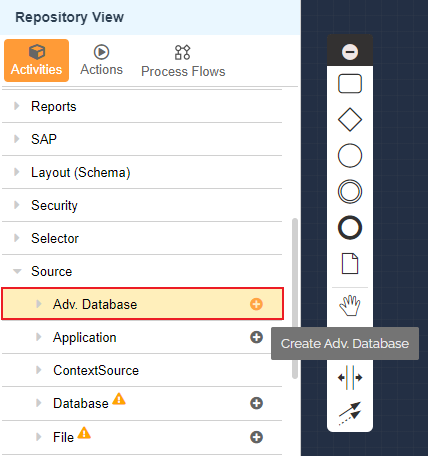
- Click Create Database
 icon to open New Adv. Database Source window.
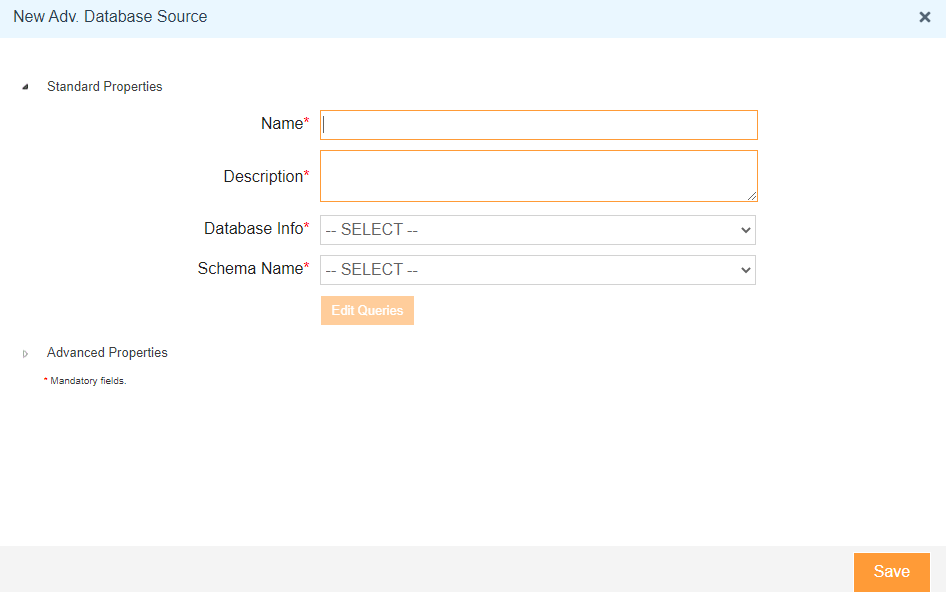
- Click here and follow the steps to create Adv. Database Source Activity.
Steps to create Activity from Activity Properties Panel:
- Click the Activity and select View Properties
 icon from the context pad.
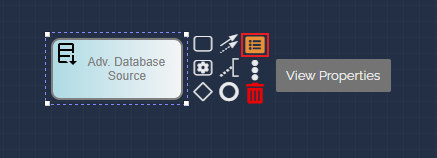
- It displays the Activity Properties panel.
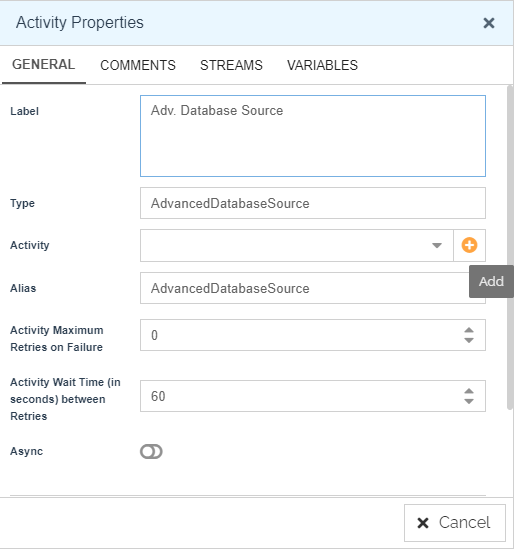
- Click Add
 icon of Activity field to open New Adv. Database Source window.
 - Click here and follow the steps to create Adv. Database Source Activity.
Steps to create Activity using Context Pad:
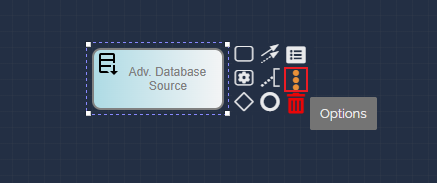
- Click the Activity and select Options
 icon from the context pad.
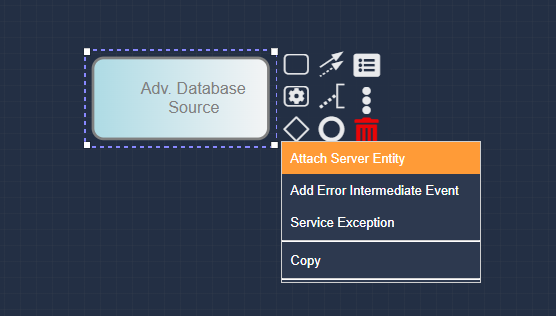
- Click Attach Server Entity from the list to open Repository View window.
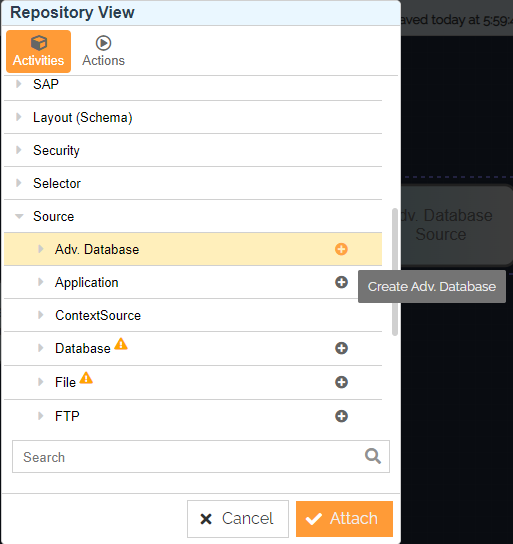
- Click the Create Database
 icon for Source Database to open New Adv. Database Source window.
- Click here and follow the steps to create Adv. Database Source Activity.