Managing Network parameters
You can add a parameter to a Network and configure its values while adding a Partner. After you have configured values, you can use the parameter while creating a Template. For instance, you can assign a folder name in the parameter where Partner files are located and use the parameter to pick files while creating a Template.
This page contains the following information:
Adding parameters
Follow the steps below to add a parameter:
-
Click Partners on the homepage.
-
Click Networks from the left menu.
-
On the Networks screen, click
 and then click Manage Parameters.
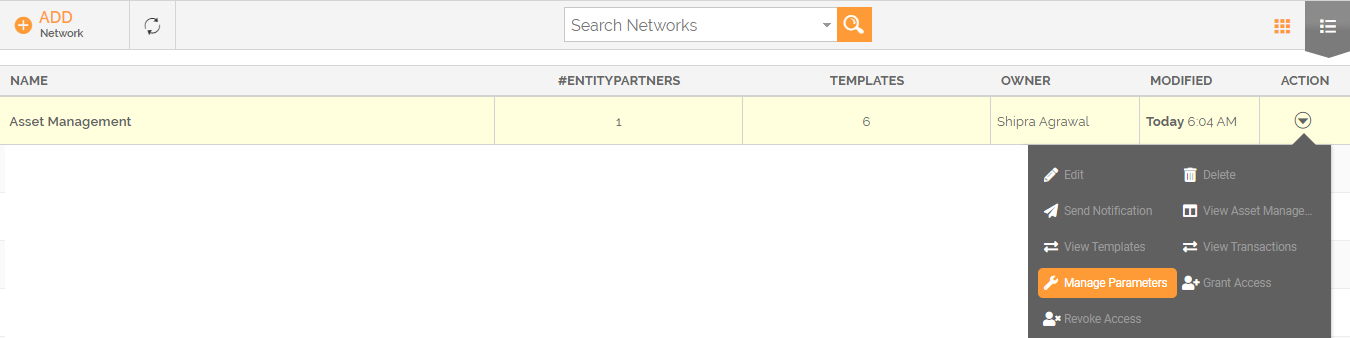
-
It displays the Manage Network Parameters window.
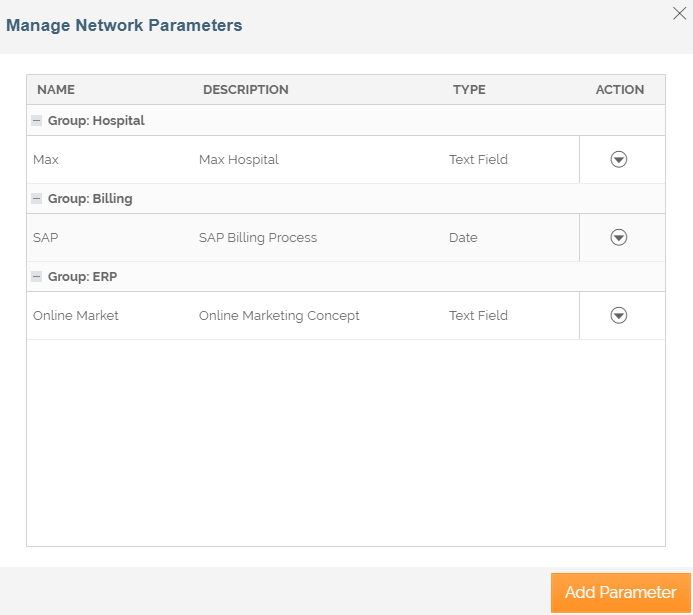
-
You can change the sequence of parameters by clicking the up and down arrow of the More menu. You can also edit and delete the parameters from the More menu.
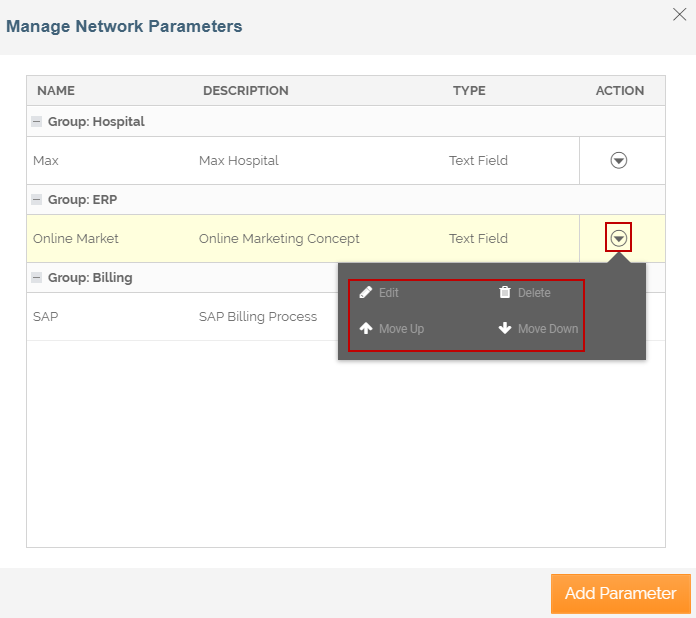
-
Click Add Parameter to add more parameters to the Network.
-
On the Add Parameter window, provide the details of the parameter.
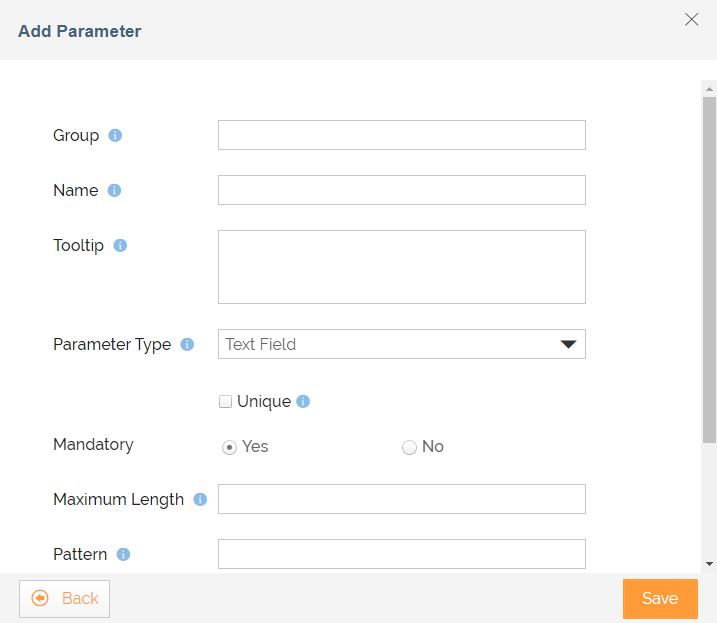
Parameter Name Description Group Unique name to identify a group. Name Name of the parameters of the group. Tooltip Enter the message that you want to show as a tooltip for the Parameter. You can define your sample value for the pattern. Parameter Type Type of the input parameter to be received from the Partner. The available input parameters are: Text Field, Password, Combo, Date, Email, URL, Number, and Decimal Number.
If you want the parameter value as unique across the partners then select the Unique checkbox. Once given a value, no other partner can use the same value.Mandatory Mandatory parameter or not. Format Select the format of the date from the drop-down list and this field is applicable for Date parameter type only. Value Write the value of the parameter and this field is applicable for combo parameter type only. Maximum Length Type the maximum length in numbers allowed for this parameter. This field is applicable for Text Field, Password, Email, and URL parameter type. Pattern Type the pattern for this parameter in a regular expression. You can check the validity of this expression by giving a value in the Test Pattern field below.
This field is applicable for the Text Field and Password parameter type.Test Pattern Click the Test button to check the validity of the expression by giving a value in this field. Default Value Write the default value of the parameter that will be shown as a default value while adding partners to this Network. This is an editable option and the user can edit this while adding a partner. -
Click Save.
Editing parameters
You can edit all the parameters of a Network, follow the steps to edit the parameter details:
-
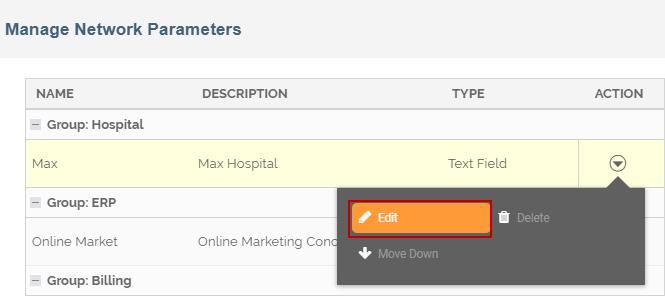
On the Manage Network Parameters window, click the More menu and select Edit from the list.
-
On the Edit Parameter window, edit the details of the parameter.
-
You can change the parameter type from the drop-down list of the Parameter Type field.

If the parameters are used by partners, you cannot change the parameters from 'Text Field to Combo' and 'Password to Combo'. -
You can change the parameters mandatory or optional using the Mandatory button. By default, parameters are mandatory.
Enter the default value If you change the parameter from Non-Mandatory to Mandatory. Else, an Alert message is displayed. 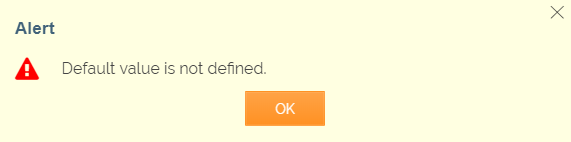
-
Click Save.