Creating Truststore
A Truststore stores all your trusted parties certificates. You can create a Truststore by uploading a valid certificate to it. To create a Truststore, follow the steps given below:
- Click Configure > SECURITY > Keystore/Truststore.
- Click Create****Keystore/Truststore.
- In the Create Keystore/Truststore window,
- In the Name and Description fields, enter the name and description of the Truststore respectively.
- In the Create field, select the Truststore option.
- In the Upload Truststore field, click Browse…, navigate to the JKS Truststore file type, and click Open to upload your Truststore file.
Note: Truststore only supports JKS file type. - In the Truststore Password and Confirm Password fields, enter the same password for the Truststore.
- In the Select Project field, select the project.
- Click Save.
This creates a Truststore with a certificate uploaded/imported to it.
Importing a certificate to the application
To import a certicate to the application's Trustore (shared/cacert folder), follow the steps given below:
- Click Account > Settings.
- On the left panel, expand Application Settings, and then click **Certificates.
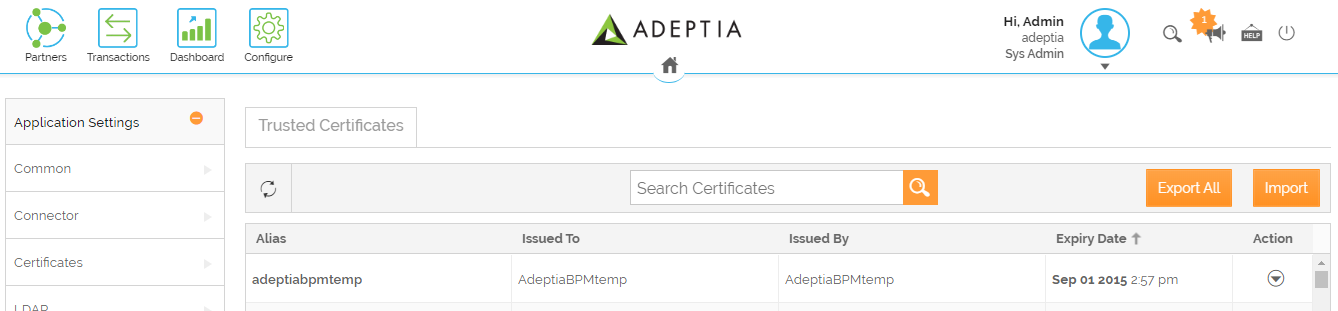
** - On the Trusted Certificates screen, click Import.
- On the Import Truststore screen, do the followings:
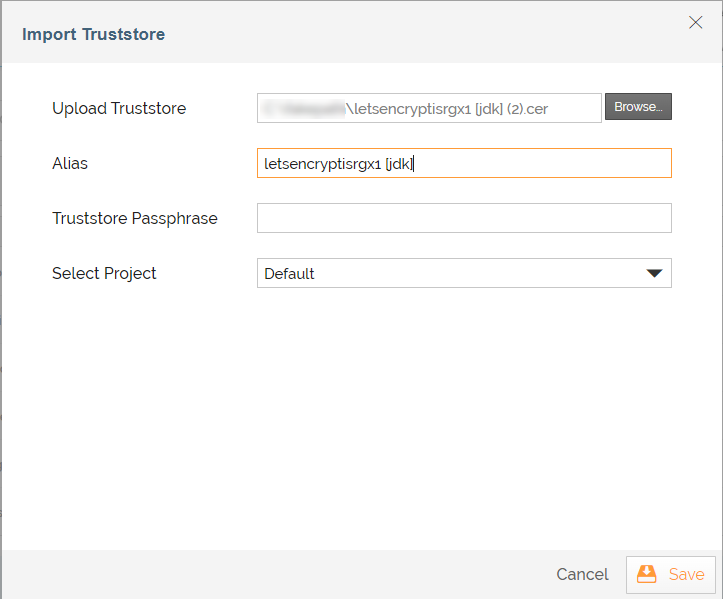
- Click Browse next to the Upload Truststore field.
- Navigate to your JKS Truststore file and click Open.
- In the Alias field, provide an alias by which the certificate you import gets listed on the Trusted Certificates screen.
- In the Truststore Passphrase field, enter the certificate password.
- In the Select Project field, select the project.
- Click Save.
 |
|