Setting up the SQL DB
Setting up the Log and Backend databases on SQL DB comprises of the following actions:
Connect to Azure SQL Server
-
Launch Microsoft SQL Server Management Studio (SSMS).
-
In the Object Explorer, click Connect → Database Engine.
-
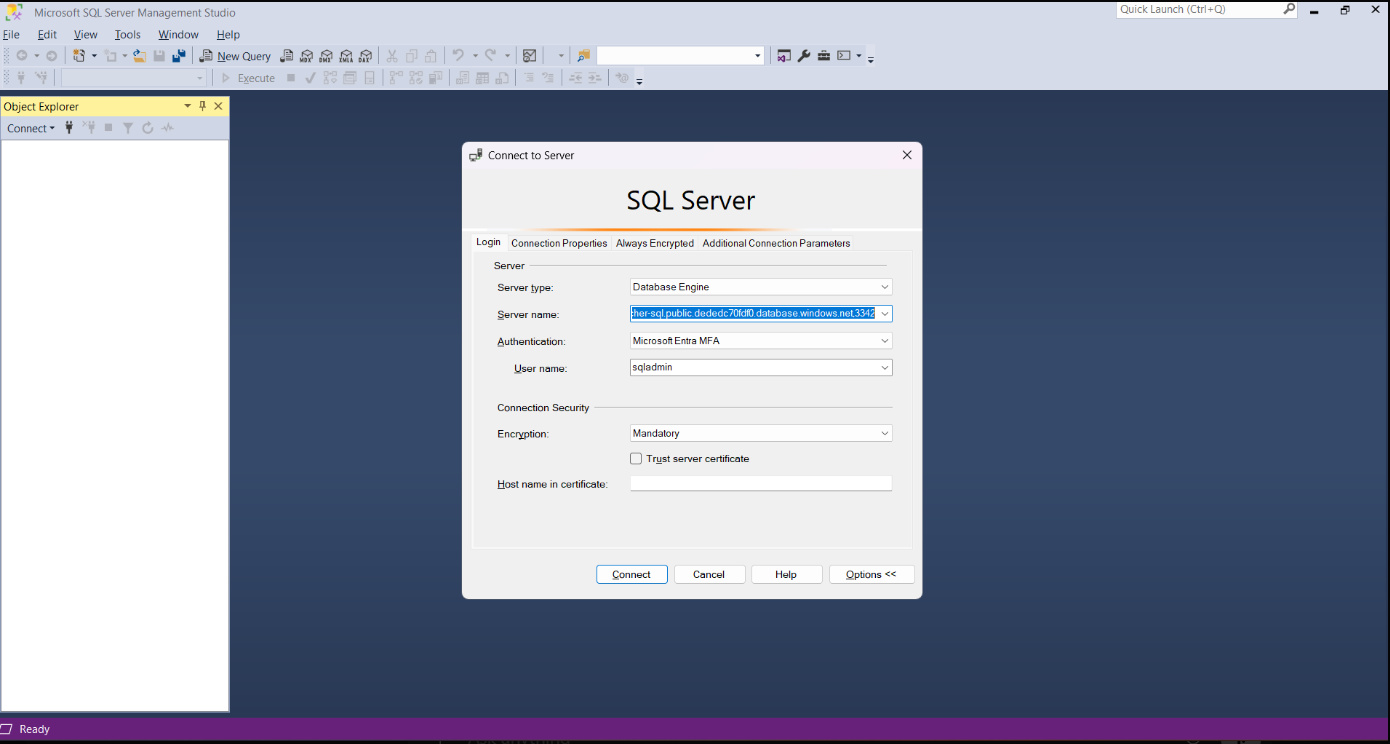
The Connect to Server window opens.
-
Fill in the connection details:
-
Server type:
Database Engine -
Server name:
(Example:
her-sql.public.dededc70fdf0.database.windows.net,3342) -
Authentication:
Microsoft Entra MFA(or Azure AD authentication as per your setup) -
User name:
sqladmin(or your Azure SQL admin user)
-
-
Under Connection Security:
-
Encryption:
Mandatory -
Leave Trust server certificate unchecked (recommended)
-
-
Click Connect.
-
Complete the MFA login if prompted.
Verify the connection
-
After successful login, the Object Explorer refreshes.
-
Expand the connected server node.
-
Expand Databases.
-
You should see:
- **System Databases
**This confirms that the connection to Azure SQL Server is successful.

- **System Databases
Create Log and Backend DB Schemas and assign privileges
-
In Object Explorer, right-click on the server or a specific database (e.g.,
master). -
Click New Query.
-
A new SQL editor window opens.
-
Ensure the correct database is selected in the dropdown (top-left of query window), e.g.:
-
The status bar at the bottom should show:
-
Connected
-
Server name
-
Logged-in user

-
-
In the query editor, run the SQL commands as shown in the following example:
In the SQL commands above:
rancherbackend is the Backend DB username
Rancher@123 is the Backend DB password
Backend DB Schema name is derived from the Backend DB username, which is rancherbackend. -
Click Execute or press F5.
-
Repeat the steps 6 and 7 for log database.
-
Check the Messages tab for success or errors.
-
If successful, the changes are applied to the Azure SQL Database.
Best practices to follow
-
Always verify:
-
Correct server name and port
-
Correct authentication method
-
Correct target database
-
-
Use least-privilege permissions when granting access.
-
For Azure SQL, prefer Azure AD users where possible instead of SQL logins.