Setting up the MySQL DB
Setting up the Log and Backend databases on MySQL DB comprises of the following actions:
Downloading and installing MySQL Workbench
Following are the steps to download and install the database client tool (MySQL Workbench) on the Jump Box or your local Windows machine.
-
Go to https://www.mysql.com/products/workbench/ URL.
-
Click Download Now.
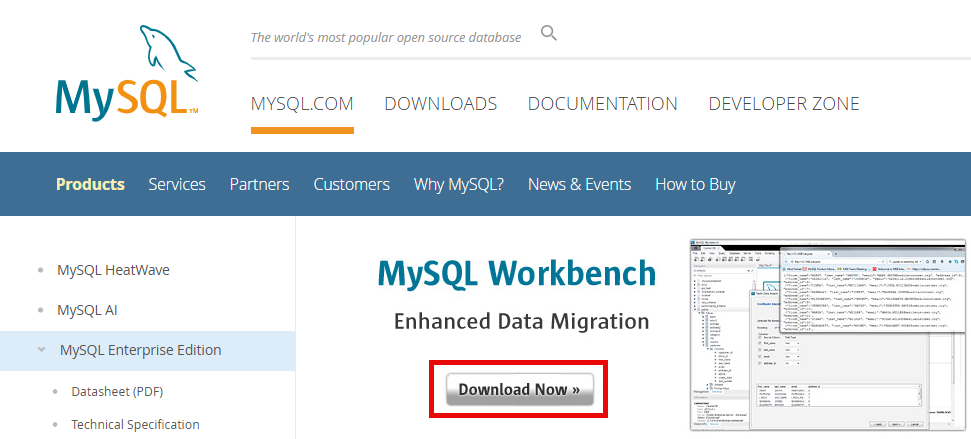
-
Click Download.
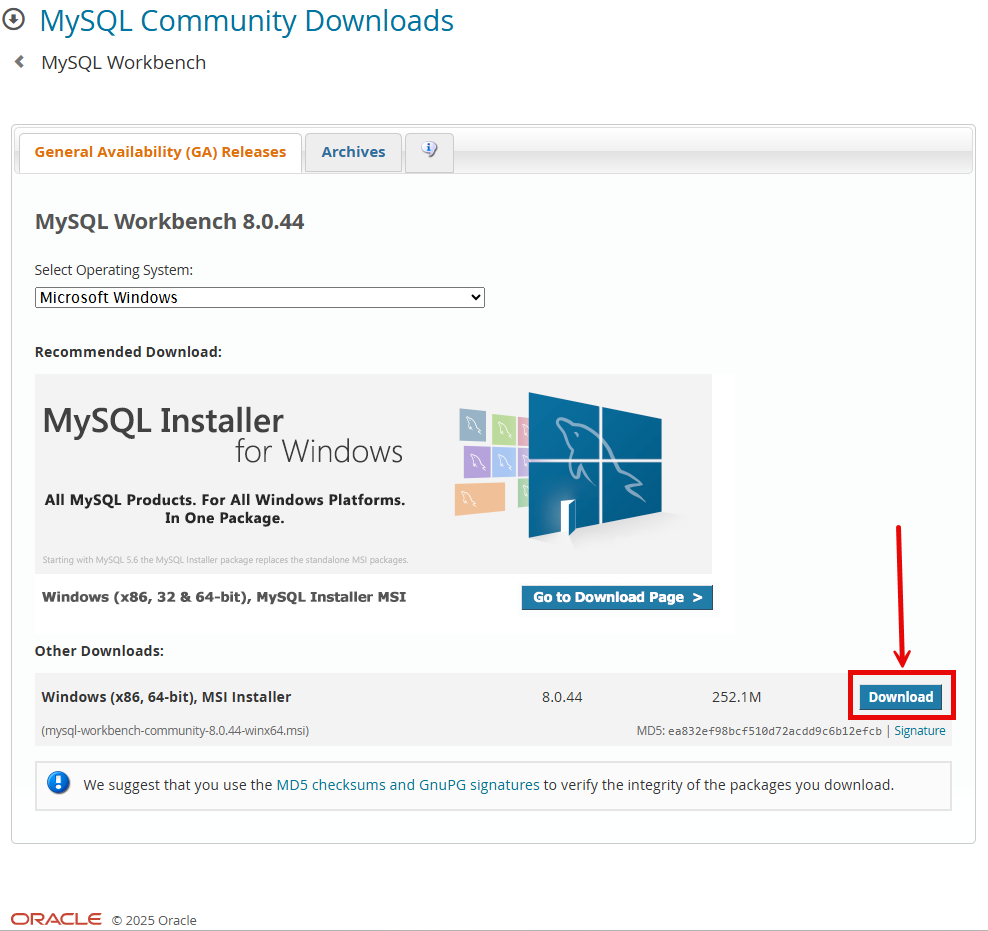
-
Click No thanks, just start my download.
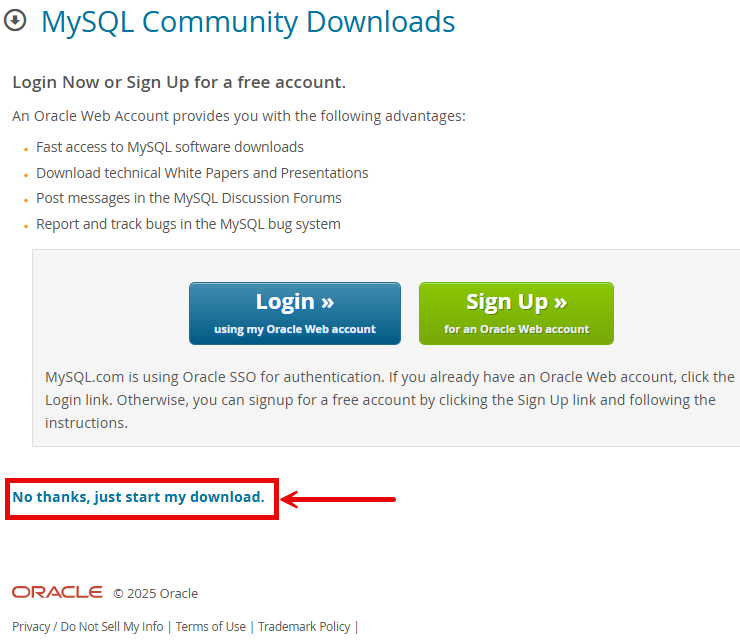
-
Double-click the downloaded installer to open the installation wizard for MySQL Workbench.
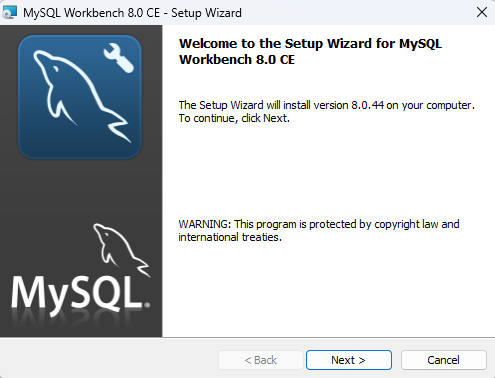
-
Follow the instructions on the wizard to complete the installation process.
Connecting to the database
Follow the steps below to connect to the database using the MySQL Workbench:
-
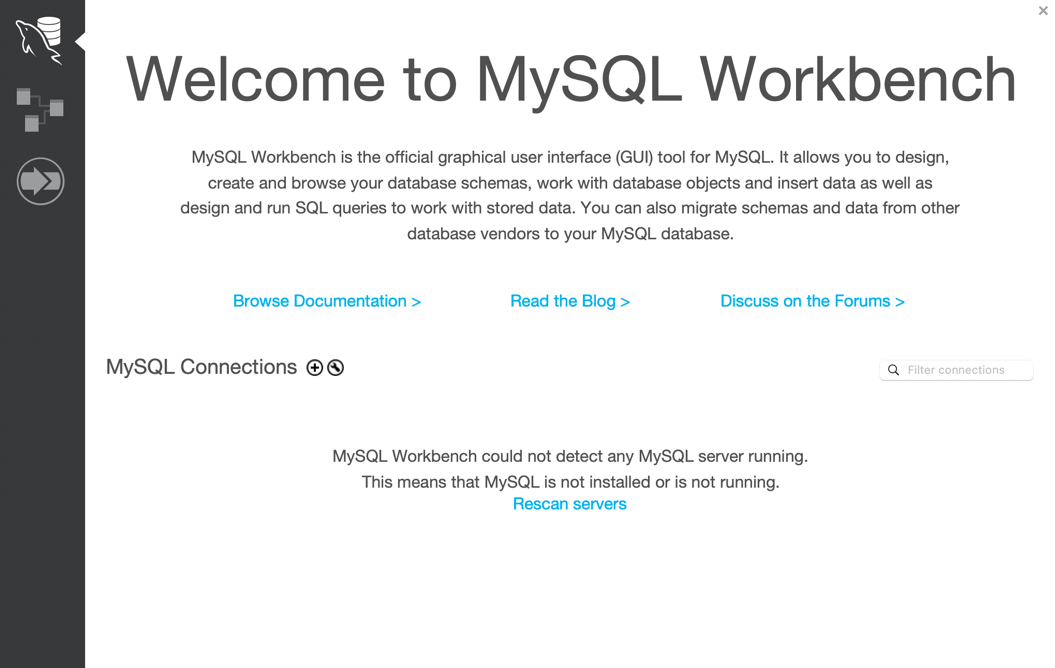
Launch MySQL Workbench.
-
Click + icon next to MySQL Connections on the home page.
-
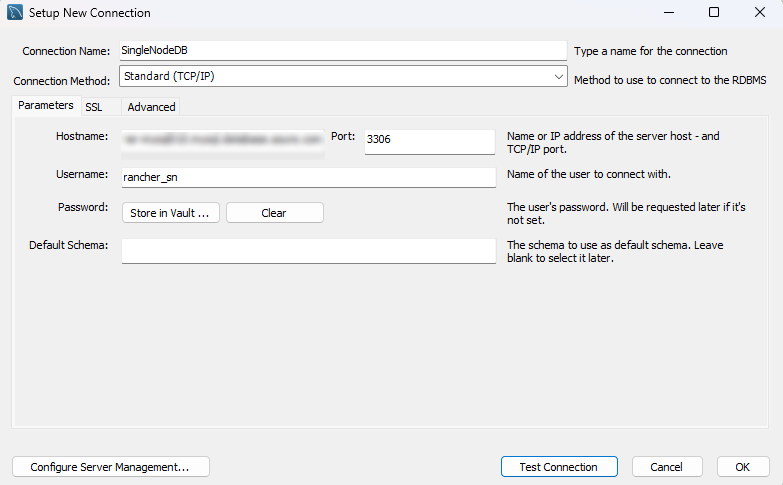
On the Setup New Connection screen, enter the:
- Connection Name
- Hostname: IP address or Hostname of the machine that hosts the database server.
- Username: The username (provided while provisioning the database) of the database server admin. You will use this user to create:
- Backend and Log database.
- Another user with the required privileges on Backend and Log database.
-
Click Test Connection.
-
When prompted, enter the password of the database server admin.
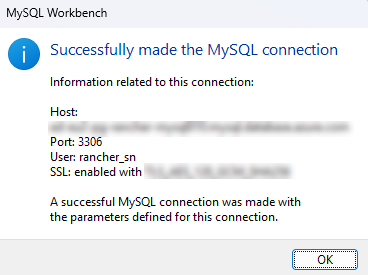
Upon successful test connection, you'll see the following confirmation screen.
-
On the confirmation screen, click OK.
-
On the Setup New Connection screen, click OK.
The MySQL Workbench home page shows the connection you have created. -
Double-click the connection you want to use.
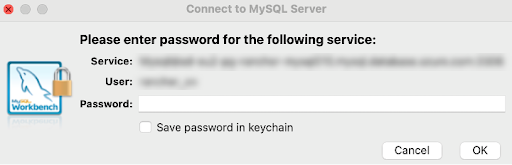
- Enter the password, and then click OK.
Creating the Log and Backend databases
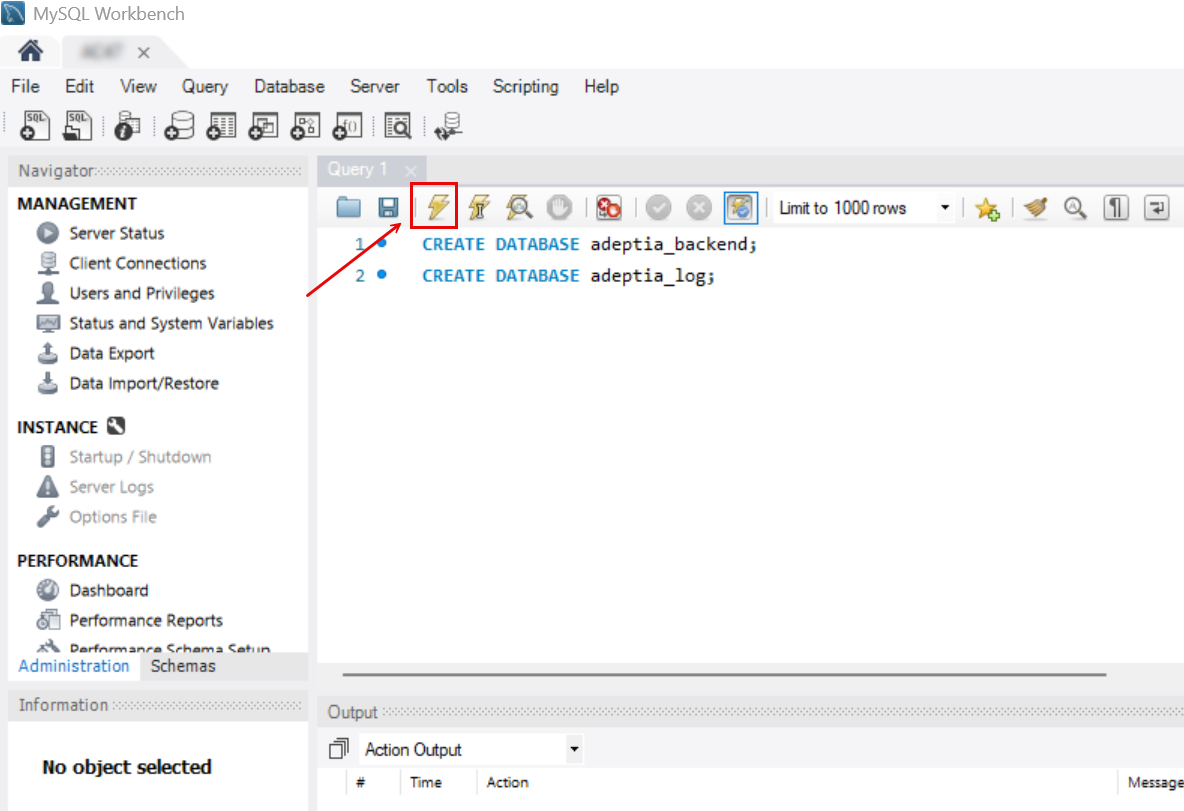
On the MySQL Workbench Query tab, run the following commands by clicking  to create the Backend and Log DB schemas in the database server with the names adeptia**_backend** and a****deptia_log respectively.
(Optional) Creating a user and granting permissions
 | This is required ONLY when you want to create a user with restricted access—limited solely to the Backend and Log database schemas—and can be used to authenticate when deploying the application. This prevents the need to use database server administrator credentials. Note: You can create two different users -- one for the Backend database and the other for Log database. |
Create a dedicated user account that the application will use to connect to and access both the Backend and Log databases. This user must be granted all necessary privileges required for the application to perform its operations, including read and write access to the relevant schemas, tables, and objects.
Steps to create a user with the required privileges:
On the MySQL Workbench Query tab, run the following commands to:
-
Create a user
-
Grant the required database permissions to the user you created.

The user you create must have the following, if not all, privileges on the backend and Log DB:
CREATE, DROP, INDEX, ALTER, SELECT, DELETE, INSERT, UPDATE, REFERENCES, CREATE ROUTINE, and CREATE VIEW.
Go to Administration > user and privileges > User Accounts > Schema Privileges to verify if the permissions were granted successfully.