Creating Resource Groups
Resource groups (RGs) act as logical containers for organizing Azure resources. This document outlines the steps for creating a resource group in the Azure Portal.
You will need to create two resource groups:
- Resource group 1 (For example, ad-int-cus-demo-vnet-rg-010) for hosting the Virtual Network (VNet) resources
- Resource group 2 (For example, ad-int-cus-demo-rg-010) for hosting the following resources:
- AKS cluster
- Jump Host
- MySQL Flexible Server
- Supporting resource
The steps for creating both resource groups remain the same.
Steps to create a resource group
-
Go to https://portal.azure.com/ and log in with your Azure credentials.
-
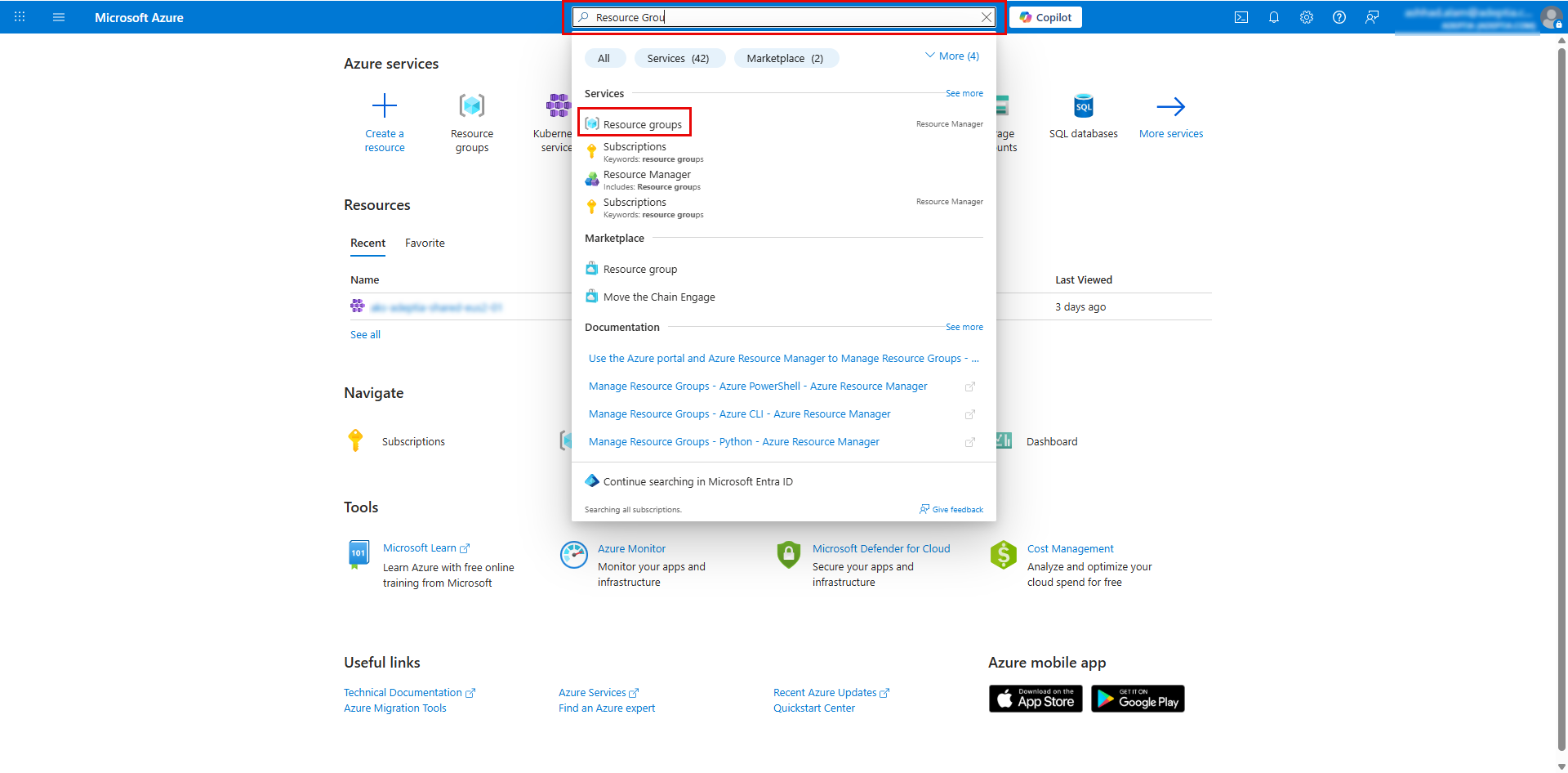
In the portal search bar, search for resource groups and select R****esource groups service.
-
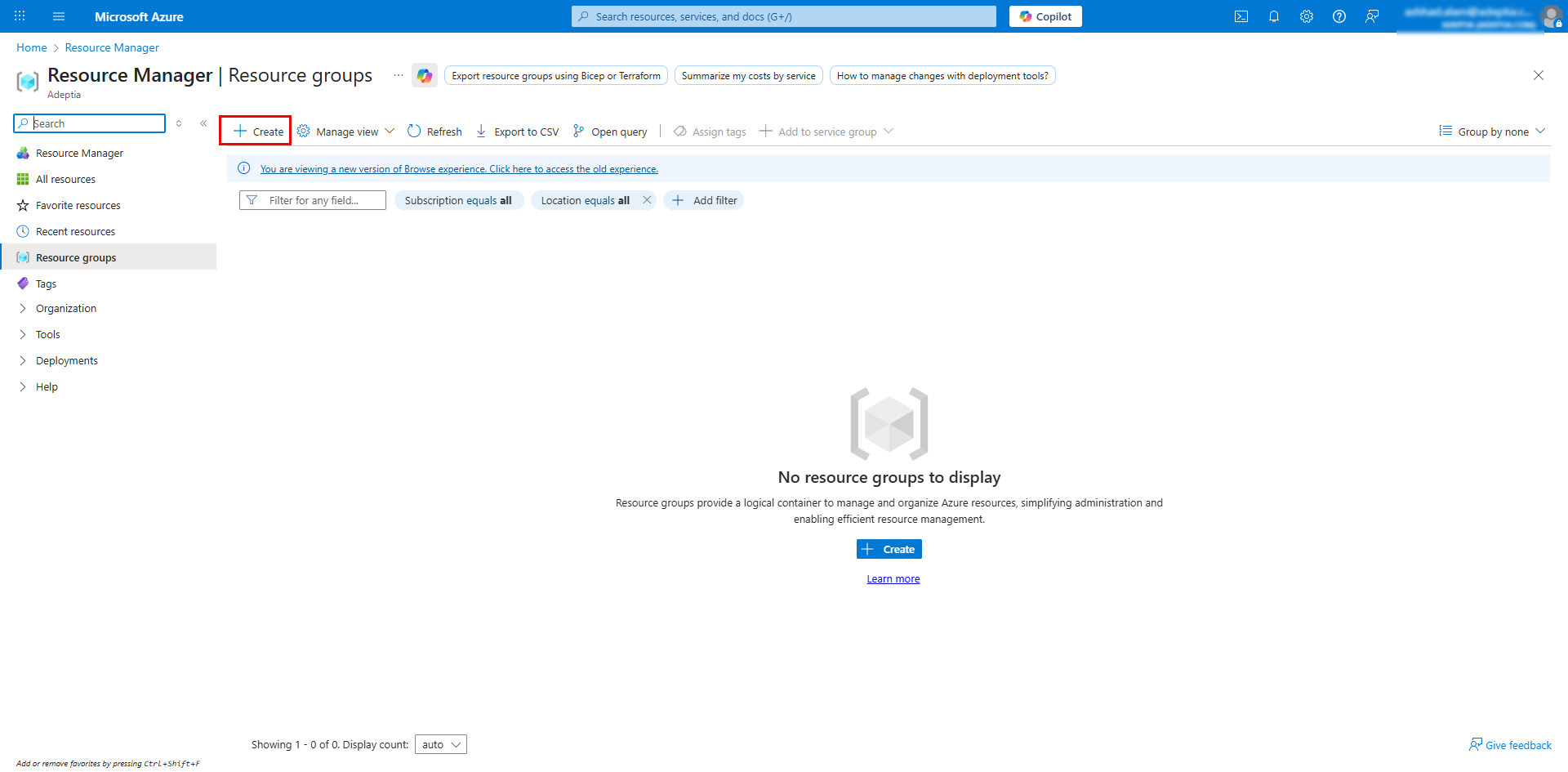
Click Create to open the Create a resource group screen.
-
In the Basics tab, enter the following details:
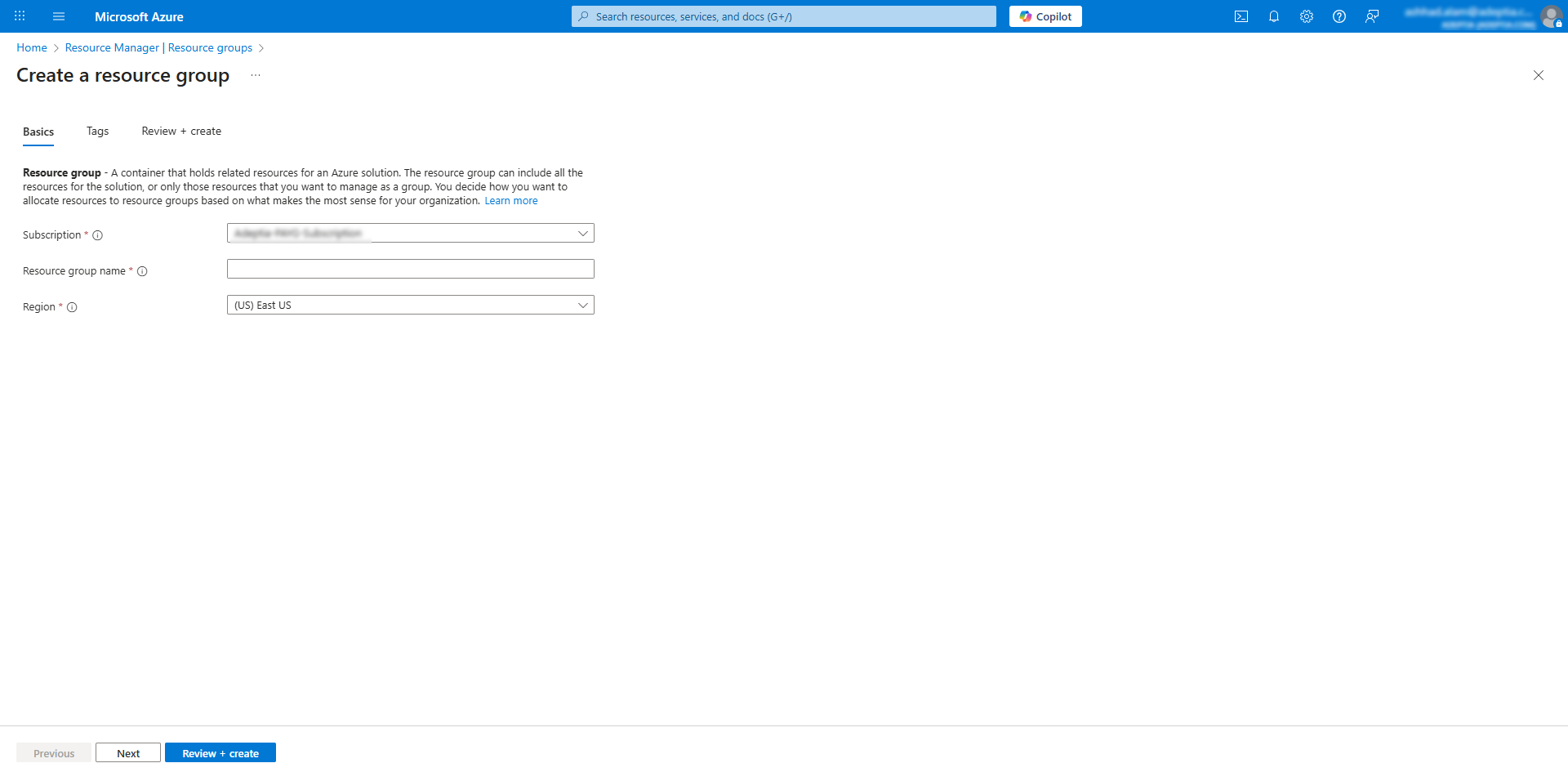
- Subscription: Select your Azure subscription name.
- resource group name: Enter a name for the resource group, for example, ad-int-cus-demo-vnet-rg-010.
- Region: Select the region of the Data Center where you want the resource group to be created, for example, (US) East US.
-
Select the R****eview + Create tab to review the configurations.
-
Click Create at the bottom to complete the creation of the resource group.
-
Follow the above steps to create another resource group.
After you have created the resource groups, create a virtual network.