Installing RabbitMQ Operator
Installing the RabbitMQ Operator is required only when deploying Adeptia Connect with RabbitMQ in High Availability (HA) mode. The RabbitMQ Operator is responsible for creating, managing, and maintaining the availability of the RabbitMQ StatefulSet.
As part of the deployment, you can optionally restrict the RabbitMQ Operator's visibility to specific namespaces instead of allowing it to watch all the namespaces across the cluster. This provides better security and isolation by limiting the operator’s access to only the namespaces it needs to manage.
This document covers the following topics:
Prerequisites for installing RabbitMQ Operator
To install RabbitMQ Operator, you must have:
-
Administrative privileges on the Kubernetes cluster.
-
Internet access to download the helm chart and docker images.
Pre-installation steps
Before installing the RabbitMQ Operator, you must deploy the necessary Kubernetes roles. These roles allow the operator to perform its functions securely and with the appropriate permissions.
Deploying the RabbitMQ Operator roles package
To deploy the roles with cluster wide permission, follow the steps below:
 | The Cluster-wide option allows RabbitMQ operators to manage RabbitMQ resources across all namespaces in the Kubernetes cluster and is recommended for standard deployments. |
-
Go to the following ArtifactHUB page for roles:
https://artifacthub.io/packages/helm/adeptia-connect-roles/roles/4.8.0 -
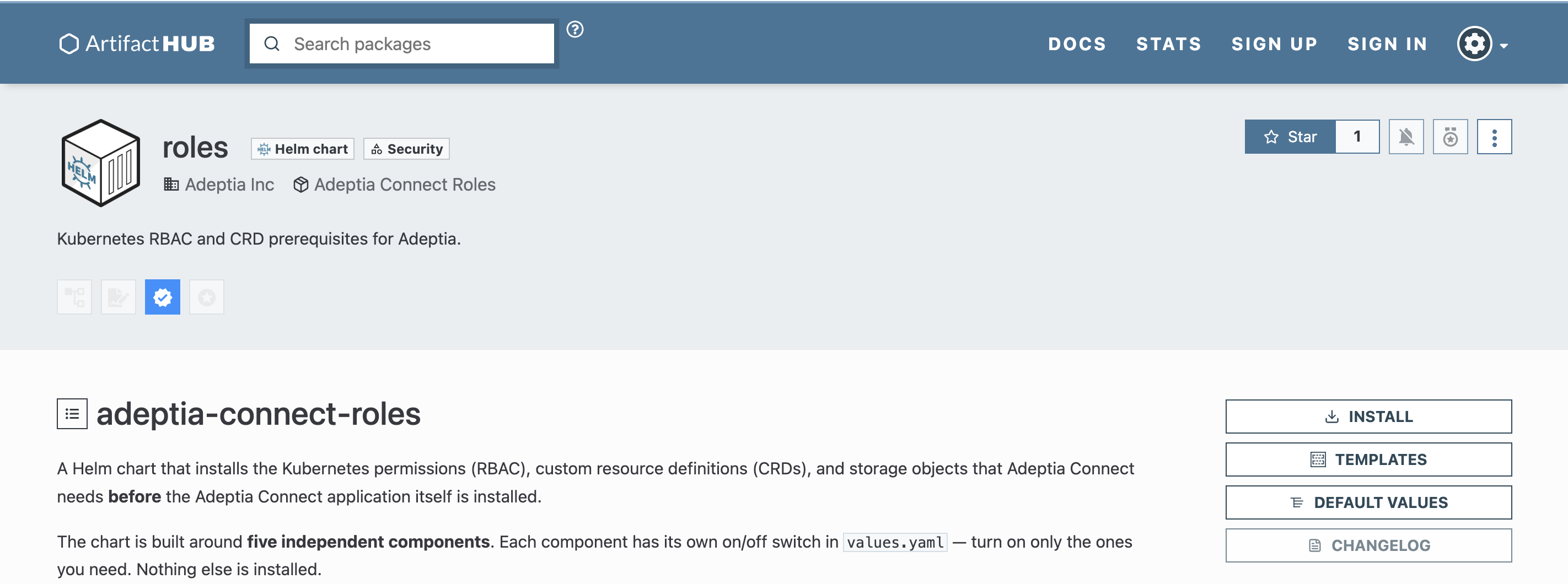
Click INSTALL as shown in the following screenshot.
-
On the roles screen, download the roles package by clicking this link option.
-
Unzip the downloaded package.
-
In the extracted package, go to the roles folder.
-
Open the values.yaml file.
-
In the rabbitmq section in the file, set the following properties:
Property Description Value enabled Setting it to true deploys the RabbitMQ roles. By default, the value is set to false. true or false namespace The namespace in which RabbitMQ Operator will be installed. Name of the namespace -
Save the file.
-
Run the command in the following format to deploy the roles package.
To deploy the roles in restricted mode, follow the steps below:
| The Restricted option limits RabbitMQ operators to a specific namespace and is intended for environments where cluster-wide permissions are not permitted. |
-
Perform the steps 1 through 6 given in the previous section.
-
In the rabbitmq section in the values.yaml file, set the following properties.
Property Description Value enabled Setting it to true deploys the RabbitMQ roles. By default, the value is set to false. true or false namespace The namespace in which RabbitMQ Operator will be installed. Name of the namespace deploymentUserThe user who will deploy the roles Username applicationNamespaceThe namespace in which, Adeptia Connect application will be installed. Name of the namespace -
Save the file.
-
Run the command the following format to deploy the roles package
Restricting RabbitMQ Operator's visibility
By default, the RabbitMQ Operator watches all namespaces in the cluster. However, you can configure it to watch only specific namespaces. This enhances security and isolation by limiting the operator’s visibility and control to selected areas of the cluster.
However, if you have deployed the RabbitMQ roles in restricted mode, it is mandatory to restrict the RabbitMQ Operator's visibility to the application namespace that was specified during the role deployment.
Steps to configure namespace restriction
-
Go to the following ArtifactHUB page for RabbitMQ Operator’s package.
https://artifacthub.io/packages/helm/rabbitmq-cluster-operator/rabbitmq-cluster-operator/4.8.0 -
Click DEFAULT VALUES.
-
On the Default values screen, click
 icon to download the values.yaml file for RabbitMQ Operator.
 -
In the values.yaml, make the following changes:
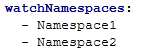
Property Change required clusterOperator > watchAllNamespaces Set to false to disable watching all namespaces. clusterOperator > watchNamespaces Specify the namespace (or namespaces) the operator should watch, as shown in the example below.
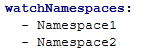
msgTopologyOperator > watchAllNamespaces Set to false to disable watching all namespaces.msgTopologyOperator > watchNamespaces Specify the namespace (or namespaces) the operator should watch, as shown in the example below.
clusterOperator > image > pullSecrets If you're using a private repository to host the RabbitMQ Operator Docker images, provide the name of the image pull secret that has been created in the namespace where the operator will be deployed.
Creating this secret and referencing its name under this property is mandatory when using a private repository. This allows Kubernetes to authenticate with the private repository and securely pull the operator images.
Steps to install RabbitMQ Operator
Follow these steps to install the RabbitMQ Operator in your Kubernetes cluster.
 | While you can install the RabbitMQ Operator in any namespace, it is recommended that you install it in a namespace separate from the one where Adeptia Connect will be deployed. |
- Add the RabbitMQ Operator repo using the following command: Where, rabbitmq-cluster-operator is the repo name.
- Run the command in the following format to install RabbitMQ Operator. Where, rabbitmq-cluster-operator is the repo name.
Verifying the installation
To verify if the RabbitMQ Operator has been installed successfully, you need to ensure that the pods associated with the following deployments are running.
- rabbitmq-cluster-operator
- rabbitmq-cluster-operator-rabbitmq-messaging-topology-operator
Configuring RabbitMQ high availability
After installing the RabbitMQ Operator, update the rabbitmq section in the application's global values.yaml file as shown below to enable RabbitMQ deployment in High Availability (HA) mode:

These settings ensure that RabbitMQ is deployed with three replicas in HA mode when the application is deployed.