Using the Inbound Template
Create an Inbound Template to receive data from the Partner. After creating a Template, you must activate and share it with your Partners to create a Transaction for exchanging data.
Only a Company administrator and an IT User can create a Template. However, we recommended that only an IT User creates a Template.
To create a Template:
-
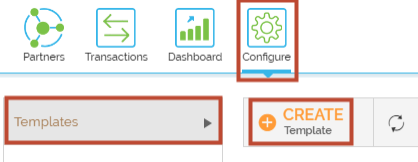
Click Configure > T****emplates > Create Template.
-
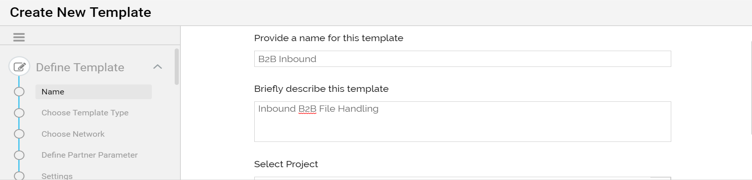
On the Create New Template screen, provide the name and description of the Template.
-
Select Convert from the template type, Inbound from the direction, and click Next.
-
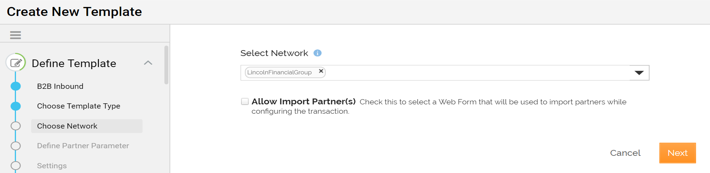
Select the Network for which you are creating the Template and click Next.
-
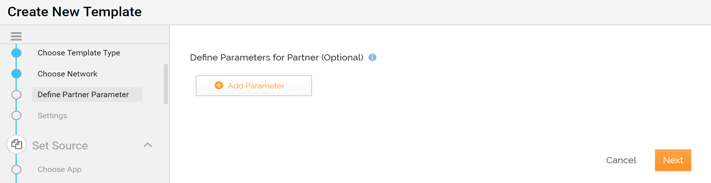
Click Next to define the parameter values. By default, no parameters are required.
-
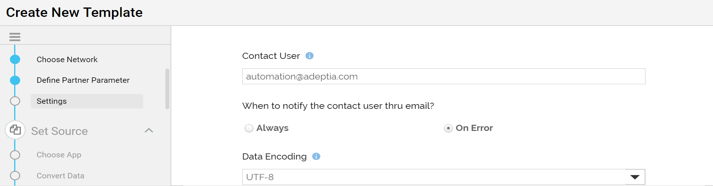
Click Next to configure template settings.
-
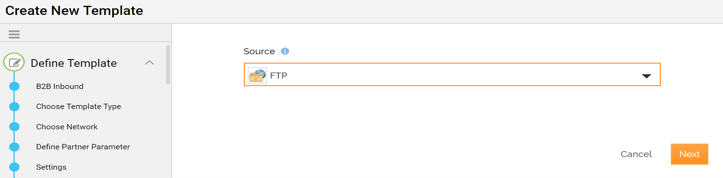
Select the Source application and click Next.
-
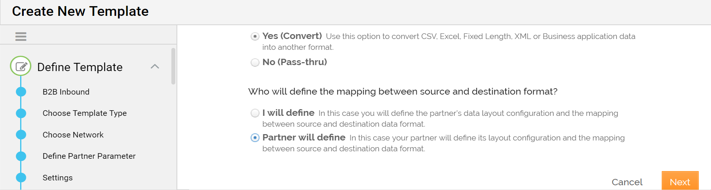
Select Partner will define button to enable the partner to specify the Source details.
-
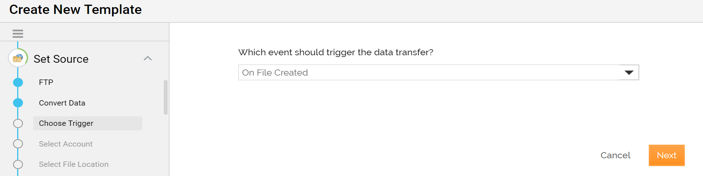
Select the trigger from the drop-down list and click Next.
-
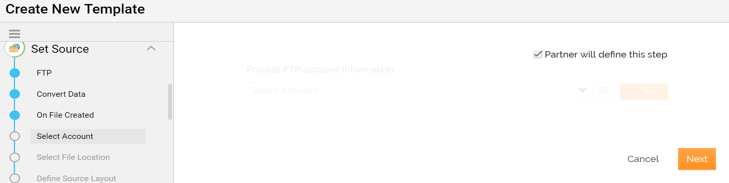
Select Partner will define the step checkbox to allow Partner to provide the account for FTP while creating a Transaction using this Template.
-
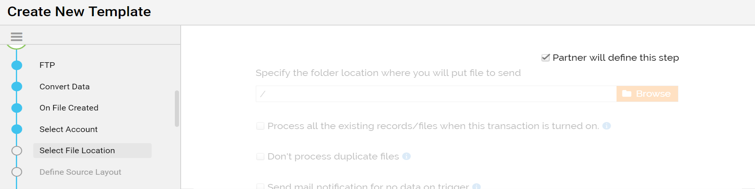
Select Partner will define the step checkbox to allow Partner to provide the location of file.
-
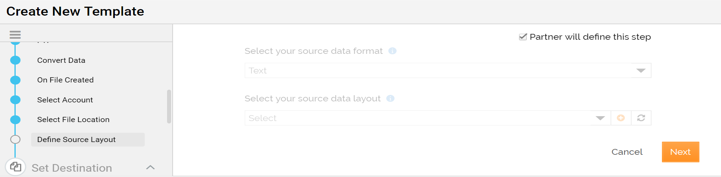
Select Partner will define the step checkbox to allow Partner to specify the Source format.
-
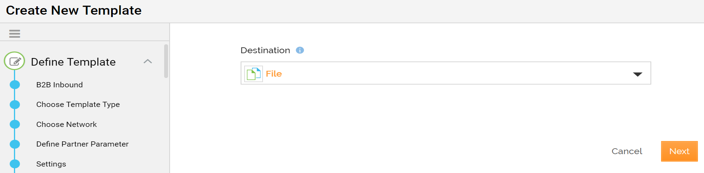
Select the Destination application and click Next.
-
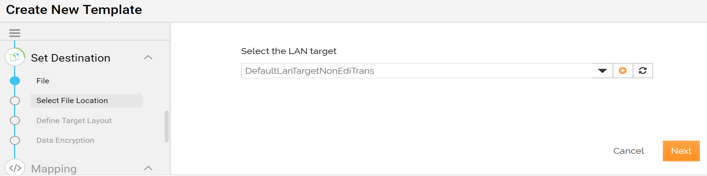
Select the LAN target and click Next.
-
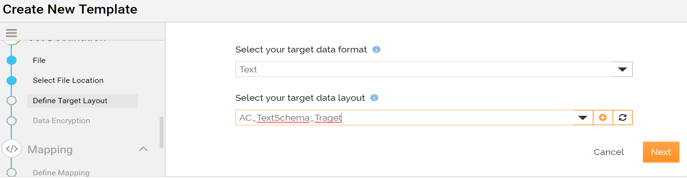
Select the target data format and click Next.
-
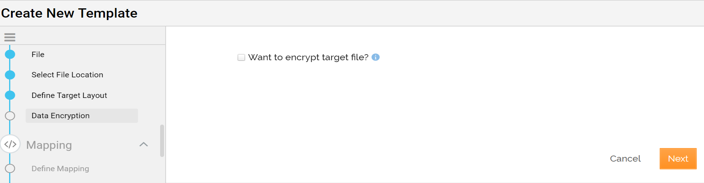
Select the checkbox if you want to encrypt the target file.
-
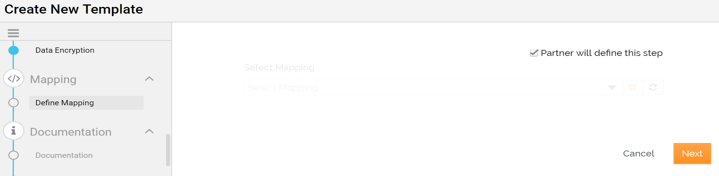
Select Partner will define this step checkbox to allow Partner to define mapping.
-
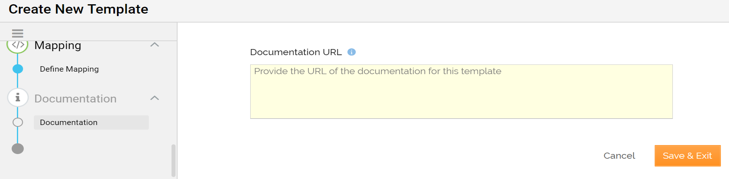
Provide the Documentation URL. This URL will have all the information related to the Template.
-
Click Save & Exit to save the Template.
-
Click Yes, turn On, when prompted to confirm.
 This activates a Template. You can now use it to create Transactions.