DropFile
DropFile allows you to store and synchronize files online. You can store your files in DropFile and access them from your computers, phones, tablets, etc.
Field (Account) Information
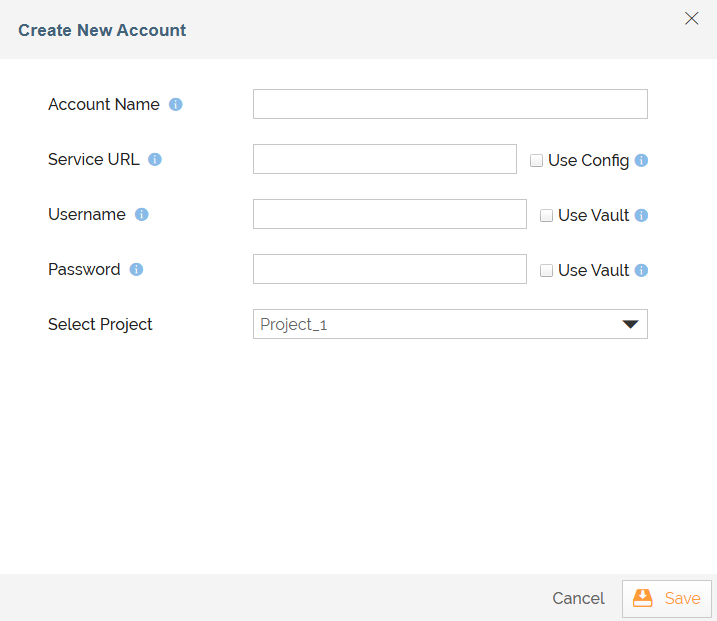
While configuring the Source or Destination of a Template or Transaction, you need to create an account to connect DropFile with Adeptia Connect. While creating an account, you need to specify the location from where Adeptia Connect will access the data.
Click  to add an account.

Specify the following information for DropFile:
Field Name | Description |
|---|---|
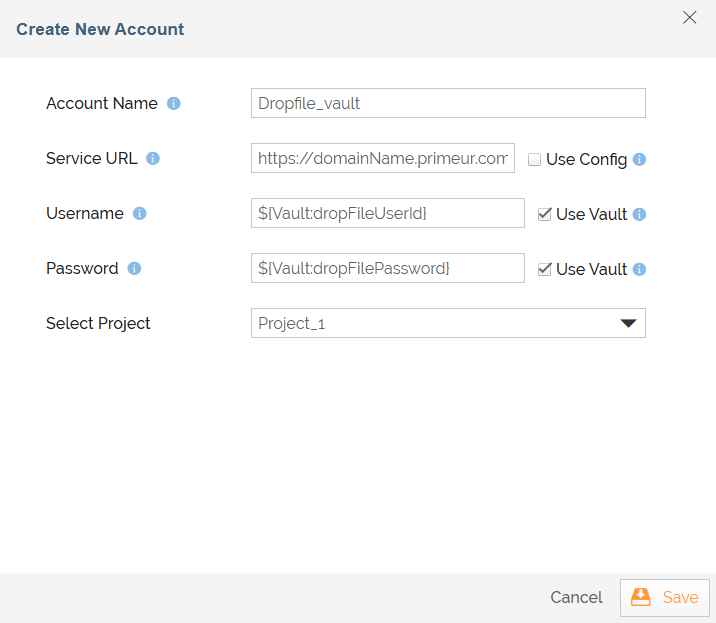
Account Name | A short, descriptive name that helps you re-use this account in future. |
| Service URL | DropFile instance URL for serving API calls, for example, https://domainName.primeur.com |
Username | Username to log into your DropFile account. |
Password | Password to log into your DropFile account. |
| Select Project | Name of the Project. |
 |
|
Triggers
A Trigger specifies when a particular Transaction will start executing. While configuring the Source of a Template, you need to choose trigger event.

Following trigger event is available for DropFile at Source.
Message Received | Triggers when a new message is received. Trigger Name Description |
Actions
An Action specifies how the data will be transferred at the destination location. While configuring the Destination (Target) of a Template, you need to choose an action.

Following action is available for DropFile at Destination.
Action Name | Description |
|---|---|
Send File | Sends the file to the destination. |