Azure Blob
Adeptia Connect supports Azure Blob among other business app connectors. You can use Azure Blob as a Source or Destination in a Template or Transaction by following the steps given below.
-
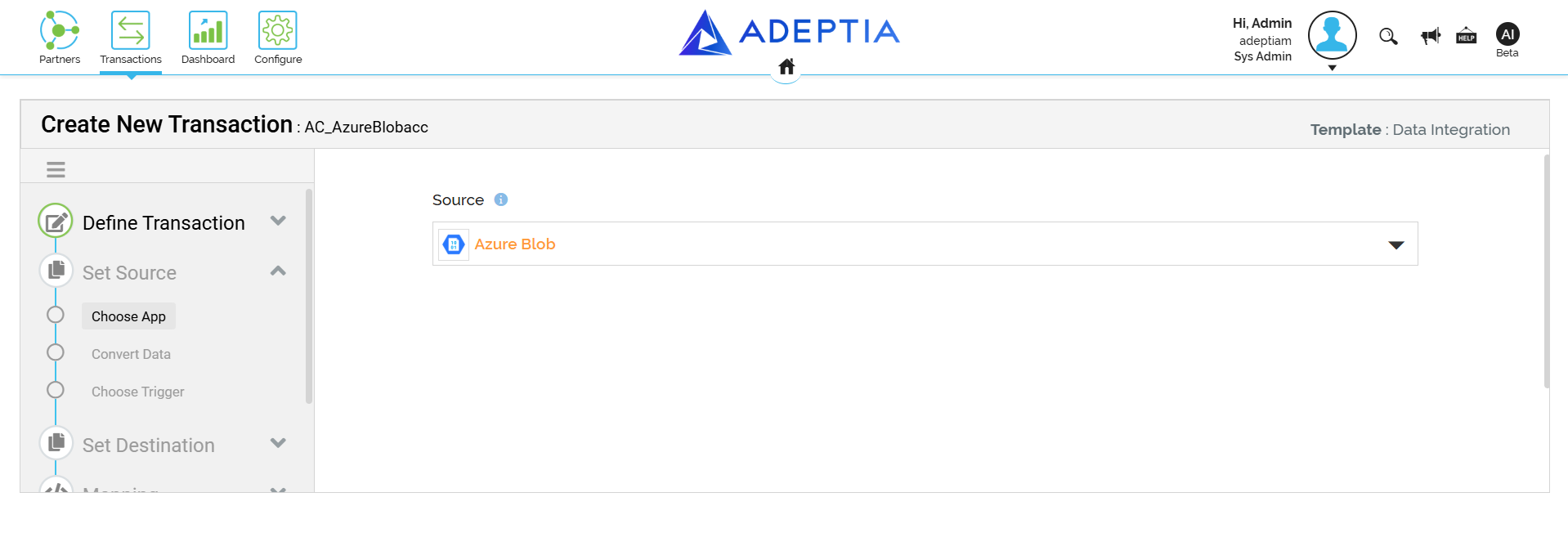
Select Azure Blob as Source or Target App.
-
Click the + icon to create an account that would be used for connecting Adeptia Connect with Azure Blob.
-
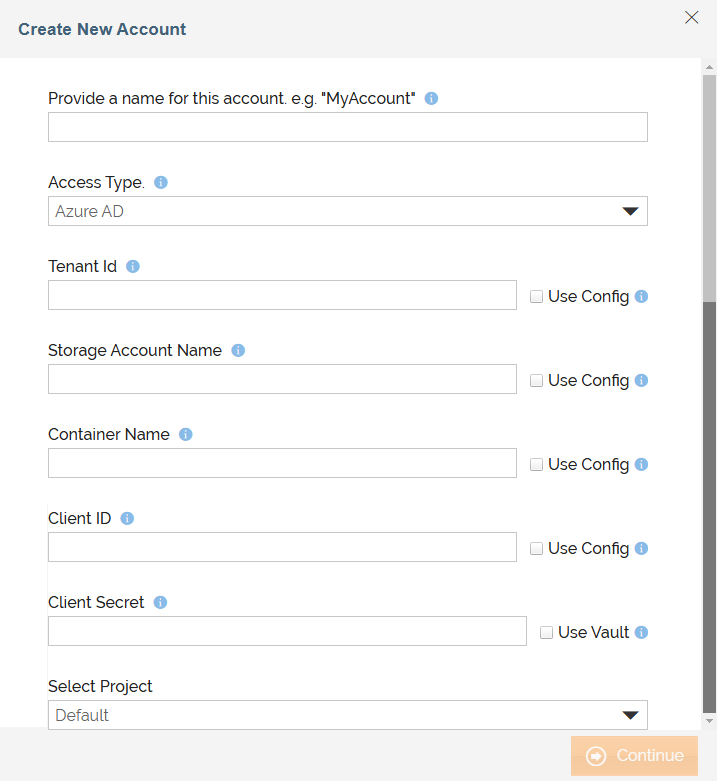
On the Create New Account window, specify the following information.
Field Name
Description
Account Name
A short, descriptive name that helps you re-use this account in future.
Access Type
This field governs the type of authentication you choose to connect to your Azure Blob.

You can select Azure AD, Shared Key, or Shared Access Signatures as the Access Type. Based on your selection, the next field will ask you for the required input (Id, Key, or Signature) to proceed further. For example, if you select Azure AD as the Access Type, the next field in the form will be Tenant Id where you’d need to enter the Tenant Id of your Azure Blob account. 
You can also use HashiCorp Vault to fetch the Shared Key and Shared Access Signatures secrets.

- Before you use HashiCorp Vault, ensure that you have cleared the browser cache.
- If you ever change the secrets for this activity in HashiCorp Vault, ensure that you have cleared the cached secrets to bring the change into effect.
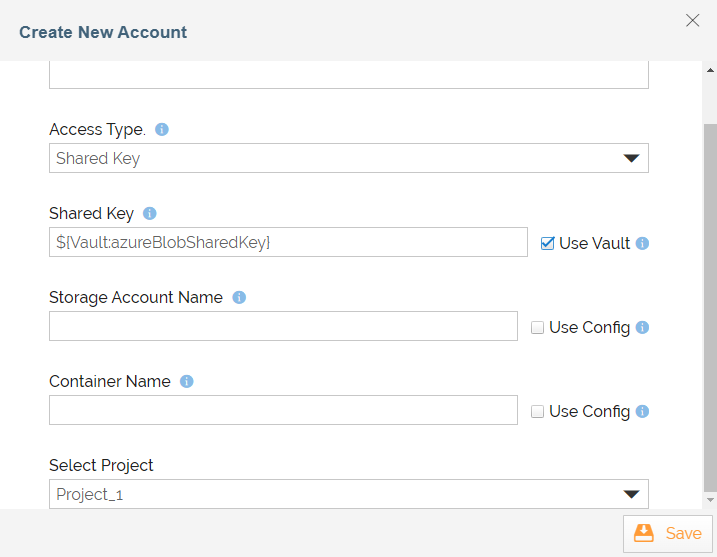
Each secret is maintained as a key-value pair in Hashicorp Vault. Enter the variable in the following format in the field for which you want to fetch the secret from Vault:
${Vault:<Key1>}
Where, <Key1> is the key in Hashicorp Vault that is defined for the field for which you want to fetch the secrets.For example, you need to enter ${Vault:azureBlobSharedKey} in the Shared Key field, if you have defined azureBlobSharedKey as the key for this field in the Vault.
For more details refer to this page.You can also enter the values manually.
You can select one of the following Access Types:
- <ch:anchor>Azure AD</ch:anchor> – This option facilitates OAuth based authentication.
Once you select Azure AD as the Access Type, you need to enter the required Tenant ID, Client ID, and Client Secret of the app registered in the Azure Portal.
Refer to this section for information on how to configure an OAuth Client for Azure Blob in Azure.If the Client ID and Client Secret are not provided, the application will use the globally defined values for the following properties in Adeptia Connect (under Account > Settings > Application Settings > Connector > Azure Blob).
- microsoftazure.appKey: The Application (Client) ID generated in the Overview section after registering the app in Azure Portal.
- microsoftazure.appKeySecret: The Client Secret generated while registering the app in Azure Portal.
After clicking Continue, the user would need to enter the Azure credentials in a new window. - Shared Key – Facilitates non-OAuth based authentication. To know how to get the Shared Key, refer to this page in the Microsoft Azure documentation.
As you complete all the fields and click Continue, your account will be created and saved.
You may want to test if you’d be able to connect this account with Azure Blob by clicking Test. - Shared Access Signatures – Facilitates non-OAuth based authentication. To know how to get the Shared Access Signature, refer to this page in the Microsoft Azure documentation.
As you complete all the fields and click Continue, your account will be created and saved.
You may want to test if you’d be able to connect this account with Azure Blob by clicking Test.
Storage Account Name
Name of your storage account in Azure.
Container Name
Name of the container in the selected Storage Account.
Select Project
Name of your Project in which you want to create a Template/Transaction.
For the fields that have Use Config checkboxes available against them, you can fetch the values from a Git repository at runtime using a variable. For more details, refer to this page. -
Click Continue.
Triggers
Sl. no. | Trigger | Description |
|---|---|---|
1 | Get Blob | The |
2 | Get All Blob | The |
3 | New or Updated Blob | The New or Updated Blob operation return the newly created blob. |
4 | Get Blob Properties | The |
5 | Get Blob Tags | The |
6 | Get Blob Metadata | The |
7 | Get Blob Snapshot | The |
8 | Find Blobs By Tags | The |
Actions
Sl. no. | Action | Description |
|---|---|---|
1 | Create Block Blob | The |
2 | Update Block Blob | The |
3 | Create Page Blob | The |
4 | Put Append Blob | The |
5 | Set Blob Properties | The |
6 | Set Blob Tags | The To assign the role,
|
7 | Set Blob Metadata | The |
8 | Set Blob Snapshot | The |
9 | Delete Blob | The |
10 | Undelete Blob | The |
| 11 | Update Page Blob | The Update Page Blob operation writes a range of pages to an existing Page Blob. |
Schemas for Triggers
Sl. no. | Trigger | Schema-Type |
|---|---|---|
1 | Get Blob | User-Defined |
2 | Get All Blob | User-Defined |
3 | New or Updated Blob | User-Defined |
4 | Get Blob Properties | Static |
5 | Get Blob Tags | Static |
6 | Get Blob Metadata | Static |
7 | Get Blob Snapshot | User-Defined |
8 | Find Blobs By Tags | Static |
Schemas for Actions
Sl. no. | Action | Schema-Type |
|---|---|---|
1 | Put Block Blob | User-Defined |
2 | Create Page Blob | User-Defined |
3 | Put Append Blob | User-Defined |
4 | Set Blob Properties | Static |
5 | Set Blob Tags | Static |
6 | Set Blob Metadata | Static |
7 | set Blob Snapshot | Static |
8 | Delete Blob | Static |
9 | Undelete Blob | Static |
| 10 | Update Page Blob | User-Defined |