Using a connector in a Template/Transaction
In Adeptia Connect you can use an App Connector in a Template/Transaction to interact with a third-party application with which you want to exchange data.
Using a Connector in a Template/Transaction
You can use an App Connector in a Template or Transaction while defining the Source or Destination based on your requirement.
 | If you want to use an app connector in a Custom Template, follow the guidelines given on this page to create the Process Flow to be used in the Template. |
Using a Connector as the Source
Follow the steps given below to use a Connector in a Template/Transaction as the Source.
-
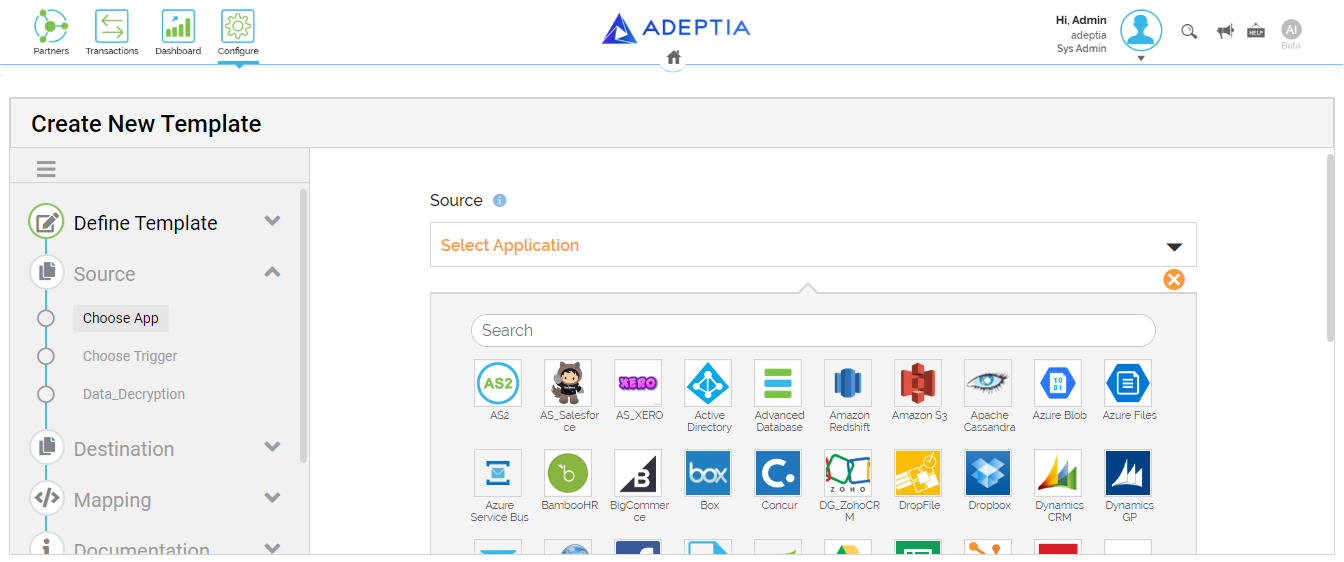
While defining the Source in a Template or Transaction, at the Choose App step, select the required App Connector.
-
Click Next.
-
At the Select Account step, select either an existing Account (contains the details for connecting to the Source application and exchanging data) in Adeptia Connect, or create a new one. For more details on how you can create a new Account, refer to the respective Connector on this page.
-
Click Continue.
You will be redirected to the respective third-party application's login page if you are not logged in to it. -
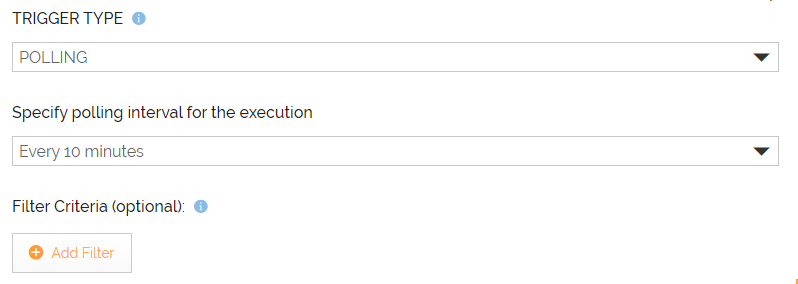
At the Choose Trigger step, select a trigger based on which Adeptia Connect fetches the data from the Source application. For more details, refer to this page.
-
Define the trigger conditions, if applicable and required.
-
Click Next.
-
At the Filter Criteria step, define the filter criteria.
-
Follow the instructions in the wizard to complete the creation of the Template/Transaction.
At the Mapping step, you can use the Lookup function for a reference field (if available). For more details, refer to this page.
Using the Connector as the Destination
Follow the steps given below to use the Connector in a Template/Transaction as the Destination.
-
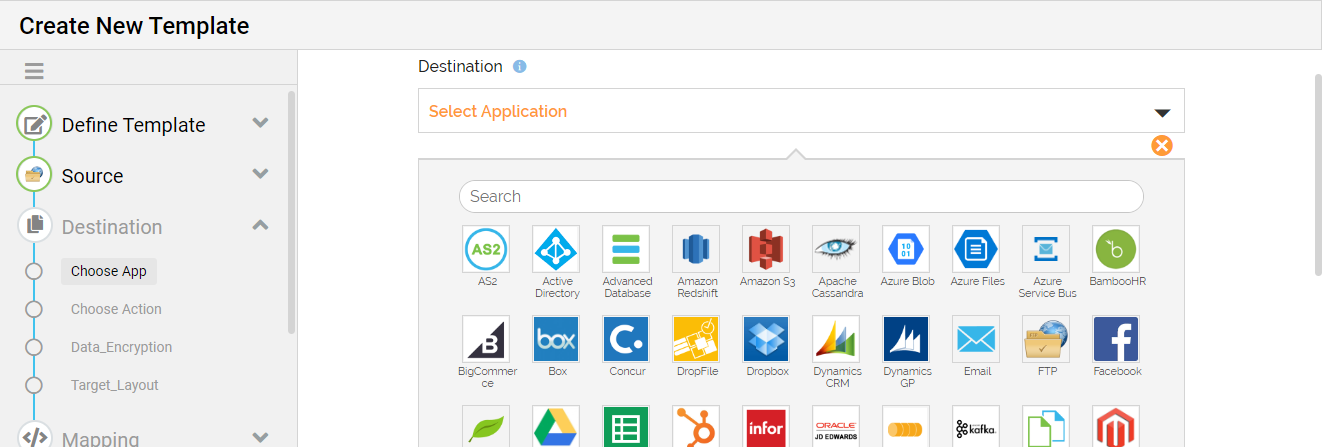
While defining the Destination in a Template or Transaction, at the Choose App step, select the required App Connector.
-
Click Next.
-
At the Select Account step, select either an existing Account (contains the details for connecting to the required application and exchanging data) in Adeptia Connect, or create a new one. For more details on how you can create a new Account, refer to the respective Connector on this page.
-
Click Continue.
You will be redirected to the respective third-party application's login page if you are not logged in to it. -
At the Choose Action step, select an action based on which Adeptia Connect sends data to the third-party application.

An action can have the capability to perform batch operations using a specific API endpoint.
For example, if you select the action Create Bill (Batch), you can send the request to create multiple bills in a set of batches by providing the batch size in the Batch Size field.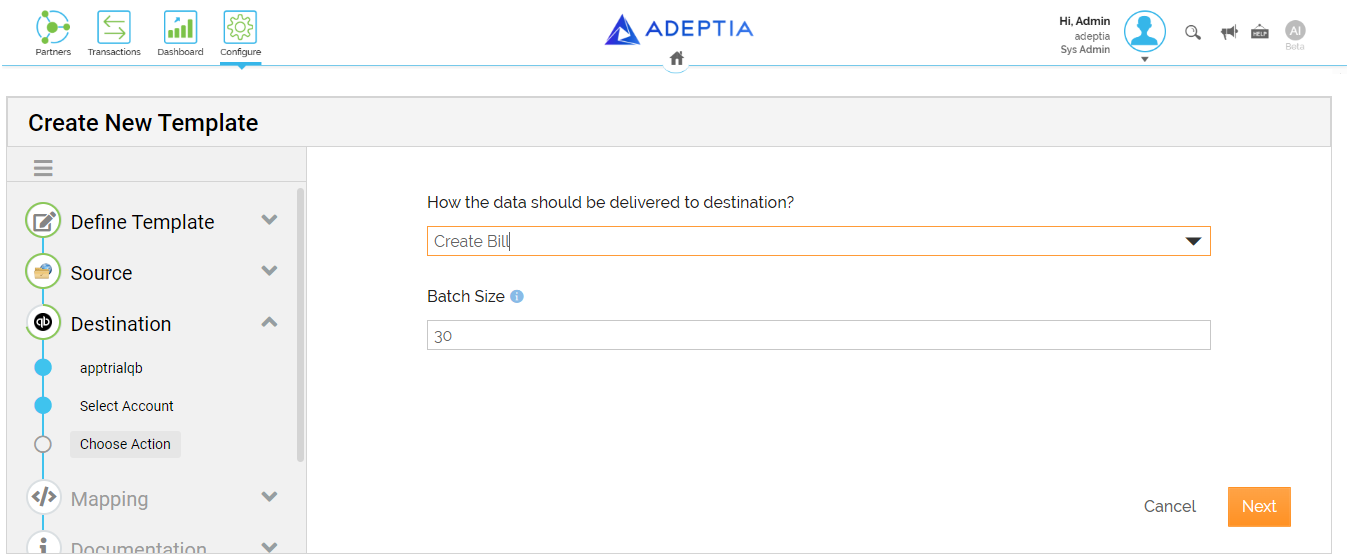
-
Follow the instructions in the wizard to complete the creation of the Template/Transaction.
At the Mapping step, you can use the Lookup function for a reference field (if available). For more details, refer to this page.